
Bookwork ebook reader for Linux Ubuntu Systems. Bookworm is a simple ebook reader for Elementary OS, which can be installed on Ubuntu. Bookworm supports epub, pdf, mobi, cbr, etc. This version supports EPUB, PDF and Comics (CBR and CBZ) formats.
It has an easy, simple layout to read books irrespective of the ebook format (epub, pdf, cbr, mobi, etc). A preference menu [] allows essential adjustments for text zoom in/out, margin increase/decrease and line width increase/decrease. Bookworm comes with three reading profiles of light, sepia and dark. Multiple pages of the book can be bookmarked [ ]. Full screen mode is supported on right click or with the shortcut F11.
User can toggle between a grid view and a list view for the library. Editing the book metadata is possible in both views however the list view allows sorting of metadata. Filtering is possible using the search bar in the library view.
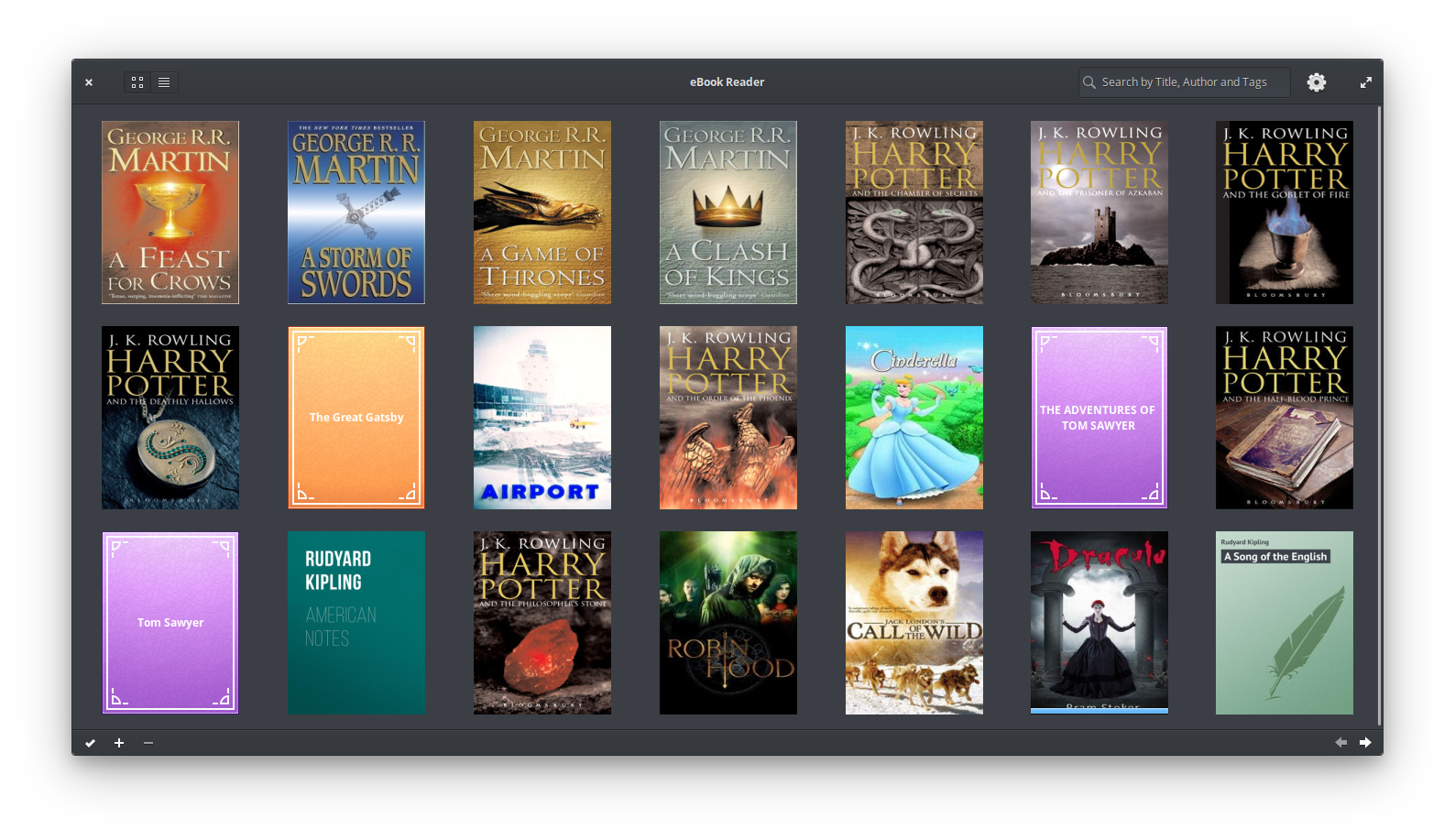
Install Bookworm
Bookworm is available as a PPA for Ubuntu (16.04 / Xenial) and other Ubuntu based systems. Open Terminal and run the following comands for installation
sudo apt-get update

sudo add-apt-repository ppa:bookworm-team/bookworm

sudo apt-get update

sudo apt install bookworm
If you want to build Bookworm from source with the required dependent packages, please open terminal and execute the following commands
sudo apt build-dep granite-demo

sudo apt install libgranite-dev valac libwebkit2gtk-4.0-37 libwebkit2gtk-4.0-dev libsqlite3-dev poppler-utils libpoppler-glib-dev git

git clone https://github.com/babluboy/bookworm.git

cd bookworm

mkdir build && cd build

cmake -DCMAKE_INSTALL_PREFIX=/usr ../

make

sudo make install
Once installed, open the app from Ubuntu Dash.
Key Features
The info button provides information in three tabs:
- Contents: A table of contents to easily jump to a chapter
- Bookmarks: The clickable list of bookmarks to jump to a bookmarked page of the book
- Search Results: A clickable list of lines contaning the search phrase found in the book
The preference button [] on the header bar provides further customization options:
- Night Mode: Enable Dark Theme
- Cache: This preserves the contents extracted from eBook for opening the book quickly for subsequent reading
- Library View at start: Always show the library view when Bookworm is opened
- Font: Select font family from available fonts on the system and font size for reading
- Customize Reading Profile: The text and background color for all three reading profiles can be customized
- Add folders to watch: Multiple folders can be added (and removed) to automatically add supported eBooks into the library