
SMPlayer 18.2 has been released. Install SMPlayer media player for Linux Ubuntu Systems. SMPlayer music player comes with with built-in codecs that can play virtually all video and audio formats. It can also play Youtube videos, search and download subtitles, and includes other features like a thumbnail generator and audio and video filters.
One of the most interesting features of SMPlayer: it remembers the settings of all files you play. SMPlayer supports the most known formats and codecs: avi, mp4, mkv, mpeg, mov, divx, h.264… you can play all of them, thanks to its built-in codecs. You don’t need to find and install third party codecs
SMPlayer is a graphical user interface (GUI) for the award-winning MPlayer, which is capable of playing almost all known video and audio formats.
SMPlayer 18.2
- Now it’s possible to use a priority list of preferred languages for the audio and subtitles.
- Now there’s support for YouTube playlists. In the playlist window, click in the Load/save icon, select Load playlist from URL and paste the URL of the YouTube playlist.
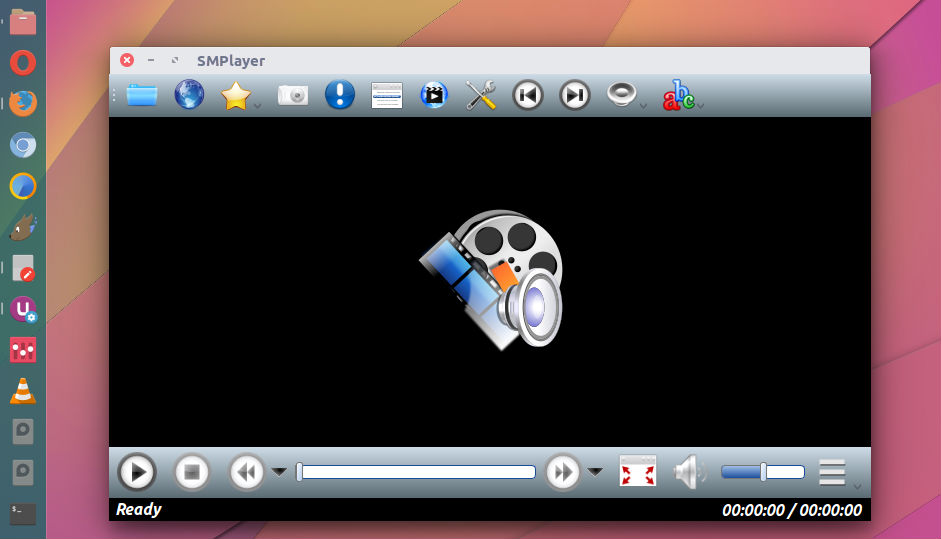
Install SMPlayer
Run the following commands in Terminal to install SMPlayer media player for Linux Ubuntu Systems:
sudo add-apt-repository ppa:rvm/smplayer

sudo apt-get update

sudo apt-get install smplayer smtube smplayer-themes
Once installed, open SMPlayer from Ubuntu Dash.
To open a file, just click on the first button in the toolbar or select the option File… in the Open menu. You can select any file from the formats supported by SMPlayer.
You can also play Youtube videos. To play a Youtube video, just select Youtube browser in the Options menu. You can search for a video typing a term in the search field at the bottom of the window. To play a video, just double click on it. Not only this, you can download subtitles. Yes! SMPlayer can find and download subtitles for you. Just open a video and the select Find subtitles on opensubtitles.org in the Subtitles menu.
Uninstall SMPlayer
If you aren’t happy with SMPlayer, uinstall and remove the SMPlayer using the following commands:
sudo apt-get update

sudo apt-get remove --autoremove smplayer smtube smplayer-*