
How to install Visual Studio Code in Ubuntu Linux. Terminal commands to install VS Code 1.28 in Ubuntu Linux.
September 2018 (version 1.28)
The update statement reads:
“Welcome to the September 2018 release of Visual Studio Code. As announced in the September iteration plan, we focused on housekeeping our GitHub issues and pull requests. Across all of our VS Code repositories, we closed (either triaged or fixed) 3918 issues. While we closed issues, you created 2187 new issues. This resulted in a net reduction of 1731 issues. The main vscode repository now has 2472 open feature requests and 625 open bugs. In addition, we closed 212 pull requests.”
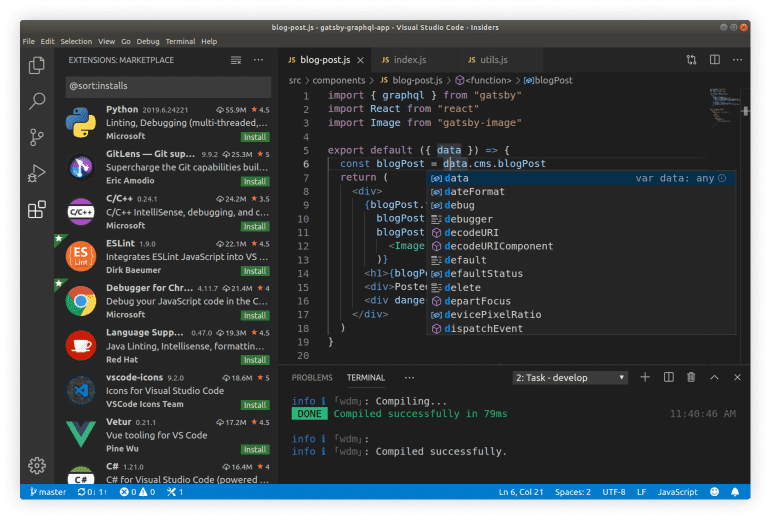
The release has addressed several feature requests and community pull requests also resulted in new features. Here are some of the release highlights:
- Custom file icons – VS Code file icons reflect file type in your OS explorer.
- Project level snippets – Tune your snippet collection per workspace.
- Editor Tab completion – Use Tab to easily cycle through IntelliSense suggestions.
- Jump to last edit – New command to go to the location of your last edit.
- Save without formatting – Save a file without changing the existing formatting.
- Git improvements – Better delete conflict handling, new rebase on sync option.
- Rename via import path – Rename a JS/TS file through its import path.
- Convert to async refactoring – Quickly update a function to use async and await.
- Better Markdown folding – Collapse code blocks, multi-line lists, and embedded HTML.
Install VS Code 1.28 in Ubuntu
First, download the DEB Package from https://code.visualstudio.com/Download and then run the following commands in terminal to install VS Code 1.28 in Ubuntu Systems:
sudo apt-get upgrade

sudo dpkg -i ~/Downloads/code_*.deb; sudo apt -f install

sudo sh -c 'echo "deb [arch=amd64] https://packages.microsoft.com/repos/vscode stable main" > /etc/apt/sources.list.d/vscode.list'

curl https://packages.microsoft.com/keys/microsoft.asc | gpg --dearmor > microsoft.gpg

sudo mv microsoft.gpg /etc/apt/trusted.gpg.d/microsoft.gpg

sudo apt-get install code