
uGet Download Manager for Ubuntu Linux. How to install uGet Download Manager 2.2.2 in Ubuntu Systems.
Using uGet Download Manager, one can download files in many segments to increase download speeds. uGet supports up to 16 simultaneous connections PER download. The application places downloads into a Queue to download as many, or as few, files simultaneously based on user preference per category. Users can al so pause and resume downloads – downloads allows you to temporarily pause downloads without having to start the download from the beginning.
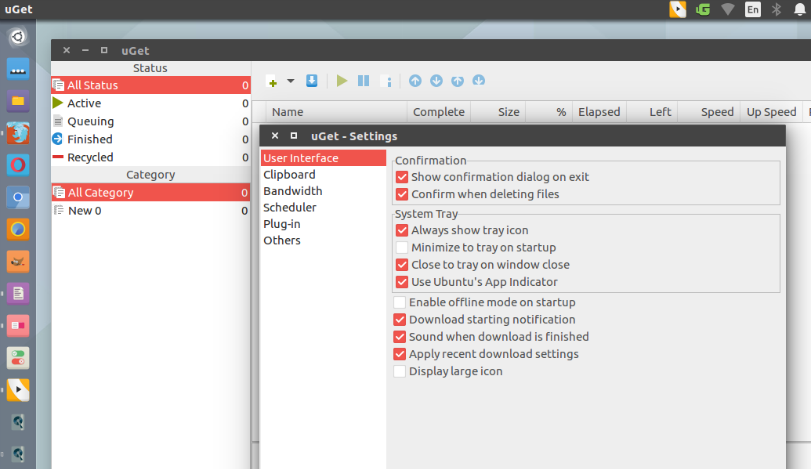
uGet is designed in a way so that it automatically adjust its appearance based on the color scheme and icons of the operating system it is installed on. uGet works with Light, Dark, and Hybrid themes instantly thanks to this adjustment mechanism.
It also comes with clipboard manager, which monitor various file types and any time you add them to your clipboard, uGet will prompt you to ask if you’d like to download those files. – also works with batch downloads.
And yes it supports browser integration. uGet offers Browser Integration thanks to the community extension “uget-chrome-wrapper”. This extension supports Firefox, Google Chrome, Chromium, Opera, and Vivaldi.
Install uGet Download Manager
Run the following commands in terminal to install uGet Download Manager in Ubuntu Linux Systems:
sudo apt-get upgrade

sudo apt-get update

sudo add-apt-repository ppa:plushuang-tw/uget-stable

sudo apt-get update

sudo apt-get install uget
Once installed, opne uGet Download Manager from Ubuntu Dash or Terminal.

Uninstall uGet Download Manager
Run the following commands in terminal to install and remove uGet Download Manager:
sudo apt-get install ppa-purge

sudo ppa-purge ppa:plushuang-tw/uget-stable

sudo apt-get update