
How to find and remove duplicate files on Linux Ubuntu. Wondering “how to find duplicate files on external hard drive”, use FSLint utility to find and delete duplicate files in folder.
FSlint
FSlint is a toolkit to find duplicate files. It can also find bad symbolic links, troublesome file names, empty directories, non stripped executables, temporary files, duplicate/conflicting (binary) names, and unused ext2 directory blocks.
FSlint comes with FSlint Janitor Graphical Application and FSlint Command Line Utility.
Installing FSLint
Run the following commands to install the latest version of fslint package on Ubuntu and Debian based systems:
$ sudo apt-get update

$ sudo apt-get install fslint
FSlint Graphical Interface
One of the most commonly used features of FSlint is the ability to find duplicate files. The easiest way to remove lint from a hard drive is to discard any duplicate files that may exist. As the duplicates are collected, they eat away at the available hard drive space.
The first menu option offered by FSlint allows you to find and remove these duplicate files.
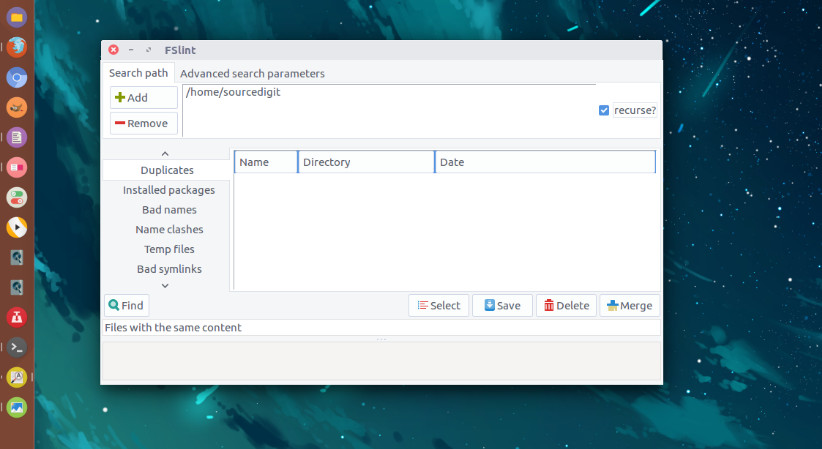
The ‘Duplicates’ tab on the left hand side of the screen is the default tab selected at FSlint start up. The algorithm used to determine if a file is a duplicate of another is very thorough to minimize any possible false positives that may lead to data loss. FSlint scans the files and filters out files of different sizes.
Any remaining files of the exact same size are then checked to ensure they are not hard linked. A hard linked file could have been created on a previous search should the user have chosen to ‘Merge’ the findings. Once FSlint is sure the file is not hard linked, it checks various signatures of the file using md5sum.
To guard against md5sum collisions, FSlint will re-check signatures of any remaining files using sha1sum checks.
The ‘Duplicates’ interface is very simple. After the user has verified the ‘Search path’ location that they wish to search, they can simply click the ‘Find’ button on the lower left of the screen. When the process has finished the results of the found duplicate files are displayed in the central portion of the screen. All of the duplicate files will be grouped together under a grey bar giving information such as how many files are in the group and the number of bytes wasted in duplicate files.
The files themselves are listed below the grey divider by their name, directory, and last modification date. Listed directly below the ‘Find’ button is the total number of bytes wasted in the total number of files and total number of groups.