
Download these best icons for Ubuntu 19.10 Desktop. These are among the best Ubuntu Themes; best Icon Themes for Ubuntu 19.10 and Ubuntu 19.04 Systems.
- Arc Theme
- Numix Icon Theme
- Kylin Icon Theme
- Papirus Icon Theme
- Oranchelo Icon Theme
- Paper Icon Theme
- Arc-Flatabulous Theme
- Arc Red GTK Theme
- Vivacious Colors Icon Theme
- Shadow Icon Theme
Install Arc Theme On Ubuntu
Arc is a flat theme with transparent elements and comes in three variants – Arc, Arc-Dark and Arc-Darker. Arc is a flat theme with transparent elements for GTK 3, GTK 2 and Gnome-Shell which supports GTK 3 and GTK 2 based desktop environments like Gnome, Unity, Budgie, Pantheon, XFCE, Mate, etc. Arc theme can be downloaded and installed on Ubuntu Systems in three variants – Arc, Arc Dark and Arc Darker.
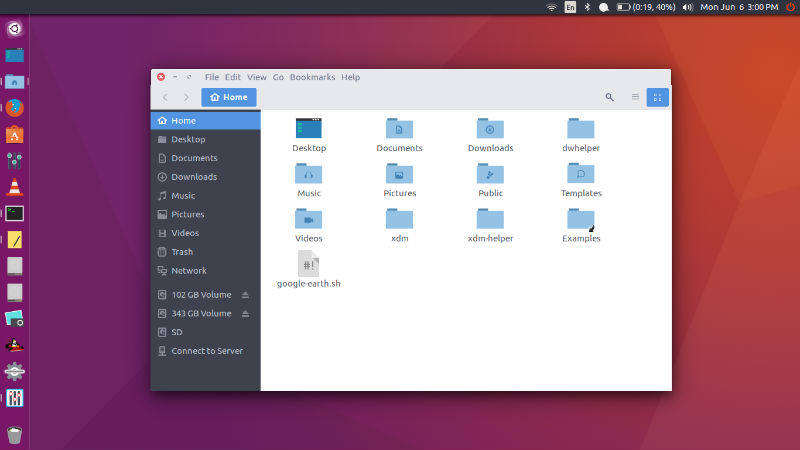
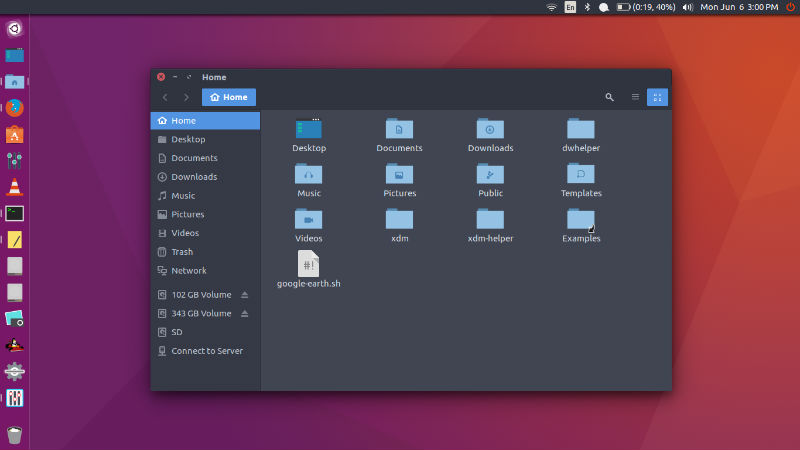
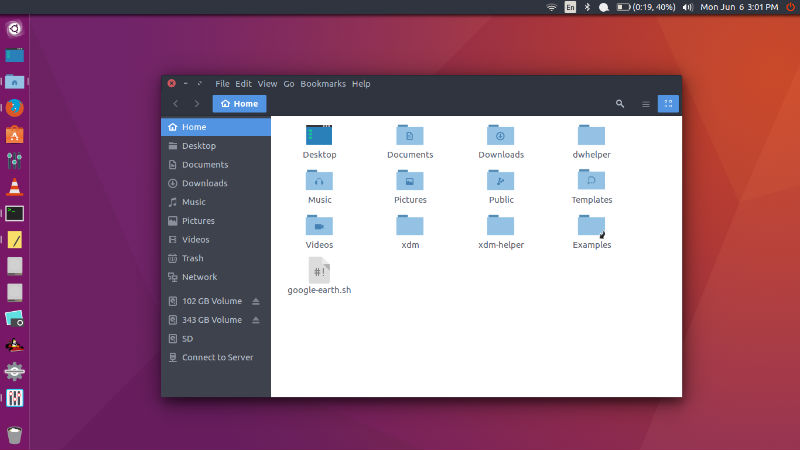
Install Arc Theme on Ubuntu
sudo add-apt-repository ppa:noobslab/themes

sudo apt-get update

sudo apt-get install arc-theme
Install Arc Icon on Ubuntu
sudo add-apt-repository ppa:noobslab/icons

sudo apt-get update

sudo apt-get install arc-icons
Install Numix Icon Theme
You can easily install Numix Icon Packs in Ubuntu 16.04 and Ubuntu Derivatives.
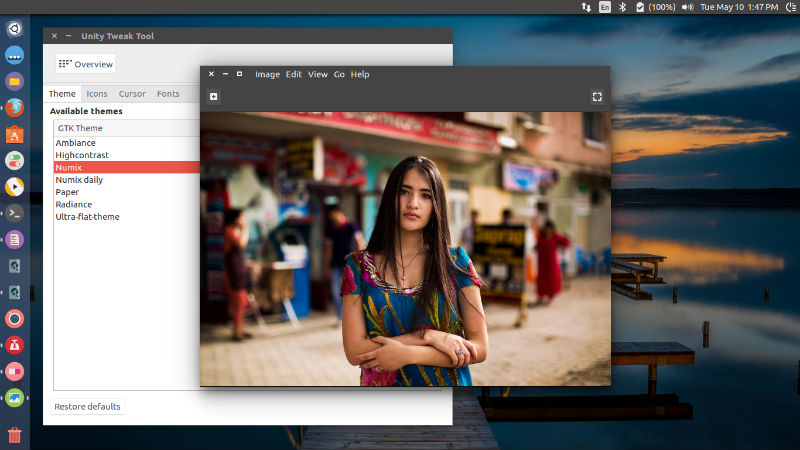
To install all the Numix icons at once, run the following commands in Terminal:
sudo apt-add-repository ppa:numix/ppa

sudo apt-get update

sudo apt-get install numix-icon-theme numix-icon-theme-circle numix-icon-theme-shine numix-icon-theme-utouch
If you don’t want to install all the Numix icons and Numix themes, you can install selective ones. To do, just run the commands for the corresponding Numix icons.
Install Kylin Theme on Ubuntu
Kylin Icon Theme, inspired by the suru icon theme is a fabulous theme for Ubuntu Systems. The Kylin theme is available to download and install on Ubuntu (download link below).
Click to Install the Kylin Icon Theme on Ubuntu
NOTE: Installing Kylin icon theme also installs other Kylin-themed system UI tweaks such as Plymouth boot screen and GTK theme.
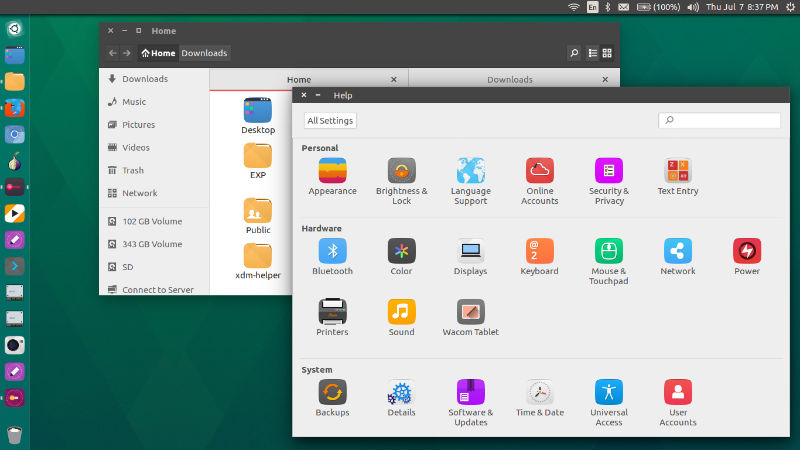
If you don’t want to install all these additional UI parts, install the Kylin icon theme manually. Download the icons, extract it, and place the ‘ubuntukylin-icon-theme’ folder in to ‘~/.icons’ folder in the home directory. Please note that /.icons folder is hidden. Press Ctrl+h to see all the hidden directories and files.
Install Papirus Icon Theme On Ubuntu
Papirus Icon is derived from Sam Hewitt’s Paper Icon Theme. The icon theme is designed to work with Unity, GNOME, Cinnamon and other GTK+ based desktop environments. A version for KDE users is also available.
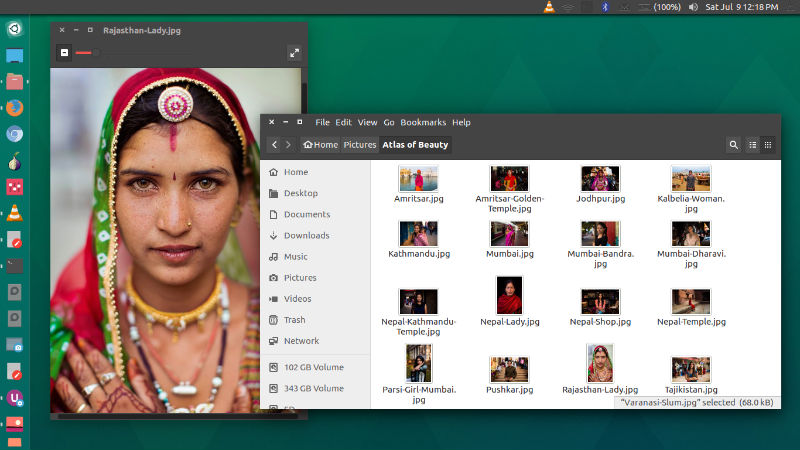
To install on Ubuntu 16.04 run the following commands in a new Terminal window:
sudo add-apt-repository ppa:varlesh-l/papirus-pack

sudo apt-get update

sudo apt-get install papirus-gtk-icon-theme
Once downloaded and installed, you can use the Papirus Ubuntu theme via Ubuntu Tweak/Unity Tweak Tool.
Install Oranchelo Icons
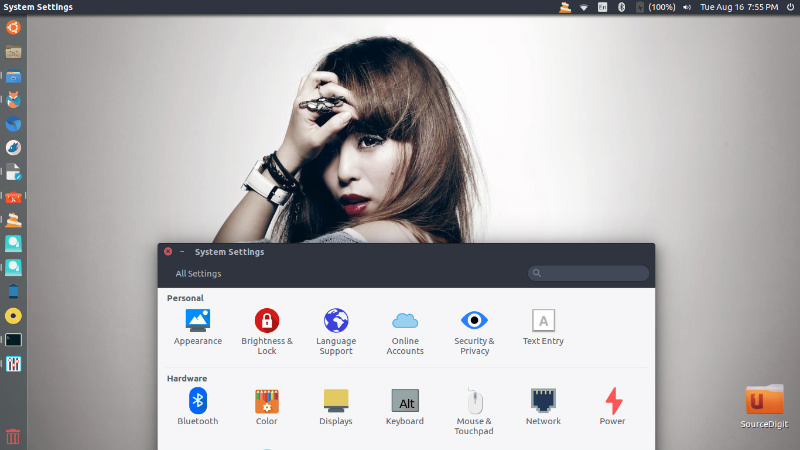
You can install the theme on Ubuntu Systems, using Terminal. Run the following commands in Terminal to install the theme:
sudo add-apt-repository ppa:oranchelo/oranchelo-icon-theme
sudo apt-get update
sudo apt-get install oranchelo-icon-theme
Install Papirus Icons
Papirus Icon is derived from Sam Hewitt’s Paper Icon Theme. The icon theme is designed to work with Unity, GNOME, Cinnamon and other GTK+ based desktop environments. A version for KDE users is also available.
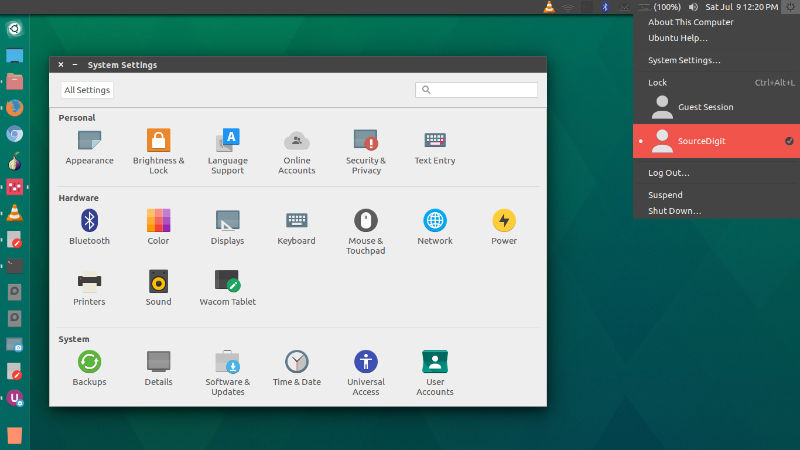
To install Papirus icons on Ubuntu, run the following commands in Terminal:
sudo add-apt-repository ppa:varlesh-l/papirus-pack
 sudo apt-get update
 sudo apt-get install papirus-gtk-icon-theme
Install Paper Icons
Paper is a modern icon theme whose design is based around the use of simple colours and geometry to compose icons. While it does take some inspiration from Google’s Material Design icons, some design aspects have been adjusted to better suit desktop viewing.
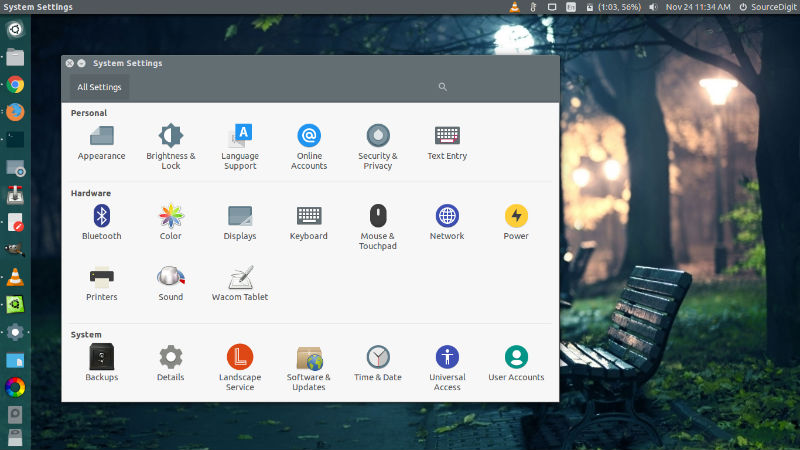
Run the following commands in Terminal to install Paper Theme and Icons on Ubuntu:
 $ sudo add-apt-repository ppa:snwh/pulp
 $ sudo apt-get update
 $ sudo apt-get install paper-icon-theme paper-gtk-theme
Install Arc-Flatabulous Theme on Ubuntu
Arc-Flatabulous theme is the Arc theme with Flatabulous window controls. It is an ultra flat theme for Ubuntu Linux Systems. Arc-Flatabulous theme is the Arc theme with Flatabulous window controls. The Arc-Flatabulous is available in three variants – Arc-Flatabulous, Arc-Flatabulous Dark and Arc-Flatabulous Darker.
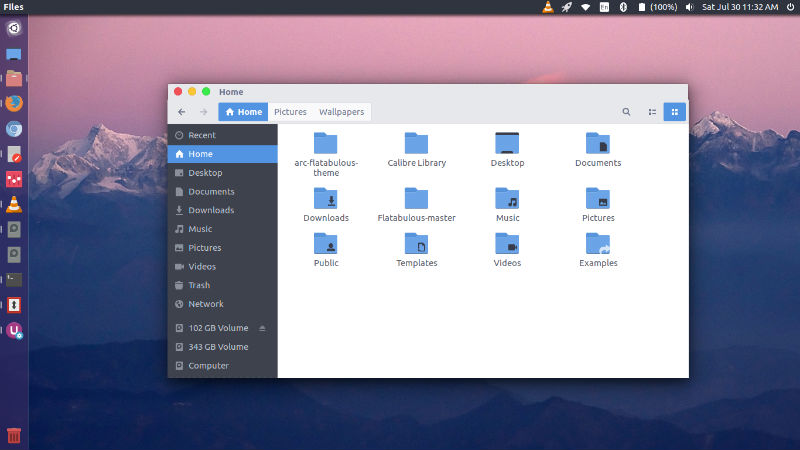
Noobslab PPA has created a PPA to install Arc-Flatabulous theme on Linux Ubuntu Systems. Run the following commands in Terminal to install the theme:
sudo add-apt-repository ppa:noobslab/themes
 sudo apt-get update
 sudo apt-get install arc-flatabulous-theme
Install Arc Red GTK Theme On Ubuntu
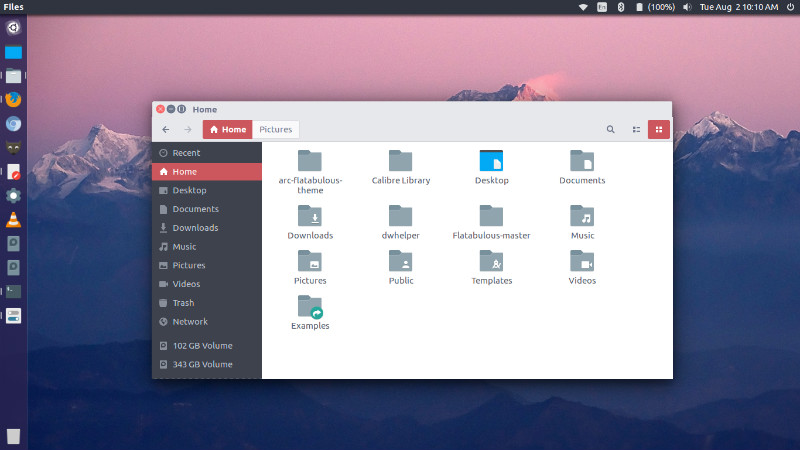
Arc Red flat theme for Ubuntu Linux, available in three variants – Arc-Red, Arc-Red-Darker and Arc-Red-Dark. It is a red variation of Horst3180’s Arc Theme. This version has a reduced color range, is mostly gray and red. I developed this version especially for all those who use linux on a Thinkpad.
Run the following commands to install Arc Red GTK Theme on Linux Ubuntu Systems:
$ sudo apt-get install autoconf automake libgtk-3-dev git
 $ cd /opt
 $ sudo git clone https://github.com/mclmzz/arc-theme-Red --depth 1 && cd arc-theme-Red
 $ sudo ./autogen.sh --prefix=/usr
 $ sudo make install
 $ cd ..
 $ sudo rm -Rf arc-theme-Red
Install Vivacious Colors Icon Theme On Ubuntu
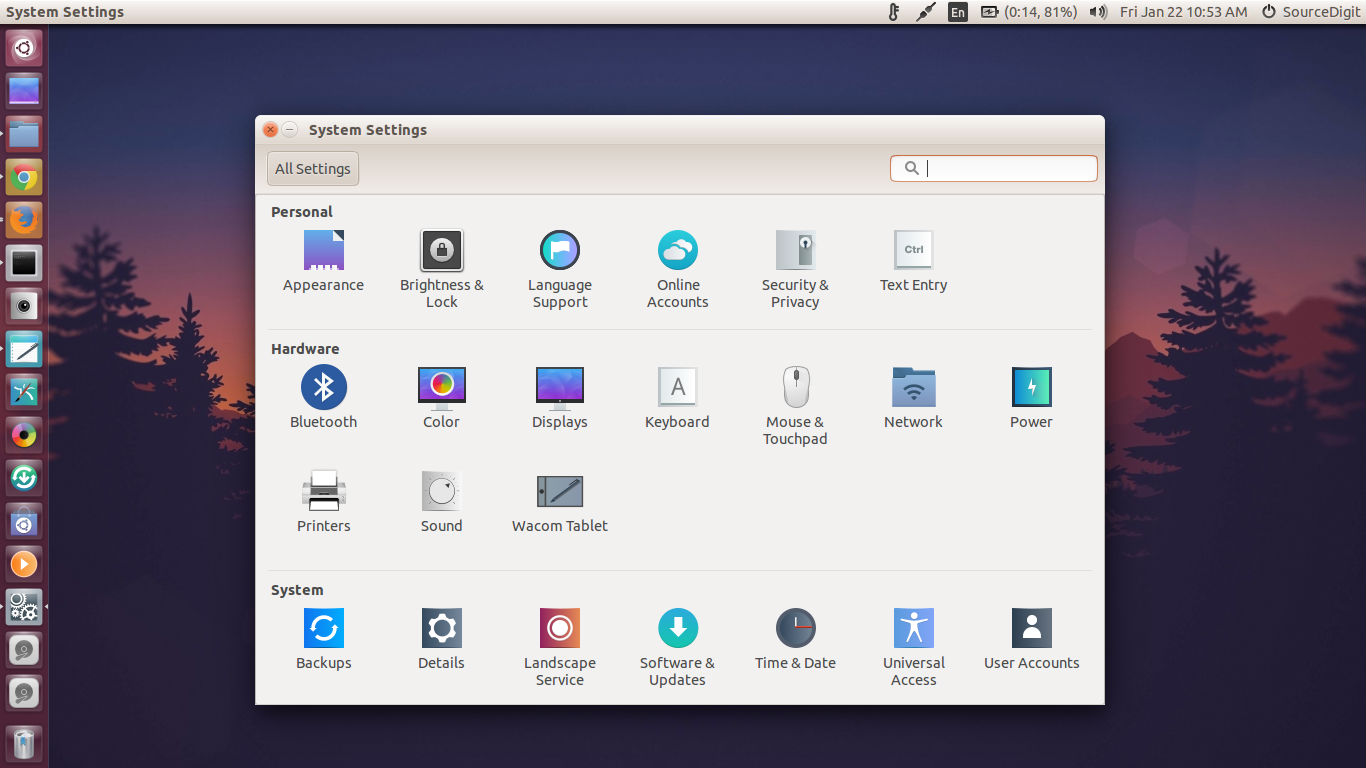
Vivacious Colors Icon Theme can be installed on Ubuntu, 15.04, 14.10, 14.04 Mint 17.1 etc by using the RAVEfinity PPA. Run the following commands to install Vivacious Colors Icon Theme on Ubuntu Systems:
sudo add-apt-repository ppa:ravefinity-project/ppa

sudo apt-get update

sudo apt-get install vivacious-colors
If You Want 10 More Great Folder Colors. Then Just Install:
sudo apt-get install vivacious-folder-colors-addon
Install Shadow Icon Theme on Ubuntu
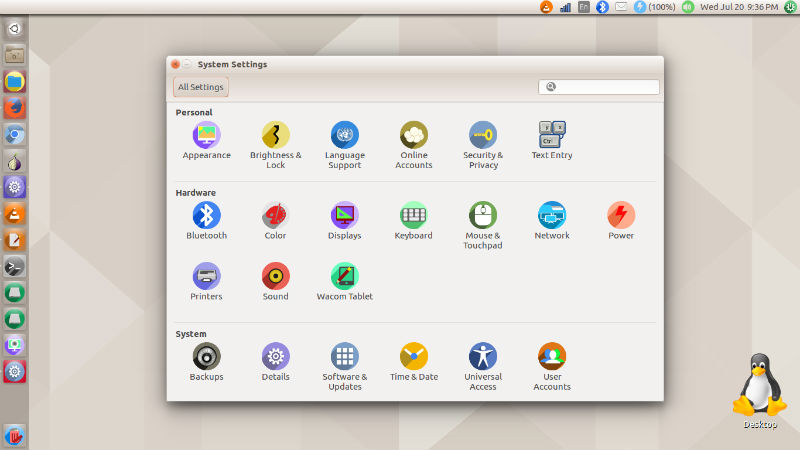
Shadow icon theme can be installed manually. Simply download the
Shadow Icon Theme from developer github page and extract the downloaded
theme to /usr/share/icon directory. You can either place the theme
manually or run the foll0wing commands to extract and place it in icon
directory.
$ cd /usr/share/icons

$ sudo wget https://github.com/rudrab/Shadow/archive/v2.tar.gz

$ sudo tar -xzvf v2.tar.gz

$ sudo rm -Rf v2.tar.gz