
How to install GIMP in Ubuntu 19.10 and Ubuntu 19.04 via Terminal. GIMP 2.10.14 is released with security fixes, tool improvements and arcitecture enhancements.
GIMP is an acronym for GNU Image Manipulation Program. It is a freely distributed program for such tasks as photo retouching, image composition and image authoring.
It has many capabilities. It can be used as a simple paint program, an expert quality photo retouching program, an online batch processing system, a mass production image renderer, an image format converter, etc.
GIMP is expandable and extensible. It is designed to be augmented with plug-ins and extensions to do just about anything. The advanced scripting interface allows everything from the simplest task to the most complex image manipulation procedures to be easily scripted. GIMP is available for Linux, Microsoft Windows and OS X.
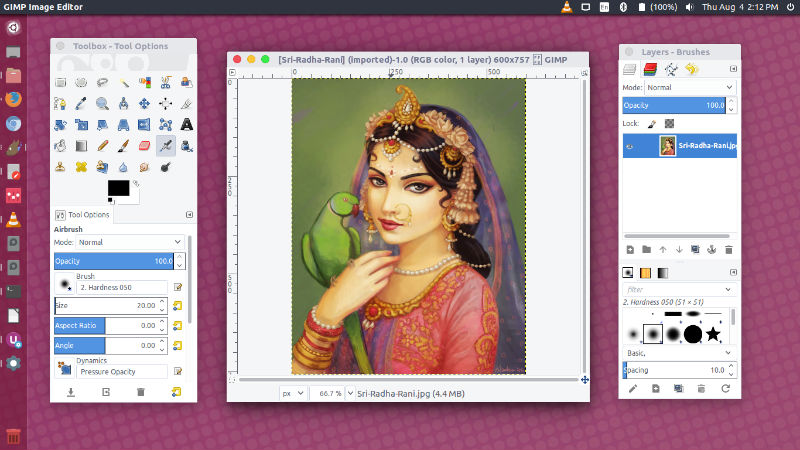
Changes in version 2.10.14
GIMP 2.10.14 is again mostly a bug fix release, making GIMP rock-solid. Furthermore many old filters got finally ported to GEGL. Of course it also has a few noteworthy improvements:
- View menu: new “Show All” option to reveal pixels outside the canvas boundary
- Filters: new “Clipping” option to allow layer resize when relevant
- Foreground Select tool: new “Grayscale” Preview Mode
- Foreground Select tool: color/opacity selector for “Color” preview
- Free Select tool: improved copy-paste interaction
- Transform tools: new Image transform type to transform the whole image
- Preferences: new “Allow editing on non-visible layers” setting
- HEIF import/export: color profile support
- PDF export: text layers in layer groups now exported as texts
- TIFF import: now asks how to process unspecified TIFF channels
How to Install GIMP
Make sure to follow the setup guide before installing
flatpak install flathub org.gimp.GIMP
Run:
flatpak run org.gimp.GIMP
How to Install Flatpak
To install Flatpak on Ubuntu 18.10 (Cosmic Cuttlefish) or Ubuntu 19.04 (Disco Dingo), simply run:
sudo apt install flatpak
With older Ubuntu versions, the official Flatpak PPA is the recommended way to install Flatpak. To install it, run the following in a terminal:
sudo add-apt-repository ppa:alexlarsson/flatpak sudo apt update sudo apt install flatpak
Install the Software Flatpak plugin
The Flatpak plugin for the Software app makes it possible to install apps without needing the command line. To install, run:
sudo apt install gnome-software-plugin-flatpak
Add the Flathub repository
Flathub is the best place to get Flatpak apps. To enable it, run:
flatpak remote-add --if-not-exists flathub https://flathub.org/repo/flathub.flatpakrepo
Please remember to complete setup, you must restart your system.