
Here is the method to check installed packages in Ubuntu and how to check installed software in Ubuntu terminal.
On Ubuntu, list manually installed packages by date or run the following command to check recently installed packages in Linux Ubuntu.
List Recently Installed Packages on Ubuntu Linux
apt provides a high-level commandline interface for the package management system. Two most useful options to lists all packages installed on Ubuntu system are:
1. show (apt-cache(8)) – Show information about the given package(s) including its dependencies, installation and download size, sources the package is available from, the description of the packages content and much more. It can e.g. be helpful to look at this information before allowing apt(8) to remove a package or while searching for new packages to install.
2. list (work-in-progress) – list is somewhat similar to dpkg-query –list in that it can display a list of packages satisfying certain criteria. It supports glob(7) patterns for matching package names as well as options to list installed (–installed), upgradeable (–upgradeable) or all available (–all-versions) versions.
List Installed Packages on Ubuntu Linux
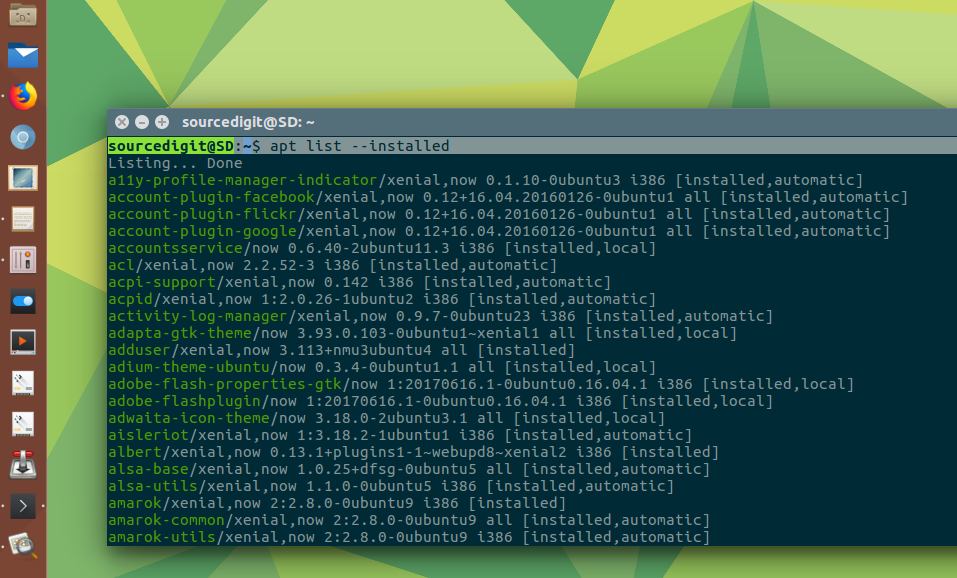
You can use apt commands to list all packages installed on your system:
sudo apt list --installed
The above command will display a list of all installed packages. It will also show information about the packages versions and architecture and also whether the package was automatically installed as a dependency of any another package.
THe only concern is that the packages list is long and is almost impossible to read the list at once. So we can break and pipe the result to make it easier to read. It can be done using the following command parameters:
sudo apt list --installed | less
You can also find out whether a specific package is installed. We can use grep command to filter the output to find whether the firefox package is installed:
sudo apt list --installed | grep firefox
List Installed Packages with dpkg-query
dpkg is a tool to install, build, remove and manage Debian packages. The primary and more user-friendly front-end for dpkg is aptitude(1). dpkg itself is controlled entirely via command line parameters, which consist of exactly one action and zero or more options. The action parameter tells dpkg what to do and options control the behavior of the action in some way.
dpkg maintains some usable information about available packages. The information is divided in three classes: states, selection states and flags. These values are intended to be changed mainly with dselect.
dpkg-query actions
- -l, –list package-name-pattern… List packages matching given pattern.
- -s, –status package-name… Report status of specified package.
- -L, –listfiles package-name… List files installed to your system from package-name.
- -S, –search filename-search-pattern… Search for a filename from installed packages.
- -p, –print-avail package-name… Display details about package-name, as found in /var/lib/dpkg/available. Users of APT-based frontends should use apt-cache show package-name instead.
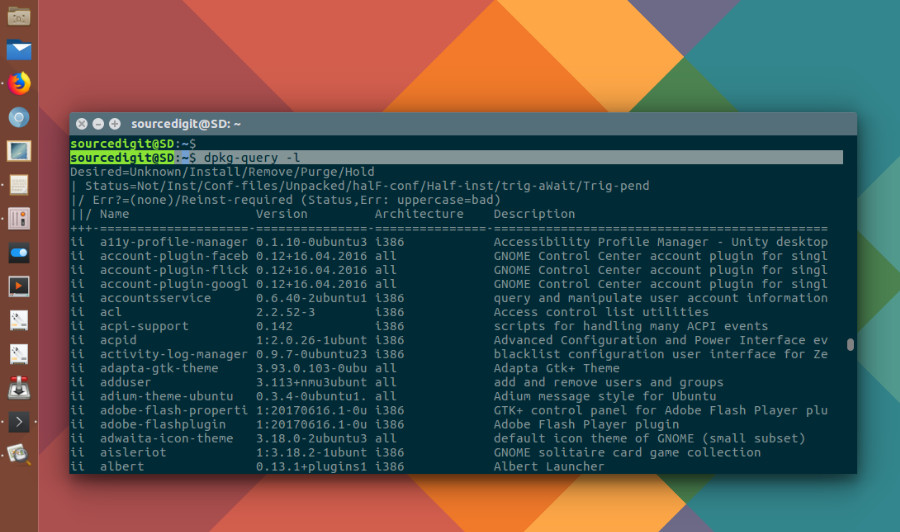
Using dpkg-query
dpkg-query is a command line that can be used to display information about packages listed in the dpkg database on the Ubuntu Linux System. Run the following commands to get a list of all installed packages:
sudo dpkg-query -l | less
The output of the dpkg-query command displays information such as the packages versions, architecture, and a short description of each package.
For a short easy readable list, use the dpkg-query -l command as:
sudo dpkg-query -l | grep package_name
Count the Number of Installed Packages on Ubuntu
If you simply wish to find out how many packages are installed on Ubuntu Linux system, run the following command:
sudo dpkg-query -f '${binary:Package}\n' -W | wc -l
The output will show the number of installed packages in numbers.