
On Ubuntu, here is how to downgrade package to previous version. Users can easily downgrade a package in Linux Ubuntu; install older version of package on the system.
Downgrade Package To Previous Version
Before you begin to downgrade a package to its previous version, you must list all the available versions of the specific package. This is necessary to find out all the available version of a specific package in the repositories. It will help you to downgrade to that specific version.
To list all the available versions, by running apt policy command
sudo apt policy firefox
You can also list the available version of a specific package in the repositories using the following command:
sudo apt-cache showpkg firefox
Using the command we can see all about firefox:
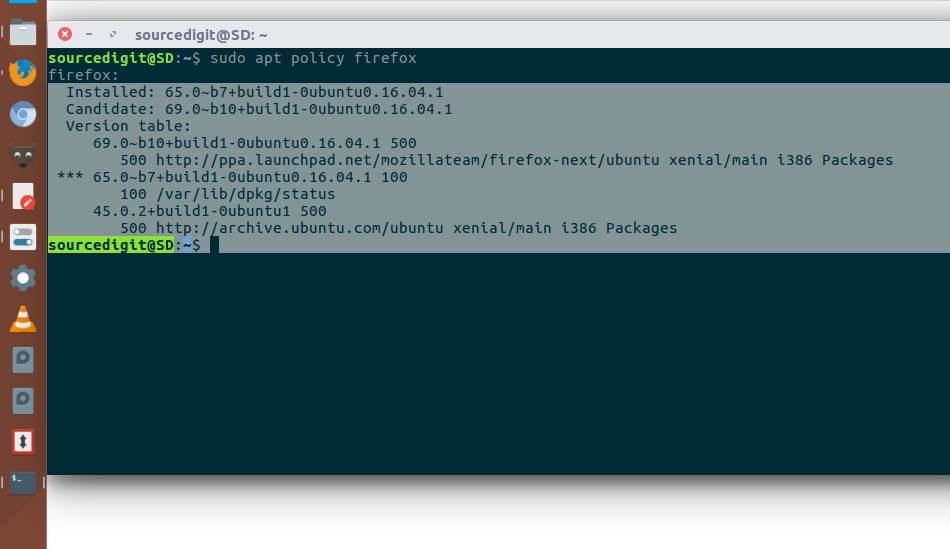
Installed: 65.0~b7+build1-0ubuntu0.16.04.1
Candidate: 69.0~b10+build1-0ubuntu0.16.04.1
Version table:
69.0~b10+build1-0ubuntu0.16.04.1 500
500 http://ppa.launchpad.net/mozillateam/firefox-next/ubuntu xenial/main i386 Packages
*** 65.0~b7+build1-0ubuntu0.16.04.1 100
100 /var/lib/dpkg/status
45.0.2+build1-0ubuntu1 500
500 http://archive.ubuntu.com/ubuntu xenial/main i386 Packages
Once you find the specific version of the package to downgrade, you can install its older version. To install an older version of any package, run the following command in Terminal:
sudo apt-get install packagename=version
Once the command is executed. You can open the application and verify its version.