
How to use gnome-screenshot command in Linux to take screenshot via command line terminal in Ubuntu Linux. Here is the shortcut key to take screenshot in Ubuntu.
gnome-screenshot command
gnome-screenshot is the command to take screenshot via command line terminal in Ubuntu Linux systems. The gnome-screenshot command is used to capture the screen or a window, or an user-defined screen area and save the snapshot image to a file. The gnome-screenshot command comes with an optional beautifying border effects.
The gnome-screenshot command has the following command syntax and arguments:
gnome-screenshot [ -c ] [ -w ] [ -a ] [ -b ] [ -B ] [ -p ] [ -d SECONDS ] [ -e EFFECT ] [ -i ] [ -f FILENAME ] [ –display DISPLAY ]
- -c, –clipboard: Send the grab directly to the clipboard.
- -w, –window: Grab the current active window instead of the entire screen.
- -a, –area: Grab an area of the screen instead of the entire screen.
- -b, –include-border: Include the window border within the screenshot.
- -B, –remove-border: Remove the window border from the screenshot.
- -p, –include-pointer: Include the pointer with the screenshot.
- -d, –delay=SECONDS: Take the screenshot after the specified delay [in seconds].
- -e, –border-effect=EFFECT: Add an effect to the outside of the screenshot border. EFFECT can be
shadow'' (adding drop shadow), *border” (adding rectangular space around the screenshot),vintage'' (desaturating the screenshot slightly, tinting it and adding rectangular space around it) ornone” (no effect). - -i, –interactive: Interactively set options in a dialog.
- -f, –file=FILENAME: Save screenshot directly to this file.
- –display=DISPLAY: X display to use.
- -?, -h, –help: Show a summary of the available options.
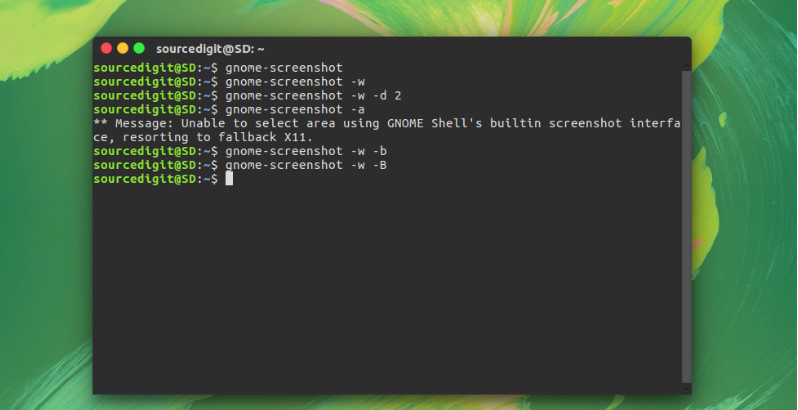
Using gnome-screenshot command
Type the command “gnome-screenshot” to take screenshot. This command in similar to use print screen or using screenshot tool.
$ gnome-screenshot
Capture the Current Window:
Type the command “gnome-screenshot -w” to take screenshot of th current window. It is similar to take screenshot of the current active window.
$ gnome-screenshot -w
Take Screenshot After Some Time Delay:
To take screenshot after some delay in seconds, use the command “gnome-screenshot -w -d 2” to take screenshot. The option -d 2 is used for take screenshot after a delay of 2 seconds.
$ gnome-screenshot -w -d 2
Capture a Particular Window Area:
To take screenshot of a particular window area, use the -a option with the command “gnome-screenshot”.
$ gnome-screenshot -a
Take Screenshot With or Without Window Border:
You can also take screenshot with or without screen window border – including or excluding the window border. Type the command “gnome-screenshot” with -b/-B options.
Including the window border:
$ gnome-screenshot -w -b
Excluding the window border:
$ gnome-screenshot -w -B