
Install the latest BleachBit in Ubuntu via command line. If you want to clean junk files and temp files in Ubuntu, here is how to use BleachBit in Ubuntu.
BleachBit 4.1.1
BleachBit you can free cache, delete cookies, clear Internet history, shred temporary files, delete logs, and discard junk you didn’t know was there. Designed for Linux and Windows systems, it wipes clean thousands of applications including Firefox, Adobe Flash, Google Chrome, Opera, and more.
Beyond simply deleting files, BleachBit includes advanced features such as shredding files to prevent recovery, wiping free disk space to hide traces of files deleted by other applications, and vacuuming Firefox to make it faster.
How to Use BleachBit
Linux Ubuntu users can use BleachBit to:
- Free disk space
- Reduce the size of backups and the time to create them by removing unnecessary files
- Maintain privacy
- Improve system performance (by vacuuming the Firefox database, for example)
- Prepare whole disk images for compression (common for “ghost” backups and virtual machines) by wiping free disk space
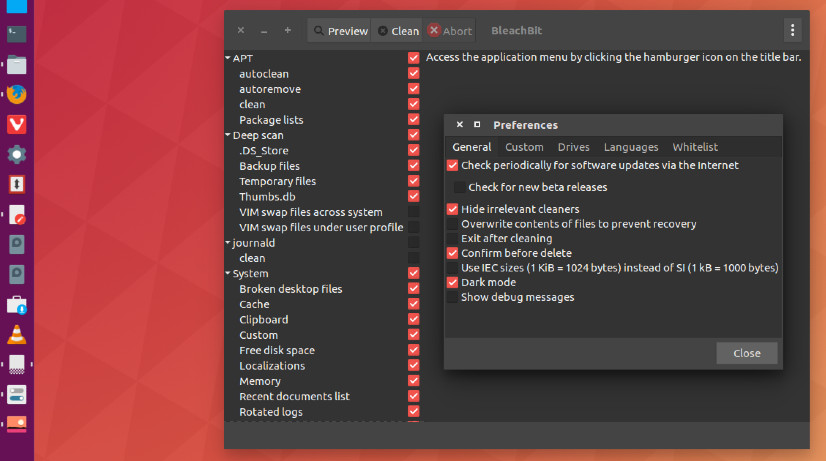
BleachBit has many useful features designed to help you easily clean your computer to free space and maintain privacy.
- Delete your private files so completely that “even God can’t read them” according to South Carolina Representative Trey Gowdy.
- Simple operation: read the descriptions, check the boxes you want, click preview, and click delete.
- Multi-platform: Linux and Windows
- Free of charge and no money trail
- Free to share, learn, and modify (open source)
- No adware, spyware, malware, backdoors, browser toolbars, or “value-added software”
- Translated to 64 languages besides American English
- Shred files to hide their contents and prevent data recovery
- Shred any file (such as a spreadsheet on your desktop)
- Overwrite free disk space to hide previously deleted files
- Portable app for Windows: run without installation
- Command line interface for scripting and automation
- CleanerML write your own cleaners using XML
- Automatically import and update winapp2.ini cleaner files (a separate download) giving Windows users access to 2500+ additional cleaners
- Frequent software updates with new features
Download & Install BleachBit
Visit this official source to download BleachBit for Linux Ubuntu systems.