
How to check CPU and memory utilization in Linux Ubuntu. Here is the command to check CPU utilization in Linux. How to check CPU utilization in Linux for a process.
top Command
top is used to display Linux processes. It provides a dynamic real-time view of a running system. It displays system summary information as well as a list of processes or threads currently being managed by the Linux kernel.
The top command provides a limited interactive interface for process manipulation as well as a much more extensive interface for personal configuration.
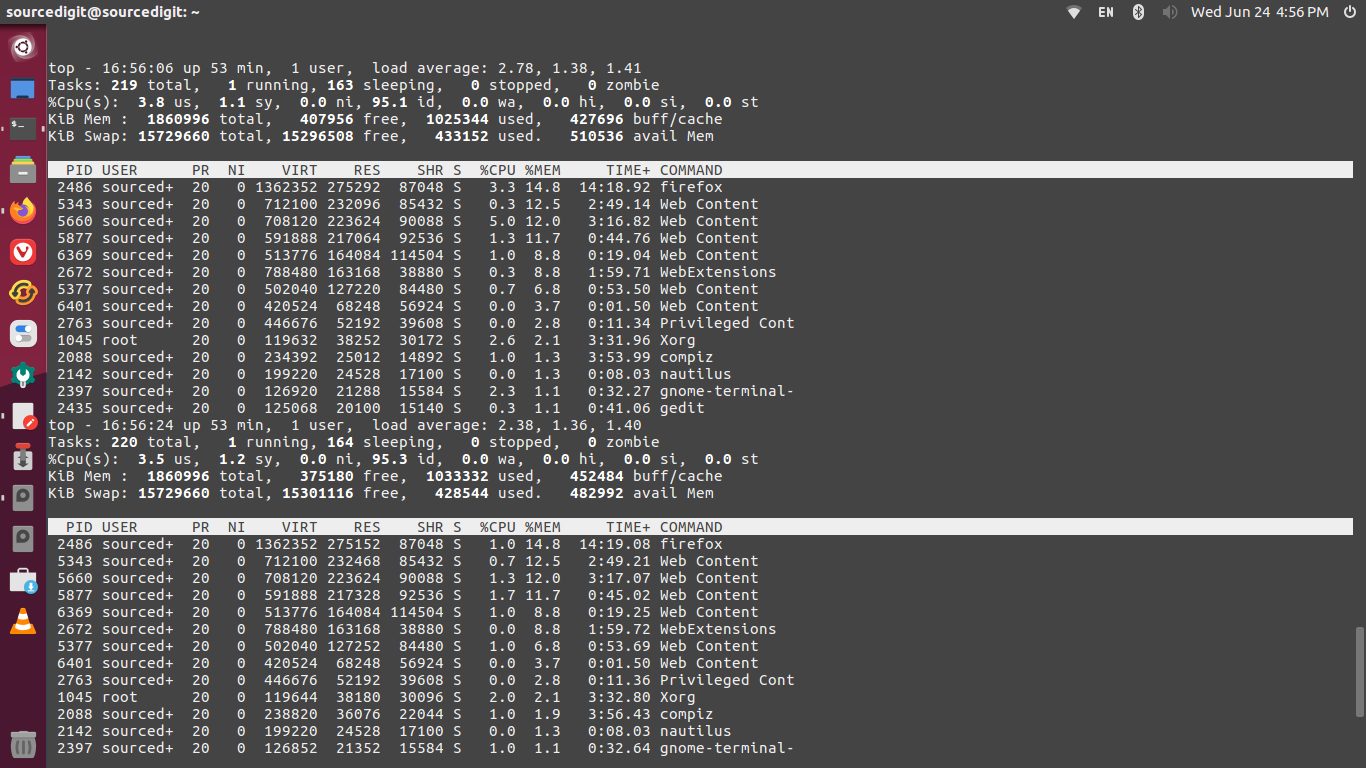
Two of the most important factors displayed by the top command are:
- %CPU — CPU Usage: The task’s share of the elapsed CPU time since the last screen update, expressed as a percentage of total CPU time. In a true SMP environment, if a process is multi-threaded and top is not operating in Threads mode, amounts greater than 100% may be reported.
- %MEM — Memory Usage (RES): A task’s currently used share of available physical memory.
If you want to make top a bit more memory-friendly, issue the command top -o %MEM, which will cause top to sort all processes by memory used (see figure below).
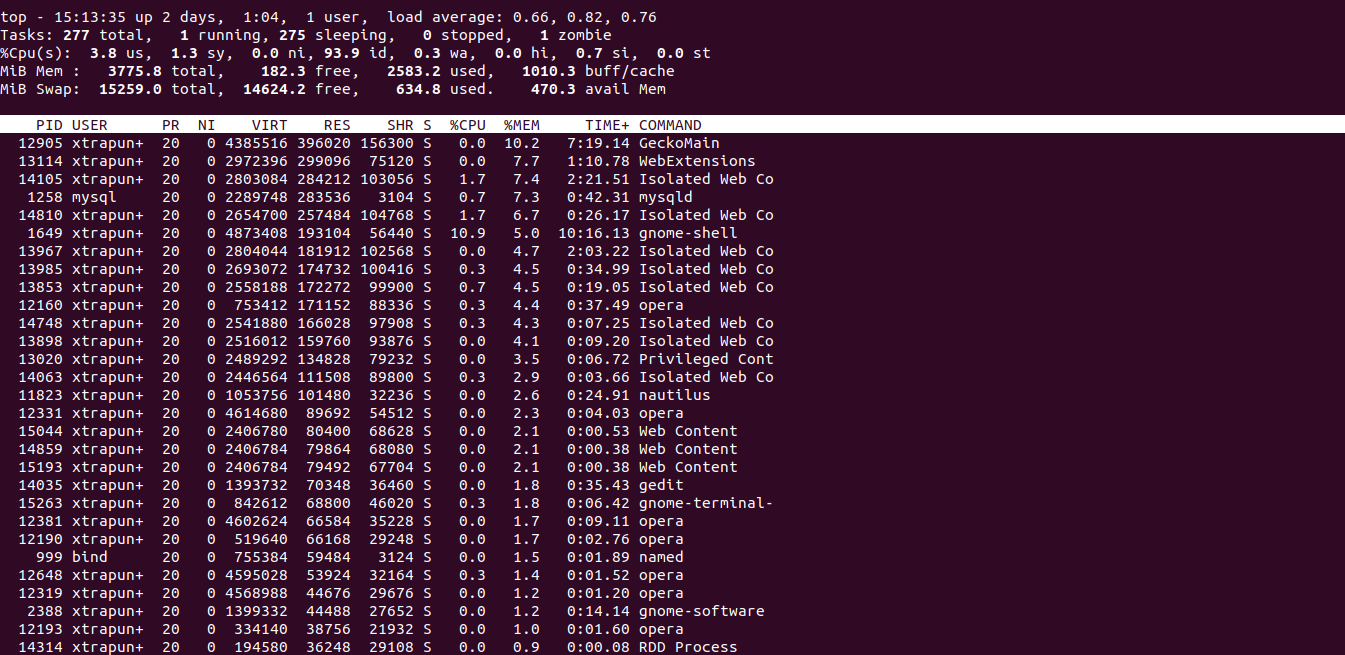
The top program provides a dynamic real-time view of a running system. It can display system summary information as well as a list of processes or threads currently being managed by the Linux kernel. The types of system summary information shown and the types, order and size of information displayed for processes are all user configurable and that configuration can be made persistent across restarts.
The program provides a limited interactive interface for process manipulation as well as a much more extensive interface for personal configuration encompassing every aspect of its operation. And while top is referred to throughout this document, you are free to name the program anything you wish. That new name, possibly an alias, will then be reflected on top’s display and used when reading and writing a configuration file.