
Everything about how to post on Instagram from laptop or PC. Here is how to post Instagram story from laptop, how to post multiple pictures on Instagram from laptop and how to post a video or reels on Instagram from laptop .
How To Post On Instagram From Laptop
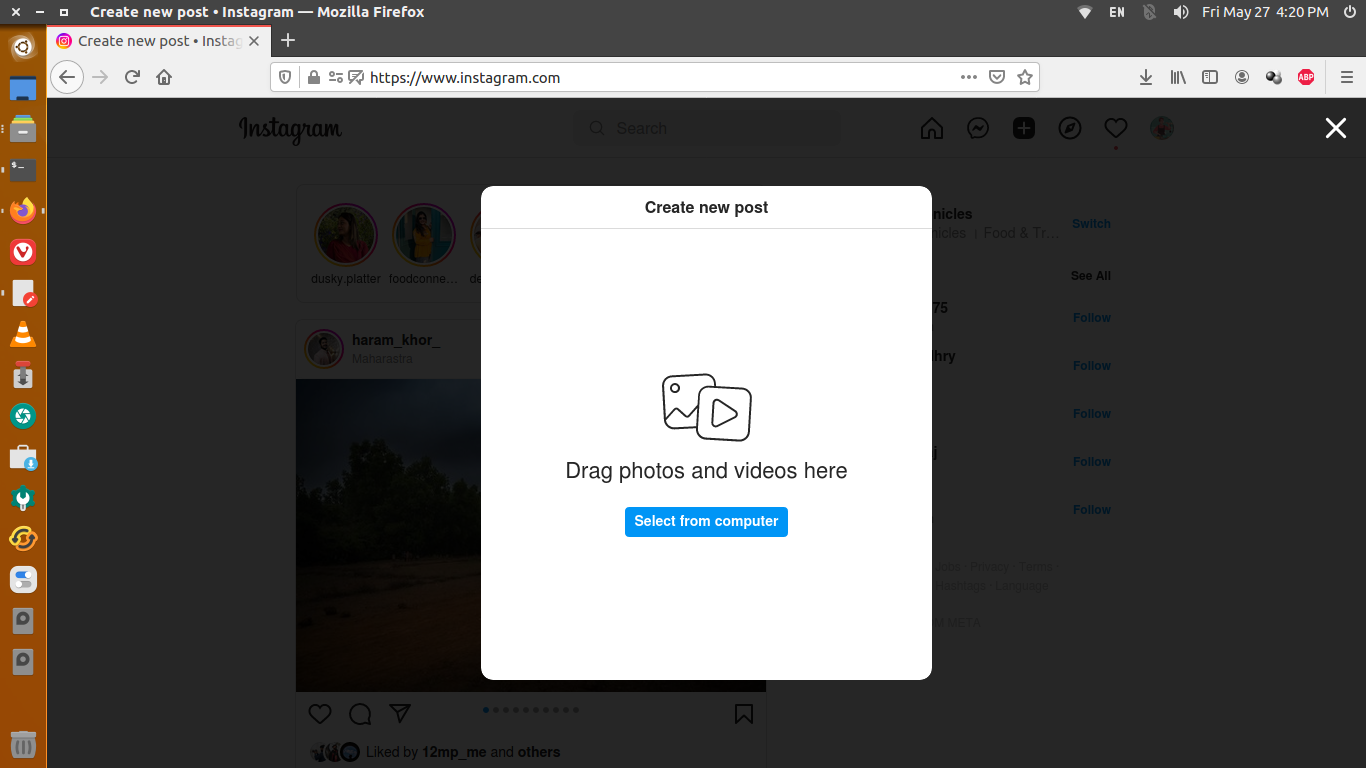
- Login to your Instagram account. Go to https://www.instagram.com and log in using your credentials.
- Click the “+” button next to the DM symbol. There is a top navigation bar which includes a search bar, a home symbol, a DM symbol, a plus sign, a heart, and a circle with your profile picture. Click the plus sign next to the DM symbol.
- Click “Select from computer” to upload the media.
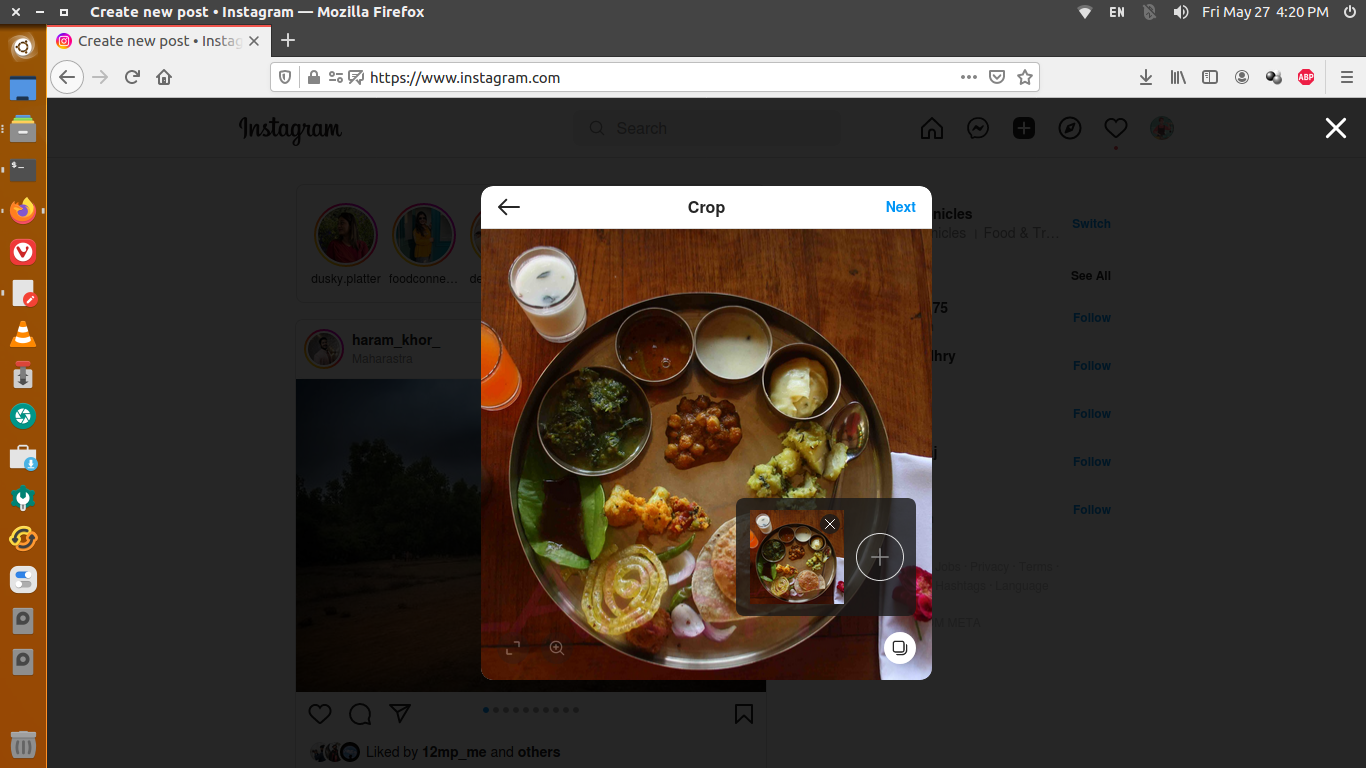
- Edit the uploaded image if needed – Instagram gives you several editing options. You can change the aspect ratio, zoom in or multiple images to the same post. To add multiple images click the “add more media” button on the lower left-hand corner. Click the plus sign to add more images to your post.
- Select filter. Next, choose a filter you wish to apply. You can also adjust other details such as brightness, contrast, saturation, and other features.
- Add caption, add a location, or tag people.
- Select advance settings. You can click on “advance settings” to hide like and view counts on this post and turn off commenting. When you hide like counts on the post, only you will see the total number of likes and views on this post. You can change this later by going to the ··· menu at the top of the post. To hide like counts on other people’s posts, go to your account settings. You can also turn off commenting. You can change this later by going to the ··· menu at the top of your post.
- Click share. When you’re ready, click Share in the top right of your screen.