
How to install htop command in Linux and how to use htop command in Linux. Know the difference between top and htop command in Linux Ubuntu.
What is Htop Command In Linux
htop is an interactive process viewer for Linux/Unix Systems. htop is a cross-platform ncurses-based process viewer.
In simple words, htop is a command line utility that allows the user to monitor the system’s resources and processes in real time.
Difference Between Top And Htop Command In Linux
We can proudly say that htop is a new and improved form of top command. Though similar to top, htop allows you to scroll vertically and horizontally, and interact using a pointing device (mouse).
Users can observe all processes running on the system, along with their command line arguments, as well as view them in a tree format, select multiple processes and act on them all at once.
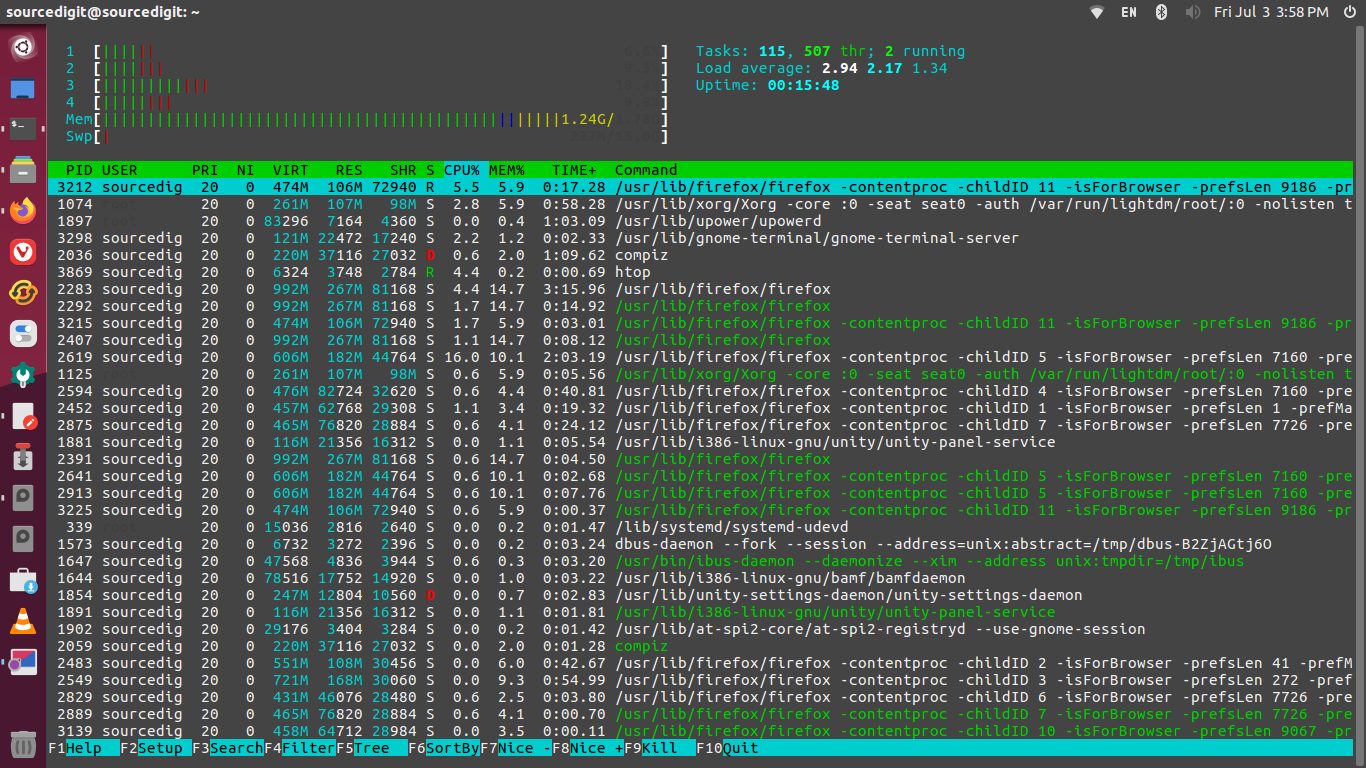
Using htop, tasks related to processes (killing, renicing) can be done without entering their PIDs.
htop uses color and gives visual information about processor, swap and memory status. htop can also display the processes as a tree.
- Green (CPU): user processes.
- Blue (CPU): low-priority threads.
- Red (CPU): CPU resources for kernel processes.
- Aqua Blue (CPU): virtualized processes.
- Green (Memory): system processes.
- Blue (Memory): buffer pages.
- Orange (Memory): cache pages.
Unlike top, htop provides a full list of processes running, instead of the top resource-consuming processes.
It shows a frequently updated list of the processes running on a computer, normally ordered by the amount of CPU usage. Memory sizes in htop are displayed in a human-readable form. Sizes are printed in powers of 1024. (e.g., 1023M = 1072693248 Bytes)
Install Htop Command In Linux
sudo apt install htop
or
sudo snap install htop
How To Use Htop Command In Linux
Once you’re done with the installation, you just have to use the htop command in the terminal, and it will reflect all the ongoing processes in your system:
htop
To search for a specific process and its resource, press F3 and search it directly.