
Here is the Linux command to check total disk space and free disk space in gb. Using this Unix command you can check disk space in current directory.
Using the df command to check disk space
The “df” command is for “disk filesystem” and is a great tool to know about the disk space usage on Linux Systems. The df command displays the amount of disk space available on the file system.
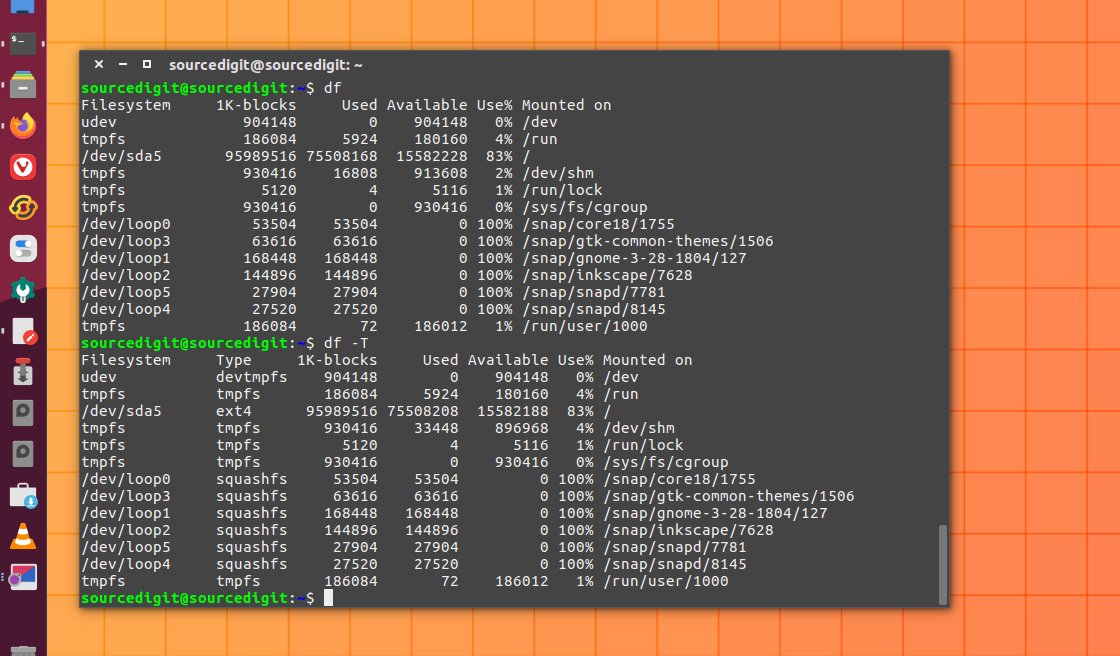
Example-1:
The simplest df command is by itself. Without any command parameters. When executed the df command displays the information about the file system disk space usage. It shows the device name, total blocks, total disk space, used disk space, free disk space and mount points.df
Example-2:
Using the df command with -a or –all it shows dummy file systems information along with all the basic file system disk usage info:df -a
Example-3:
As the disk space is shown in 1K blocks by default, users can use “-h” command parameter to show the file system disk space usage data in “human readable” format.df -h
Example-4:
Use the command parameters -hT to display the info about the /home file system:df -hT /home
Example-5:
Use the command argument -k to display all file system information in 1024-byte blocks:df -k
Example-6:
Similarly you can use the command argument -m to display all file system information in MB (Mega Byte) and -h to see the info in GB (Gigabyte):df -mdf -h
Example-7:
If you wish to see the disk space usage info of a certain file system type, use it as argument:df -t ext3
Similarly there are many more command arguments that can be used to see the desired info.