
Here is how to compare two folders and find missing files Linux Ubuntu. You can use the diff command to compare directories in Linux command line.
diff Command in Linux
The Linux diff command is a powerful and useful utility for comparing two files. It can be used to compare text files, directories, and even binary files. It is a command-line tool that can be used to compare two files and to report differences between them.
It is a command-line tool that can be used to compare two files and to report differences between them. It can be used to compare text files, directories, and even binary files. It can be used to determine the differences between two files, such as the number of lines, the number of characters, or the content of each line. It can also be used to compare two directories by looking at the differences in the files contained within each directory.
When comparing two files, the diff command will display each line of the files that are different. It will also report the line numbers of the differences and the number of differences between the two files. The diff command can also be used to compare binary files by looking at the differences in the bytes of each file.
Using diff Command in Linux
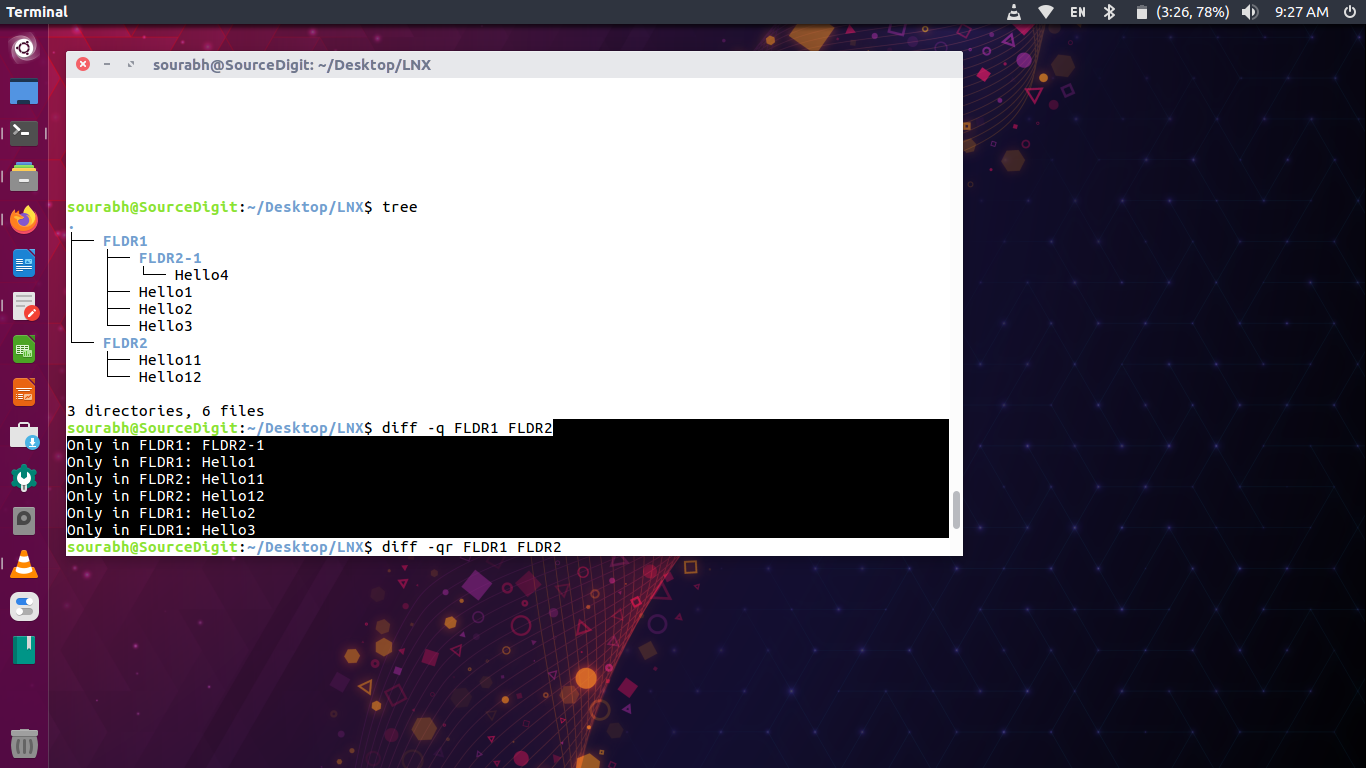
The diff command compares corresponding files in both directories, in alphabetical order; this comparison is not recursive unless the --recursive' (-r’) option is given. Note that the `diff’ command never compares the actual contents of a directory as if it were a file.
To use the diff command, simply use the following syntax:
diff -qr Directory-1 Directory-2For example we will compare two directories named FLDR1 and FLDR2 to find the differences. We will use the command option -q which will report only when the differences are found.
diff -q FLDR1 FLDR2NOTE: The command argument -q won’t look for the files inside the subdirectory. To see the differences inside the subdirectory, use the -r command option:
diff -qr FLDR1 FLDR2Similarly if you want to know the similar files inside the directory use the -s command option.
In the commands explained above, these arguments are used:
-q' or–brief’ – It is sued to report only whether the files differ, not the details of the differences.-r' or–recursive’ – It is used to recursively compare any subdirectories found when comparing directories.-s' or–report-identical-files’ – It is used to see the list of similar files. It will report when two files are the same.
If only one file exists, `diff’ normally does not show its contents; it merely reports that one file exists but the other does not.
The diff command can be used for a variety of purposes, such as to compare source code files, to compare configuration files, to find differences between two versions of a file, or to find differences between two directories.