• Skip to primary navigation
  • Skip to main content
  • Skip to primary sidebar
Source Digit

Source Digit

Linux, Ubuntu Tutorials & News, Technology, Gadgets & Gizmos

  • Home
  • How To
  • Ubuntu
  • Instagram
  • Blogging
  • Android
  • WordPress
  • +More
    • Cloud Computing
    • Gadgets
    • Social Media
    • Technology
  • Write for Us
Home / How To / How To Know Ubuntu and Unity Version in Ubuntu 14.04

How To Know Ubuntu and Unity Version in Ubuntu 14.04

By Sourabh / November 10, 2015 Category: How To, Ubuntu

How To Know Ubuntu and Unity Version in Ubuntu 14.04. What is the Terminal command to check the Ubuntu version. Find out Ubuntu’s release codename or version.

Let us learn the Terminal commands to know which Ubuntu version are you using, which Unity version is installed on Ubuntu system. We will also see how to find if you are using 32 bit or 64 bit Ubuntu system.

How to Know Ubuntu Version

The most easiest method to find the Ubuntu version is via Terminal. To find the Ubuntu version installed on your PC, run the following command in the Terminal (use Ctrl+Alt+T to open the Terminal):

lsb_release -a

The out put of the above command should be like this:
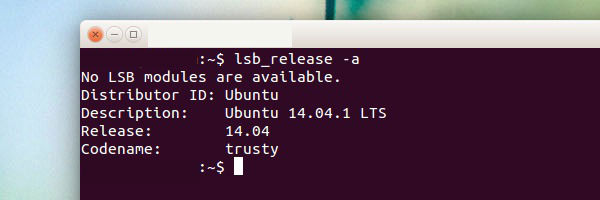

Find-Ubuntu-Version-

As you can see in the above screenshot, Ubuntu 14.04 “Trusty Tahr” is installed on my system. There are few other alternate commands to find the Ubuntu version. You can use either of the following commands:

cat /etc/lsb-release
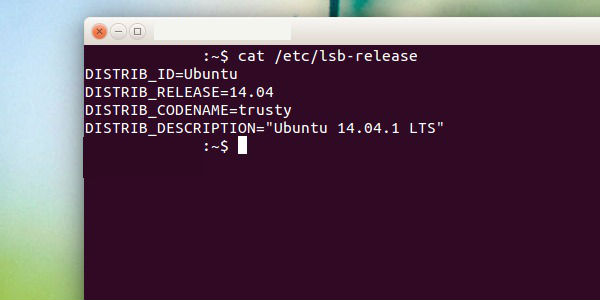

Ubuntu-version-installed


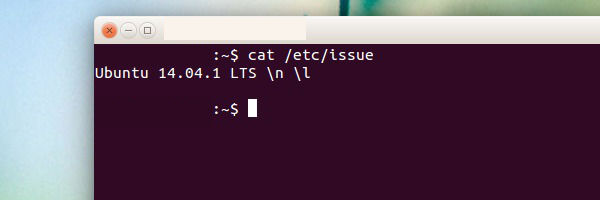
cat /etc/issue


Ubuntu-Version-Screenshot

How to Know the Unity Version

To find out the version of Unity installed in Ubuntu. Run the following command in Terminal:

unity --version

The output of the above command should be something like this (screenshot):
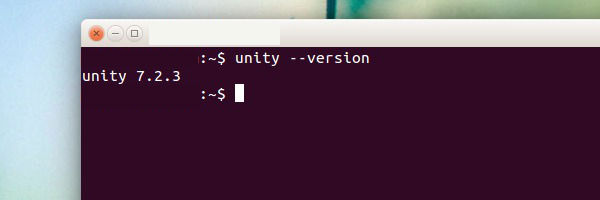

Find-Unity_version-ubuntu
Which means I am currently using Unity 7.2.3 on my Ubuntu system.


Tags: check Ubuntu Version, Find Ubuntu Codename, Find Ubuntu Version, Find Ubuntu Version 32 Bit or 64 Bit, Find Unity Version, How To Know Ubuntu Version, How To Know Unity Version, Terminal command to find the Ubuntu Version, Ubuntu 14.04, Ubuntu Version command

Primary Sidebar

Latest Posts

Delete Directory And Contents Recursively Without Prompt On Linux

Check User Login History In Ubuntu Linux Command Line

Use Locate Command To Find File In Linux Terminal By Name

How To Change Terminal Color In Ubuntu Command Line

How To Run Fsck Manually In Linux To Fix Unexpected Inconsistency

How To Fix Broken Packages On Ubuntu From Terminal

Re Execute The Previous Command In Linux Ubuntu Command Line

How Much RAM Is Needed For Ubuntu PC

How To Find Large Files And Directories In Linux Command Line

How To Use Clear Command History In Linux Terminal

© 2026 Source Digit • Linux, Ubuntu Tutorials & News, Technology, Gadgets & Gizmos

  • Home
  • About
  • Privacy Policy
  • Terms & Conditions
  • Contact Us
  • Sitemap