
• Skip to primary navigation
  • Skip to main content
  • Skip to primary sidebar
Source Digit

Source Digit

Linux, Ubuntu Tutorials & News, Technology, Gadgets & Gizmos

  • Home
  • How To
  • Ubuntu
  • Instagram
  • Blogging
  • Android
  • WordPress
  • +More
    • Cloud Computing
    • Gadgets
    • Social Media
    • Technology
  • Write for Us
Home / Android / How to Use WhatsApp on Internet on Chrome Web Browser

How to Use WhatsApp on Internet on Chrome Web Browser

By Sourabh / January 22, 2015 Category: Android, Cloud Computing, Gadgets, How To

Now you can use WhatsApp on PC in web browser?. Here’s how to use/access WhatsApp on Internet on Chrome web browser. WhatsApp has launched WhatsApp for Chrome, a web-based client. The WhatsApp web-based client currently only works with Chrome web browser.
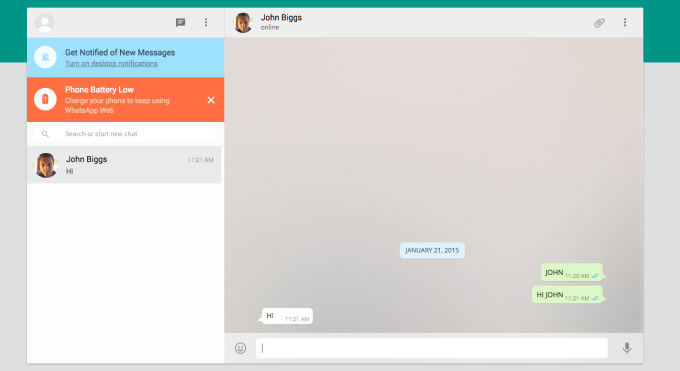
 

whatsapp-web
Image: Engadget

Internet users can now access WhatsApp using the recently launched WhatsApp web-based client for Chrome web browser. It is an extension of for the smartphone and it syncs and mirrors the WhatsApp conversations on-to the PC screen. To use this, simply head over to web.whatsapp.com and scan an onscreen QR Code through WhatsApp and it will instantly make the connection to be used on PC.

The announcement on the WhatsApp blog says:

Today, for the first time, millions of you will have the ability to use WhatsApp on your web browser. Our web client is simply an extension of your phone: the web browser mirrors conversations and messages from your mobile device — this means all of your messages still live on your phone.

Please note that the WhatsApp web service is not available for iOS users. You must be a valid Android, Windows and Blackberry users. Also, you must be using the latest version of WhatsApp. You can download the latest version WhatsApp from the Play Store.

To log into the WhatsApp web service, go to the WhatsApp mobile app on the Android, Windows Phone, or Blackberry smartphone and navigate to the “WhatsApp Web” screen. Here you’ll need to scan a QR code  (on the WhatsApp web-client page).

The WhatsApp blog says:

To connect your web browser to your WhatsApp client, simply open https://web.whatsapp.com in your Google Chrome browser. You will see a QR code — scan the code inside of WhatsApp, and you’re ready to go. You have now paired WhatsApp on your phone with the WhatsApp web client. Your phone needs to stay connected to the internet for our web client to work, and please make sure to install the latest version of WhatsApp on your phone. Unfortunately for now, we will not be able to provide web client to our iOS users due to Apple platform limitations.

Via Blog.WhatsApp

Tags: Chrome Web Broswer, How to access Whatsapp in web browser?, How to Use WhatsApp on Chrome, How to Use WhatsApp on Chrome Web Browser, How to Use WhatsApp on Internet, How to Use WhatsApp on PC Computer Internet, Use WhatsApp Chrome Web Broswer, WhatsApp, WhatsApp Chrome Web Broswer Client, WhatsApp on Internet, WhatsApp on Internet on Chrome Web Broswer

Primary Sidebar

Latest Posts

How To Fix Broken Packages On Ubuntu From Terminal

Re Execute The Previous Command In Linux Ubuntu Command Line

How Much RAM Is Needed For Ubuntu PC

How To Find Large Files And Directories In Linux Command Line

How To Use Clear Command History In Linux Terminal

Linux Command To Check RAM Size In Ubuntu Terminal In GB

How To Install Proprietary Drivers In Linux Ubuntu Using Terminal

How To Shutdown Linux With A 15 Minute Delay And Message

Free AI Courses With Certificate For Beginners In India

Best AI Plugins For WordPress To Use In 2026

© 2026 Source Digit • Linux, Ubuntu Tutorials & News, Technology, Gadgets & Gizmos

  • Home
  • About
  • Privacy Policy
  • Terms & Conditions
  • Contact Us
  • Sitemap