
• Skip to primary navigation
  • Skip to main content
  • Skip to primary sidebar
Source Digit

Source Digit

Linux, Ubuntu Tutorials & News, Technology, Gadgets & Gizmos

  • Home
  • How To
  • Ubuntu
  • Instagram
  • Blogging
  • Android
  • WordPress
  • +More
    • Cloud Computing
    • Gadgets
    • Social Media
    • Technology
  • Write for Us
Home / How To / How to Install LXQT 0.7.0 in Ubuntu 14.04

How to Install LXQT 0.7.0 in Ubuntu 14.04

By Sourabh / January 23, 2015 Category: How To, Ubuntu

This tutorial explains how to install LXQT in Ubuntu 14.04. LXQt is the Qt port and the upcoming version of LXDE, the Lightweight Desktop Environment. It is the product of the merge between the LXDE-Qt and the Razor-qt projects: A lightweight, modular, blazing-fast and user-friendly desktop environment.
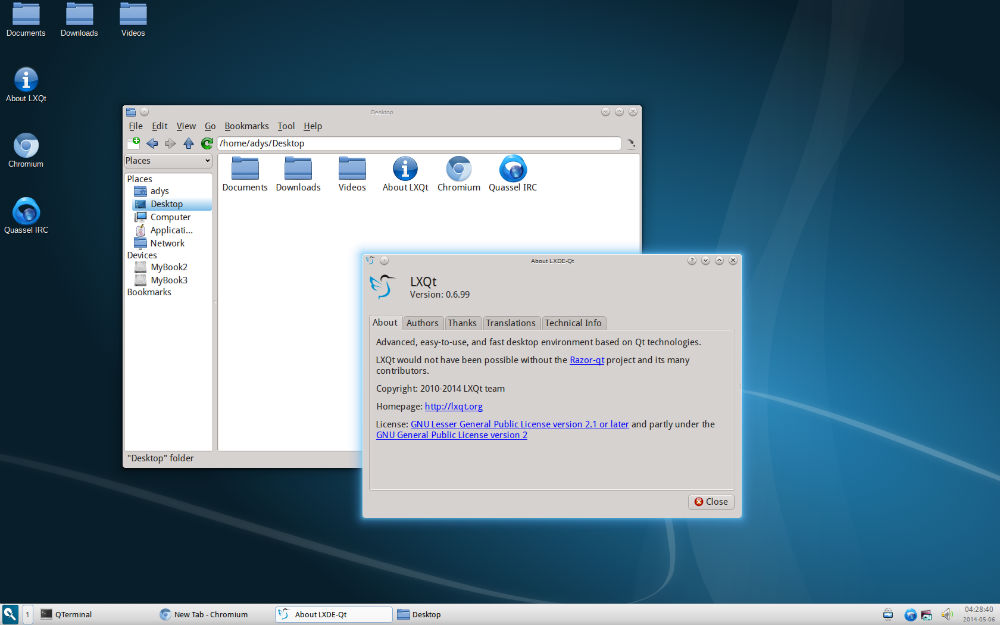
LXQt is the Qt port and the upcoming version of LXDE, the Lightweight Desktop Environment. It is the product of the merge between the LXDE-Qt and the Razor-qt projects: A lightweight, modular, blazing-fast and user-friendly desktop environment.

LXQT-LXDE_Ubuntu

The best part about LXQt 0.8.0 is that it’s a fast and stable desktop environment which will not hang or slow down the system. It is focused on being a Classic Desktop with a modern Look & Feel.

The LXQt 0.8.0 release brings full Qt 5 compatibility, two beautiful new themes and lots of new features, performance improvements and bugfixes.

Install LXQt from PPA

To install LXQt from PPA on Ubuntu 14.04 system, open Terminal and run the following commands:

sudo add-apt-repository ppa:lubuntu-dev/lubuntu-daily
sudo add-apt-repository ppa:gilir/q-project
sudo apt-get update
sudo apt-get install lxqt-metapackage lxqt-panel openbox

Tags: Desktop Environment Ubuntu 14.04, How to Install LXQT 0.7.0 in Linux, How to Install LXQT 0.7.0 in Ubuntu, How to Install LXQT 0.7.0 in Ubuntu 14.04, Lightweight Desktop Environment for Ubuntu, Linux Ubuntu Desktop Environment, LXDE Desktop Environment, LXQt 0.8.0 LXDE, LXQt 0.8.0 LXDE Desktop Environment, Ubuntu 14.04

Primary Sidebar

Latest Posts

Job Scheduling Using At Command In Linux With Examples

How To Check Permissions Of A Directory In Linux Command

Delete Directory And Contents Recursively Without Prompt On Linux

Check User Login History In Ubuntu Linux Command Line

Use Locate Command To Find File In Linux Terminal By Name

How To Change Terminal Color In Ubuntu Command Line

How To Run Fsck Manually In Linux To Fix Unexpected Inconsistency

How To Fix Broken Packages On Ubuntu From Terminal

Re Execute The Previous Command In Linux Ubuntu Command Line

How Much RAM Is Needed For Ubuntu PC

© 2026 Source Digit • Linux, Ubuntu Tutorials & News, Technology, Gadgets & Gizmos

  • Home
  • About
  • Privacy Policy
  • Terms & Conditions
  • Contact Us
  • Sitemap