
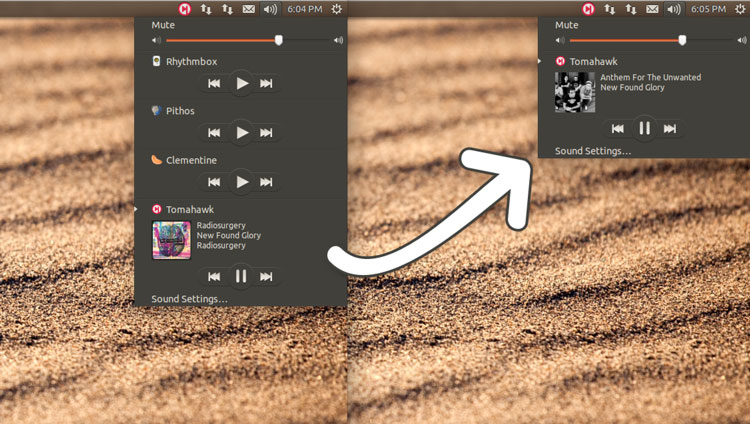
How to remove media players from Ubuntu’s sound menu. Remove music player’s controls from Ubuntu 14.04 Sound Menu. One can use Dconf Editor tool to remove players from Ubuntu Sound Menu in the Top-Panel Bar.
Using Dconf Editor is the easiest way, else you can do it via Terminal commands. To begin, install Dconf-Editor if it isn’t installed. Search for Dconf Editor in Ubuntu’s Software Center and click to install it.
Remove Music Players From Ubuntu Sound Menu
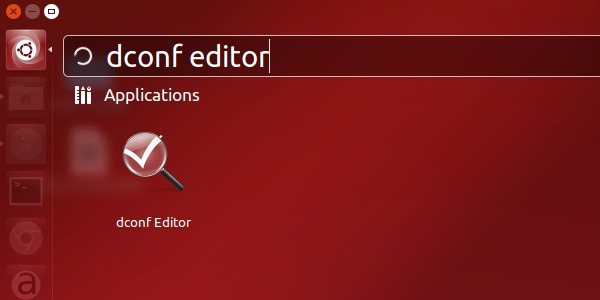
Once installed, open Dconf Editor from Dash. Navigate to sound section in the Dconf Editor window and edit the sound menu options. Follow the steps given below:
- Open Dconf Editor.
- Navigate to com > canonical > indicator > sound in the Dconf Editor windows. The following pane will appear (screenshot below).
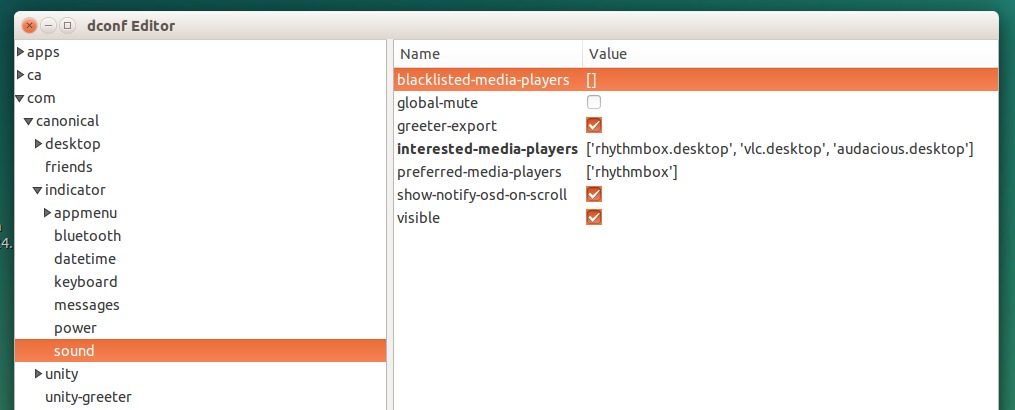
- In the windows there are various sound options.
- To remove the players from the sound menu, edit Interested Media Players list.
- Double click on the closed brackets next to interested-media-players and delete the players you wish to remove from the Sound Menu. Please note that the name must be in the square brackets and don’t delete any commas or apostrophes.
Blacklist Music Players in Ubuntu Sound Menu
The above process doesn’t work for some players and they will instantly re-add themselves to the Ubuntu sound menu on next system start. To avoid this situation, you can add them to the blacklisted-media-player section. For example, if you wanted to hide Rhythmbox from the menu, edit the value of blacklisted-media-players to [‘rhythmbox’].
Again remember to enclose each player name in apostrophes. If you want to add more than one music player, add the names of multiple music player with a comma separating multiple names. Also note that they must be inside the square brackets.
The three most important sound options are:
- Blacklisted Media Players – List of applications blacklisted from the sound menu.
- Interested Media Players – List of applications which at some point have registered with the sound menu.
- Preferred Media Players – List of applications that will have player controls visible all the time.
Please note that the Blacklisted Media Players won’t appear in the sound menu, even if they’re included in the Preferred Media Players list.
Other important options are:
- Show Notify OSD on Scroll – Initial setting for showing notify-osd notification on scroll volume-change
- Visible – Whether or not to show the sound indicator in the menu bar.