
• Skip to primary navigation
  • Skip to main content
  • Skip to primary sidebar
Source Digit

Source Digit

Linux, Ubuntu Tutorials & News, Technology, Gadgets & Gizmos

  • Home
  • How To
  • Ubuntu
  • Instagram
  • Blogging
  • Android
  • WordPress
  • +More
    • Cloud Computing
    • Gadgets
    • Social Media
    • Technology
  • Write for Us
Home / How To / Install Vivacious Colors Icons on Ubuntu 15.04, Ubuntu 14.04, Ubuntu 14.10 and Linux Mint

Install Vivacious Colors Icons on Ubuntu 15.04, Ubuntu 14.04, Ubuntu 14.10 and Linux Mint

By Sourabh / June 15, 2015 Category: How To, Ubuntu

Customize Ubuntu and install custom themes on Ubuntu and Linux Mint. How to install Vivacious Colors Icons on Ubuntu 15.04, Ubuntu 14.04, Ubuntu 14.10 and Linux Mint.

The Vivacious Colors is based on Vibrancy Colors icon theme framework and application icons come in multiple shapes and are fully SVG. The Vivacious uses Plasma Next icons as a base for our app icons.

The Vivacious Colors Icons is fully tested/built to work on most major GTK desktops including Unity, Cinnamon, Gnome Shell, Gnome Classic, Mate, Xfce, LXDE, Openbox and more.
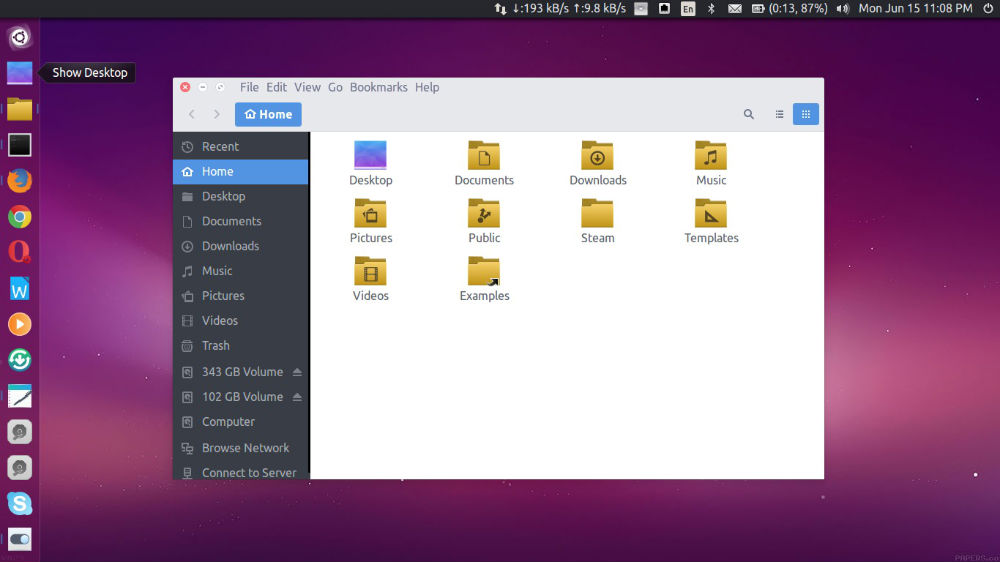
vivacious-icons

The Vivacious Colors Icons suite offers 4 colors of folders by default: Stock Manila Folders, Blue, Purple, Mint Teal. Apart from the default icon colors, it also offers 10 more folder colors via “Vivacious-Folder-Colors-Addon” Package: Aqua ,Graphite ,Blue Vivid (Dark), Brown, Green, Purple Vivid (Dark),Red, Pink, Orange, Yellow.

The Vivacious Colors Icons fully supports Folder Color Extension (On Nemo, Nautilus, Caja, Files). It is an optional extension that allows you to right click on any folder and change it to any of the 14 colors on the fly. Perfect for organization or personalization. This works on top of the already selectable 14 colors from the theme panel.

Install Vivacious Colors Icons

The Vivacious Colors Icons can be installed on Ubuntu 15.04, Ubuntu 14.10, Ubuntu 14.04, Ubuntu 12.04, Linux Mint and other Ubuntu derivatives.

Open Terminal and run the following commands to install Vivacious Colors Icons (with additional folders) in Ubuntu, Linux Mint and Derivatives:


sudo add-apt-repository ppa:ravefinity-project/ppa
sudo apt-get update
sudo apt-get install vivacious-colors
sudo apt-get install vivacious-folder-colors-addon

Once installed, you can use the Vivacious Colors Icons via Ubuntu Tweak, GNOME Tweak or other Ubuntu Customization Tools.

Tags: Install Vivacious Colors Icons on Linux Mint, Install Vivacious Colors Icons on Ubuntu, Install Vivacious Colors Icons on Ubuntu 12.04, Install Vivacious Colors Icons on Ubuntu 14.04, Install Vivacious Colors Icons on Ubuntu 14.10, Install Vivacious Colors Icons on Ubuntu 15.04, Linux Vivacious Colors Icons, Ubuntu 14.04, Ubuntu 14.10, Ubuntu 15.04, Ubuntu Vivacious Colors Icons, Vivacious Colors Icons Linux, Vivacious Colors Icons Linux Mint, Vivacious Colors Icons Ubuntu

Primary Sidebar

Latest Posts

Delete Directory And Contents Recursively Without Prompt On Linux

Check User Login History In Ubuntu Linux Command Line

Use Locate Command To Find File In Linux Terminal By Name

How To Change Terminal Color In Ubuntu Command Line

How To Run Fsck Manually In Linux To Fix Unexpected Inconsistency

How To Fix Broken Packages On Ubuntu From Terminal

Re Execute The Previous Command In Linux Ubuntu Command Line

How Much RAM Is Needed For Ubuntu PC

How To Find Large Files And Directories In Linux Command Line

How To Use Clear Command History In Linux Terminal

© 2026 Source Digit • Linux, Ubuntu Tutorials & News, Technology, Gadgets & Gizmos

  • Home
  • About
  • Privacy Policy
  • Terms & Conditions
  • Contact Us
  • Sitemap