
FlightGear Flight Simulator for Ubuntu. Install FlightGear 3.4 airplane/flight simulator game on Ubuntu 15.04, Ubuntu 14.04, Ubuntu 14.10 and derivatives.
FlightGear is an open-source flight simulator. It supports a variety of popular platforms (Windows, Mac, Linux, etc.) and is developed by skilled volunteers from around the world.
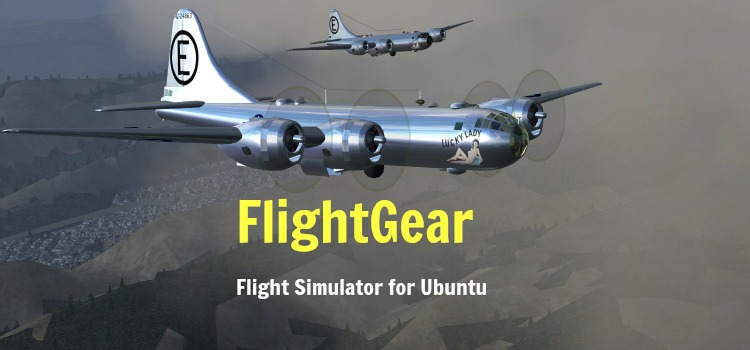
Founded in 1997, FlightGear is the most realistic flight simulator game. FlightGear features more than 400 aircraft, a worldwide scenery database, a multi-player environment, detailed sky modelling, a flexible and open aircraft modelling system, varied networking options, multiple display support, a powerful scripting language and an open architecture.
The FlightGear v3.4 flight simulator, latest version contains many exciting new features, enhancements and bugfixes. Highlights in this release include frame-rate improvements on some systems, reduced memory usage and enhancements to the built-in web server. Other notable changes are:
Performance
- Improved frame-rates on some systems from more efficient use of Uniforms
- Reduced memory occupancy for scenery tiles
- AI models are now rendered based on display size rather than range
- AI/MP models may now define objects as being part of the interior, which will not be rendered at large distances
- Built-in web server now includes a moving map, a screenshot grabber, and supports SVG-based panels
- Improved rendering of runway and other lights under ALS
- Landing and spotlight support for ALS
Highlighted new and improved aircraft
- Extra EA-500
- North American P-51D Mustang
- Cessna Citation II
- F-14b
Install FlightGear on Ubuntu
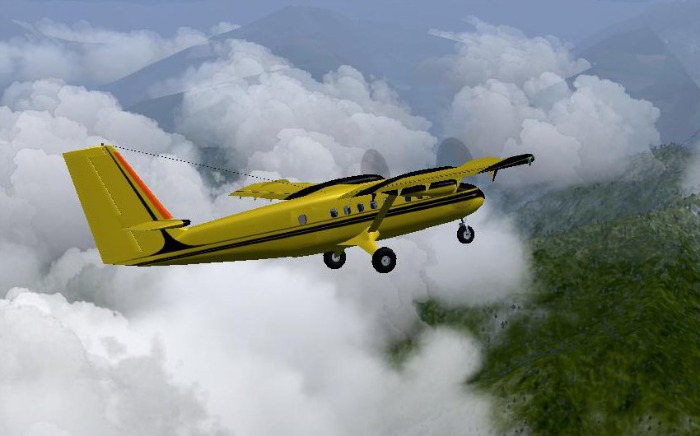
FlightGear v3.4 flight simulator can be installed on Ubuntu Systems via third party PPA. Run the following commands in Terminal to install FlightGear v3.4 flight simulator:
$ sudo add-apt-repository ppa:saiarcot895/flightgear

$ sudo apt-get update

$ sudo apt-get install flightgear
Please note that the menu bar is initially hidden. Use F10 to restore it.
If you wish to uninstall and remove flightgear, run the below given command:
$ sudo apt-get remove flightgear
FlightGear is used all over the world by desktop flight simulator enthusiasts, for research in universities and for interactive exhibits in museums.