
• Skip to primary navigation
  • Skip to main content
  • Skip to primary sidebar
Source Digit

Source Digit

Linux, Ubuntu Tutorials & News, Technology, Gadgets & Gizmos

  • Home
  • How To
  • Ubuntu
  • Instagram
  • Blogging
  • Android
  • WordPress
  • +More
    • Cloud Computing
    • Gadgets
    • Social Media
    • Technology
  • Write for Us
Home / Uncategorized / Install Gnome-Pie Application Launcher on Ubuntu 15.04, Ubuntu 14.04 & Ubuntu 14.10

Install Gnome-Pie Application Launcher on Ubuntu 15.04, Ubuntu 14.04 & Ubuntu 14.10

By Sourabh / July 27, 2015 Category: Uncategorized

How to install Gnome-Pie Application Launcher on Linux Ubuntu 15.04, Ubuntu 14.04 and Ubuntu 14.10. Install and update Gnome-Pie Application Launcher on Ubuntu Unity Desktop.

Gnome-Pie a slick application launcher for Linux. It’s eye candy and pretty fun to work with. It offers multiple ways to improve your desktop experience. The circular application launcher is made of several pies, each consisting of multiple slices. The user presses a key stroke which opens the desired pie. By activating one of its slices, applications may be launched, key presses may be simulated or files can be opened.

Gnome Pie 0.6.4 is the latest version of the launcher. It has been released with various new features and improvements.

  • New Feature: A new theme based on “Adwaita”. It features bigger icons than the original theme. This looks awesome with some icon themes.
  • Bugfix: Fixed missing icon of status icon in message tray.

Install Gnome Pie on Ubuntu
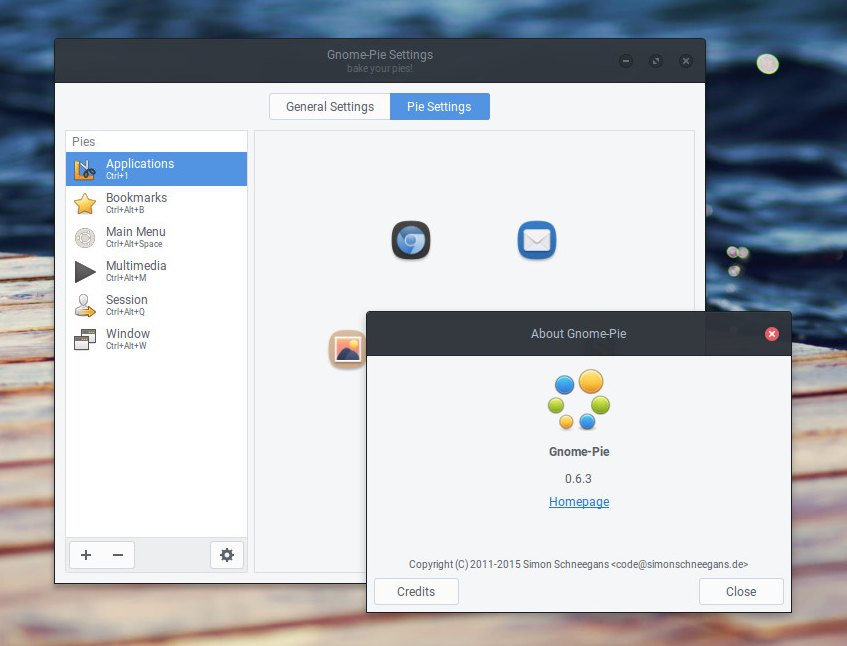
gnome-pie063

The Gnome-Pie Application Launcher can be installed on Linux Ubuntu via PPA. Open Terminal and run the following commands to install Gnome-Pie Application Launcher on Linux Ubuntu 15.04, Ubuntu 14.04, Ubuntu 14.10 and derivatives:


$ sudo add-apt-repository ppa:simonschneegans/testing
$ sudo apt-get update
$ sudo apt-get install gnome-pie

Once installed, the Gnome-Pie launcher can opened from Ubuntu Dash. It can be customized as per user’s requirements. By clicking on the panel-indicator of Gnome-Pie or by launching the application a second time, you can open its settings menu.

Here you can set up your Pies. All your Pies are listed on the left — you can add new or delete existing pies with the little plus and minus sign in the lower left-hand corner. On the right is a preview of each Pie. Simply drag and drop the Slice to reorder them. You can drag stuff from your computer to this preview in order to add it to the Pie.

By clicking on the “General Settings”-button in the tool bar, you can specify some behavior options (such as Startup on Login or a Global Scale factor). Furthermore you can select a theme which skins all of your pies to match your taste.

If you wish to uninstall and remove gnome-pie, run the following command:


$ sudo apt-get remove gnome-pie

Tags: Application Launcher Ubuntu, Download Gnome-Pie Application Launcher on Ubuntu, Gnome-Pie Application Launcher, Gnome-Pie Application Launcher on Linux, Gnome-Pie Application Launcher on Ubuntu, How To Install Gnome-Pie Application Launcher on Linux Ubuntu 14.04, How To Install Gnome-Pie Application Launcher on Linux Ubuntu 14.10, How To Install Gnome-Pie Application Launcher on Linux Ubuntu 15.04, Install Gnome-Pie Application Launcher on Linux, Install Gnome-Pie Application Launcher on Ubuntu, Install Gnome-Pie Application Launcher on Ubuntu 14.04, Install Gnome-Pie Application Launcher on Ubuntu 14.10, Install Gnome-Pie Application Launcher on Ubuntu 15.04, Linux Ubuntu Install Gnome-Pie Application Launcher, Ubuntu 14.04 Gnome-Pie Application Launcher, Ubuntu 14.10 Gnome-Pie Application Launcher, Ubuntu 15.04 Gnome-Pie Application Launcher, Ubuntu Application Launcher

Primary Sidebar

Latest Posts

Downlaod Ubuntu 26.10 Stonking Stingray

How To Shutdown Linux With A 15 Minute Delay And Message

Using Linux Terminal How To Get Total Disk Size In GB

Count And Find Number Of Files In A Linux Directory Using Command

Check How Many Users Are Created In Linux Ubuntu

How To Check User Permissions In Linux Using Command

Check Which Folder Is Taking More Space In Ubuntu Linux

How to Install Claude Desktop App in Ubuntu Linux

Job Scheduling Using At Command In Linux With Examples

How To Check Permissions Of A Directory In Linux Command

© 2026 Source Digit • Linux, Ubuntu Tutorials & News, Technology, Gadgets & Gizmos

  • Home
  • About
  • Privacy Policy
  • Terms & Conditions
  • Contact Us
  • Sitemap