
Improve APT download speed (apt-get package) download on Linux Ubuntu Systems, with apt-fast. Install Apt-Fast on Ubuntu 15.04, Ubuntu 14.04, Ubuntu 14.10 and Derivatives.
Apt-fast is a shellscript wrapper for apt that speeds up downloading of packages. It drastically improve apt download times by downloading packages in parallel, with multiple connections per package. Apt-fast uses uses aria2 or axel download tools to increase download speed by using multiple connections per package.
Apt-fast supports both apt-get and aptitude and comes with proxy support. It support almost all the apt-get functions such as install, upgrade and dist-upgrade.
Download Apt-Fast on Ubuntu via PPA
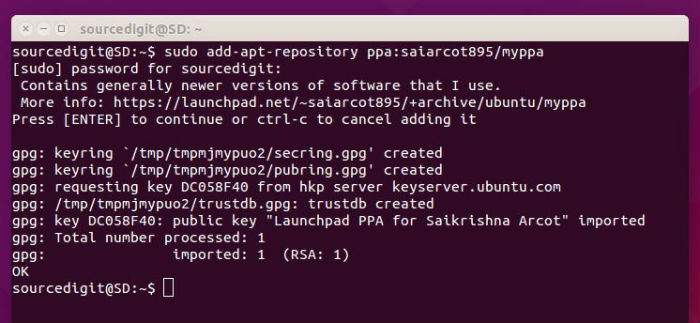
Ubuntu users can install the latest version of apt-fast via PPA. Open Terminal and run the following commands to add the PPA and install the apt-fast package:
Install Apt-Fast on Ubuntu 15.04, Ubuntu 14.04 and Ubuntu 14.10
$ sudo add-apt-repository ppa:saiarcot895/myppa

$ sudo apt-get update

$ sudo apt-get -y install apt-fast
Install Apt-Fast on Ubuntu 11.04~13.10 (previous versions of Ubuntu)
$ sudo add-apt-repository ppa:apt-fast/stable

$ sudo apt-get update

$ sudo apt-get -y install apt-fast
Ubuntu PPA
You can find PPA here: https:/
You can use the Ubuntu PPA to get a graphical configuration file setup and automatic updates, for details see:
- ppa:saiarcot895/myppa(for Ubuntu 14.04 and later versions)
- ppa:apt-fast/stable(out of date, for Ubuntu 11.04~13.10)
Some distros, such as PCLinuxOS include apt-fast in their repos.
If you wish to uninstall and remove apt-fast from Ubuntu Systems, run the command given below:
$ sudo apt-get remove apt-fast
Please note that when installing apt-fast in Ubuntu, you may be asked various configuration settings such as if you want to use aptitude or apt-get, to select the download manager (axel or aria2c) and other settings (see screenshots below).
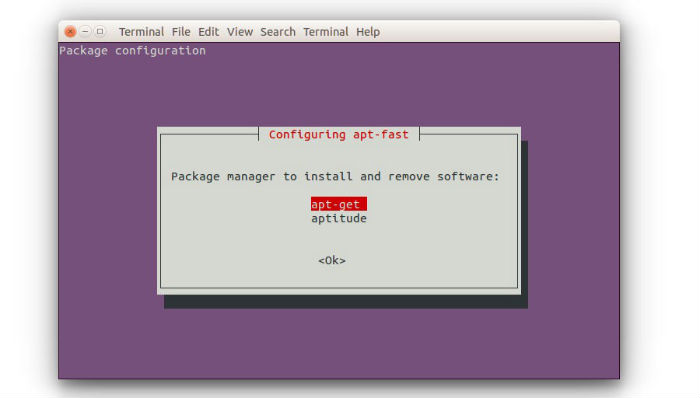
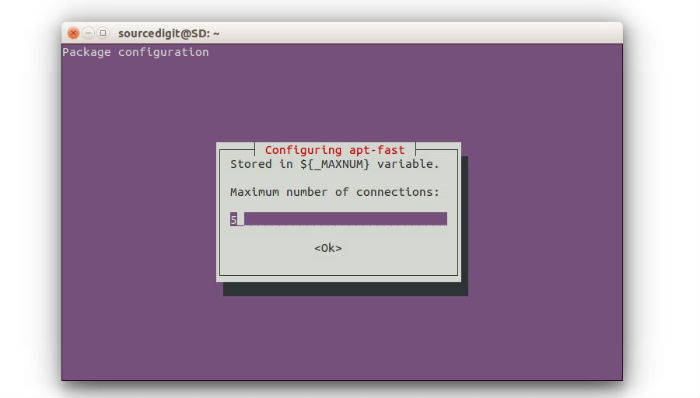
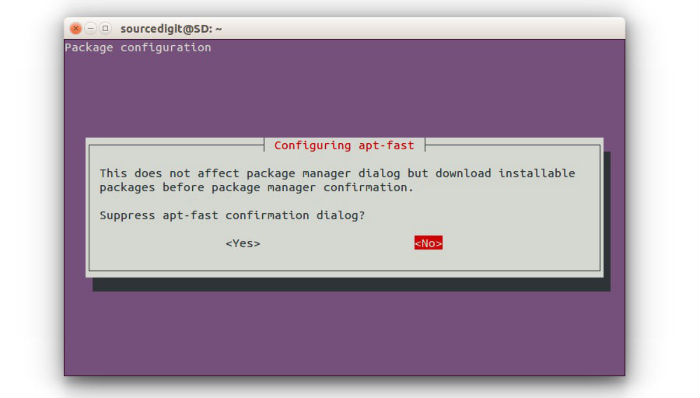
Select while the installation, but if you want to change or reconfigure the apt-fast options, run the following command:
$ sudo dpkg-reconfigure apt-fast
aria2c is the download tool recommended by the apt-fast developers, mostly because it supports resuming downloads.
How To Use apt-fast
Once installled, apt-fast can be used in the same way as apt-get is used. Simply use the “sudo apt-fast install package-name” instead of “apt-get install package-name.” Please note that apt-fast has the same syntax as apt-get.