
• Skip to primary navigation
  • Skip to main content
  • Skip to primary sidebar
Source Digit

Source Digit

Linux, Ubuntu Tutorials & News, Technology, Gadgets & Gizmos

  • Home
  • How To
  • Ubuntu
  • Instagram
  • Blogging
  • Android
  • WordPress
  • +More
    • Cloud Computing
    • Gadgets
    • Social Media
    • Technology
  • Write for Us
Home / Uncategorized / Install Telegram Desktop Messaging App on Ubuntu 15.04 & Ubuntu 14.04

Install Telegram Desktop Messaging App on Ubuntu 15.04 & Ubuntu 14.04

By Sourabh / August 11, 2015 Category: Uncategorized

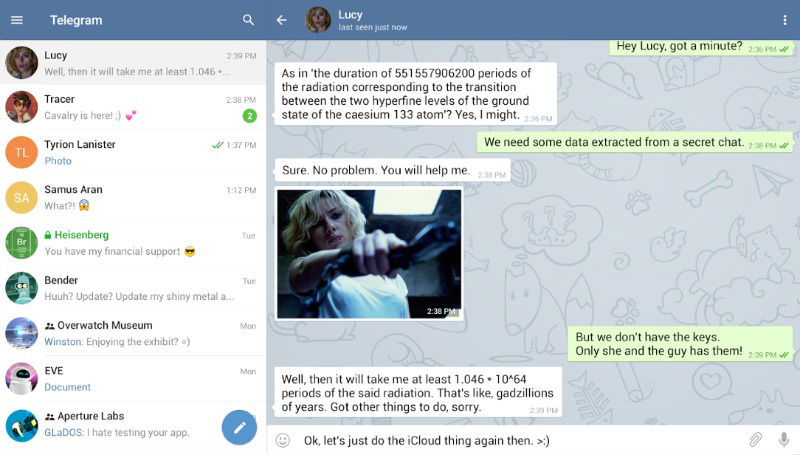
Telegram Desktop 0.8.48 (Telegram client for Linux). Install Telegram Desktop 0.8.48 on Ubuntu 15.04, Ubuntu 14.04 and Derivatives. Telegram Desktop messaging app is the official Telegram client for Linux Ubuntu Systems.

Telegram is a messaging app with a focus on speed and security, it’s super fast, simple and free. You can use Telegram on all your devices at the same time — your messages sync seamlessly across any of your phones, tablets or computers. Unlike WhatsApp, Telegram is cloud-based and heavily encrypted. As a result, you can access your messages from several devices at once, including tablets and computers, and share an unlimited number of photos, videos and files (doc, zip, mp3, etc) of up to 1,5 GB.
Telegram-screen

For Linux users, Telegram Desktop client allows the users to send and receive messages from the Linux Ubuntu desktop. With Telegram, users can send messages, photos, videos and files of any type (doc, zip, mp3, etc), as well as create groups for up to 200 people. Telegram is like SMS and email combined.

Install Telegram On Linux

Run the following commands to install the latest versions of Telegram Client on Ubuntu and derivative systems:

Install Telegram Desktop on 32 Bit Linux Ubuntu Systems


$ wget https://tdesktop.com/linux32
$ tar -xJvf tsetup*.tar.xz
$ sudo mv Telegram /opt/telegram
$ sudo ln -sf /opt/telegram /usr/bin/telegram

Install Telegram Desktop on 64 Bit Linux Ubuntu Systems


$ wget https://tdesktop.com/linux
$ tar -xJvf tsetup*.tar.xz
$ sudo mv Telegram /opt/telegram
$ sudo ln -sf /opt/telegram /usr/bin/telegram

Once installed, you can start Telegram Destkop app via Ubuntu Dash or Terminal (type telegram and press enter). Please note that when you use the Telegram Desktop app for the first time, you will need to confirm the app via SMS code.

If you wish to uninstall and remove the Telegram Client, run the command given below:

$ sudo apt-get remove telegram

The same set of instructions can also be used to install Telegram on Ubuntu derivatives.

Tags: Get Telegram Clinet for Ubuntu, Get Telegram for 32 bit Ubuntu, Get Telegram for 64 bit Ubuntu, Get Telegram for Linux 32 bit, Get Telegram for Linux 64 bit, Install Telegram client for Linux, Install Telegram client for Ubuntu, Install Telegram Desktop (Telegram client) on Ubuntu, Install Telegram Desktop 0.8.48 on Ubuntu 14.04, Install Telegram Desktop 0.8.48 on Ubuntu 15.04, Install Telegram Desktop Client on Linux, Install Telegram Desktop Client on Ubuntu 14.04, Install Telegram Desktop Client on Ubuntu 14.10, Install Telegram Desktop Client on Ubuntu 15.04, Install Telegram Desktop Messaging App on Ubuntu, Install Telegram Desktop Messaging App on Ubuntu 14.04, Install Telegram Desktop Messaging App on Ubuntu 15.04, Install Telegram Desktop Ubuntu 14.04, Install Telegram Desktop Ubuntu 15.04, Linux Telegram Desktop, Telegram client for Linux, Telegram client for Ubuntu, Telegram Desktop client for Linux, Telegram Desktop client for Ubuntu, Telegram Desktop Linux PPA, Telegram Desktop Messaging App Ubuntu, Telegram Desktop Ubuntu PPA, Ubuntu 14.04, Ubuntu 14.10 Install Telegram Desktop 0.8.48 on Ubuntu 15.04 Via PPA, Ubuntu 15.04, Ubuntu Telegram Desktop

Primary Sidebar

Latest Posts

Delete Directory And Contents Recursively Without Prompt On Linux

Check User Login History In Ubuntu Linux Command Line

Use Locate Command To Find File In Linux Terminal By Name

How To Change Terminal Color In Ubuntu Command Line

How To Run Fsck Manually In Linux To Fix Unexpected Inconsistency

How To Fix Broken Packages On Ubuntu From Terminal

Re Execute The Previous Command In Linux Ubuntu Command Line

How Much RAM Is Needed For Ubuntu PC

How To Find Large Files And Directories In Linux Command Line

How To Use Clear Command History In Linux Terminal

© 2026 Source Digit • Linux, Ubuntu Tutorials & News, Technology, Gadgets & Gizmos

  • Home
  • About
  • Privacy Policy
  • Terms & Conditions
  • Contact Us
  • Sitemap