
• Skip to primary navigation
  • Skip to main content
  • Skip to primary sidebar
Source Digit

Source Digit

Linux, Ubuntu Tutorials & News, Technology, Gadgets & Gizmos

  • Home
  • How To
  • Ubuntu
  • Instagram
  • Blogging
  • Android
  • WordPress
  • +More
    • Cloud Computing
    • Gadgets
    • Social Media
    • Technology
  • Write for Us
Home / How To / Install Ubuntu Flat Theme Flatabulous On Ubuntu 15.04 & Ubuntu 14.04

Install Ubuntu Flat Theme Flatabulous On Ubuntu 15.04 & Ubuntu 14.04

By Sourabh / October 7, 2015 Category: How To, Ubuntu

Flatabulous Ubuntu Theme. How to install Ubuntu Flat Theme Flatabulous on Ubuntu 15.04 and Ubuntu 14.04. Flatabulous is a Flat theme for Ubuntu and other Debian based Linux Systems. This is based on a the Ultra-Flat theme.

Flatabulous Theme
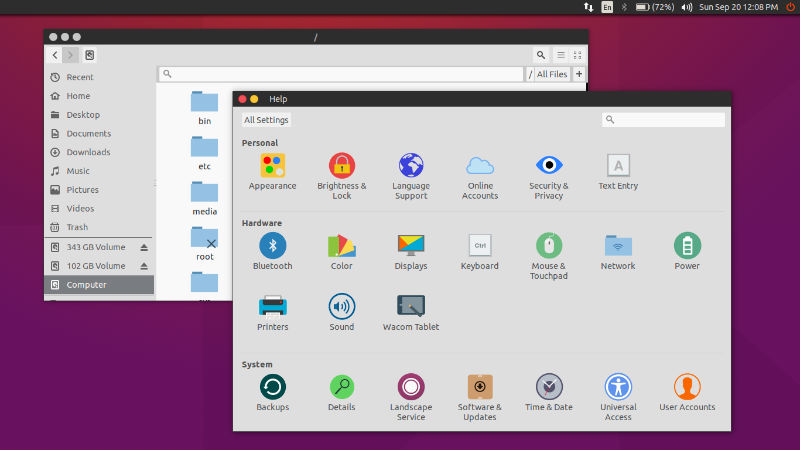
ubuntu-flat-04

To install the Flatabulous Ubuntu Theme, you must first install the Ubuntu tweak tool (used to change the theme). The Flatabulous Ubuntu Theme can be installed by running the following commands:

sudo add-apt-repository ppa:tualatrix/ppa
sudo apt-get update
sudo apt-get install ubuntu-tweak

You can also download the .deb file from the website – https://github.com/anmoljagetia/

Once installed, place the extracted files in your /usr/share/themes/ folder. You can also create a folder, called .theme in your home directory. This can be simply created by firing up your terminal, and then running

mkdir .themes

Please note that this is a hidden directory. To view the directory, press Ctrl/⌘ + H.

Flat Icons

For better results, use the ultra-flat-icons theme on Ubuntu Systems. The Flat icons can be installed in various colours – blue, orange and mint green colors.

Ultra Flat Icons 2.0
http://gnome-look.org/content/show.php/Ultra-Flat?content=167473
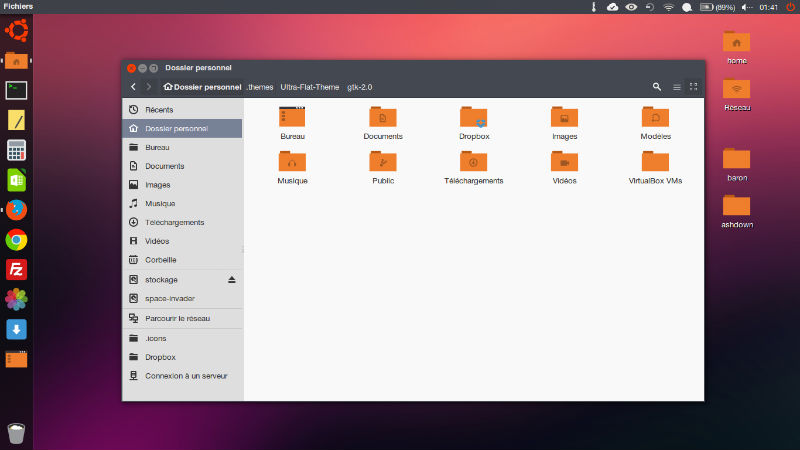
ultra-flat-icon

Super Flat Icons
http://gnome-look.org/content/show.php/Ultra-Flat?content=167473
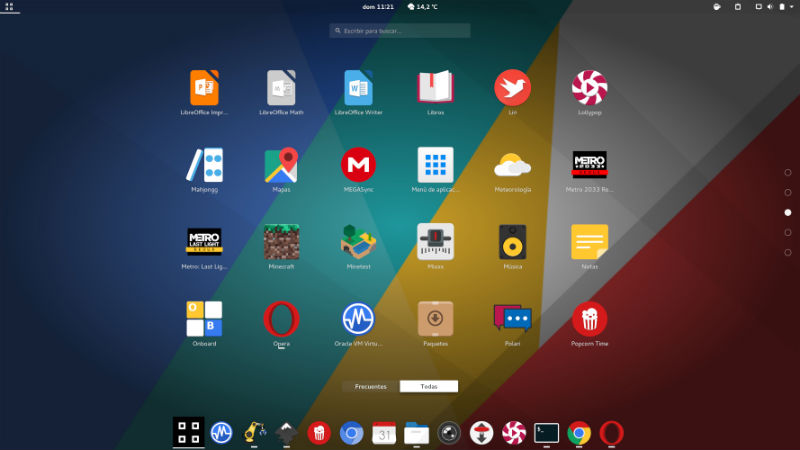
super-flat-icon

Ultra Flat Icons
The Flat Icons can be installed by using the following commands (via http://www.noobslab.com):
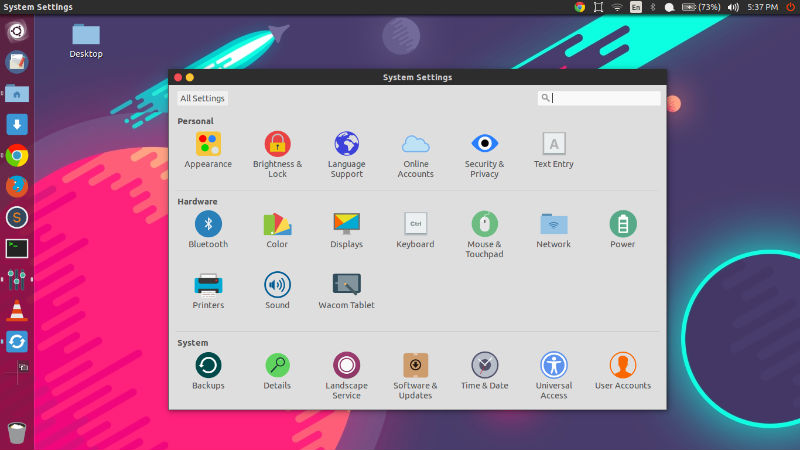
Flatabulous-Ubuntu-Theme

Blue Ultra Flat Icons

sudo add-apt-repository ppa:noobslab/icons
sudo apt-get update
sudo apt-get install ultra-flat-icons

Orange Ultra Flat Icons

sudo add-apt-repository ppa:noobslab/icons
sudo apt-get update
sudo apt-get install ultra-flat-icons-orange

Mint Green Ultra Flat Icons

sudo add-apt-repository ppa:noobslab/icons
sudo apt-get update
sudo apt-get install ultra-flat-icons-green.

Courtsey – NoobsLabs | Blog.AnmolJagetia.Me – https://blog.anmoljagetia.me/flatabulous-ubuntu-theme/

Tags: Download Flat Theme Ubuntu, Download Flatabulous Ubuntu Theme, Download Ubuntu Theme, Flat Theme Ubuntu 15.04, Flat Ubuntu Theme Ubuntu 14.04, Flatabulous Ubuntu Theme Ubuntu 14.04, Flatabulous Ubuntu Theme Ubuntu 15.04, How to Download Themes in Ubuntu, How to Download Themes in Ubuntu 14.04, How to Download Themes in Ubuntu 15.04, How To Install Themes In Ubuntu, How to Install Themes in Ubuntu 14.04, How to install Themes in Ubuntu 15.04, Install Blue Ultra Flat Icons on Ubuntu, Install Flat Icons on Ubuntu, Install Flat Theme Ubuntu, Install Flatabulous Ubuntu Theme, Install Super Flat Icons on Ubuntu, Install Ubuntu Theme, Install Ultra Flat Icons on Ubuntu, Ubuntu 14.04 Flat Ubuntu Theme, Ubuntu 14.04 Flatabulous Ubuntu Theme, Ubuntu 15.04 Flat Ubuntu Theme, Ubuntu 15.04 Flatabulous Ubuntu Theme

Primary Sidebar

Latest Posts

How To Check User Permissions In Linux Using Command

Check Which Folder Is Taking More Space In Ubuntu Linux

How to Install Claude Desktop App in Ubuntu Linux

Job Scheduling Using At Command In Linux With Examples

How To Check Permissions Of A Directory In Linux Command

Delete Directory And Contents Recursively Without Prompt On Linux

Check User Login History In Ubuntu Linux Command Line

Use Locate Command To Find File In Linux Terminal By Name

How To Change Terminal Color In Ubuntu Command Line

How To Run Fsck Manually In Linux To Fix Unexpected Inconsistency

© 2026 Source Digit • Linux, Ubuntu Tutorials & News, Technology, Gadgets & Gizmos

  • Home
  • About
  • Privacy Policy
  • Terms & Conditions
  • Contact Us
  • Sitemap