
Install PlayOnLinux to play Windows games on Linux Ubuntu. Play Windows games on Linux without WINE. How to install PlayOnLinux in Ubuntu 15.04, Ubuntu 14.04 and Derivatives.
PlayOnLinux is a piece of software which allows you to easily install and use numerous games and apps designed to run with Microsoft Windows. As we known that only few games are compatible with GNU/Linux at the moment and PlayOnLinux brings a cost-free, accessible and efficient solution to this problem. After installing PlayOnLinux, users can play Windows games on Linux systems without even installing Windows OS.
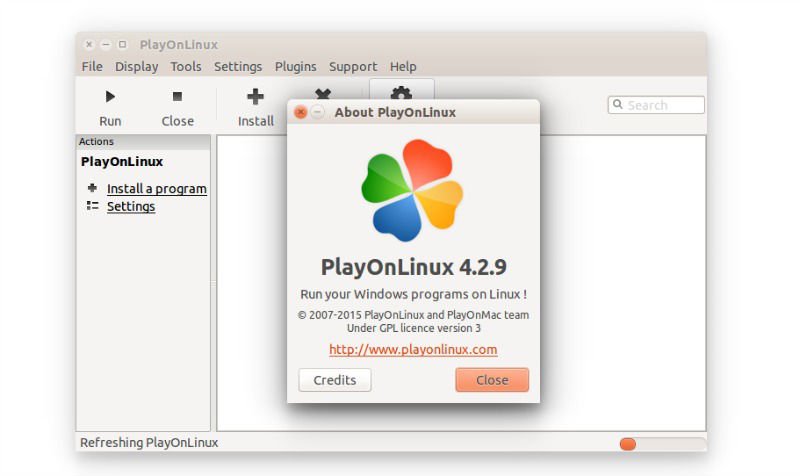
What are PlayOnLinux’s features?
- You don’t have to own a Windows license to use PlayOnLinux.
- PlayOnLinux is based on Wine, and so profits from all its features yet it keeps the user from having to deal with its complexity.
- PlayOnLinux is free software.
- PlayOnLinux uses Bash and Python.
Nevertheless, PlayOnLinux has some bugs, as every piece of software:
- Occasional performance decrease (image may be less fluid and graphics less detailed).
- Not all games are supported. Nevertheless, you can use our manual installation module
Download PlayOnLinux
The latest version of PlayOnLinux is: 4.2.9. To get this version, follow the steps given below:
Download PlayOnLinux Deb files:
PlayOnLinux: PlayOnLinux_4.2.9.deb
Ubuntu Precise (and superior) users : You must install the package wine:i386 to get PlayOnLinux working
For the Trusty version
Type the following commands:
wget -q "http://deb.playonlinux.com/public.gpg" -O- | sudo apt-key add -
sudo wget http://deb.playonlinux.com/playonlinux_trusty.list -O /etc/apt/sources.list.d/playonlinux.list
sudo apt-get update
sudo apt-get install playonlinux
For the Saucy version
Type the following commands:
wget -q "http://deb.playonlinux.com/public.gpg" -O- | sudo apt-key add -
sudo wget http://deb.playonlinux.com/playonlinux_saucy.list -O /etc/apt/sources.list.d/playonlinux.list
sudo apt-get update
sudo apt-get install playonlinux
For the Precise version
Type the following commands:
wget -q "http://deb.playonlinux.com/public.gpg" -O- | sudo apt-key add -
sudo wget http://deb.playonlinux.com/playonlinux_precise.list -O /etc/apt/sources.list.d/playonlinux.list
sudo apt-get update
sudo apt-get install playonlinux
Development version
To get the latest development version, open a terminal and type:
git clone https://github.com/PlayOnLinux/POL-POM-4