
Install Dropbox in Linux Ubuntu via Terminal (Command Line) Install Dropbox in Ubuntu 16.04, Ubuntu 15.10, Ubuntu 15.04 and Ubuntu 14.04. Terminal commands to install Dropbox on Ubuntu, via Command Line.
Install Dropbox in Ubuntu via command line
The Dropbox daemon works fine on all 32-bit and 64-bit Linux servers. To install, run the following command in your Linux terminal.
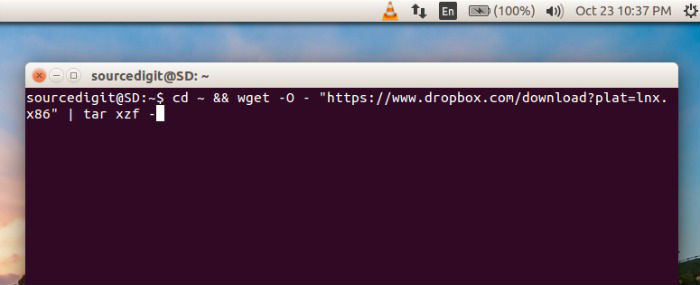
32-bit:
cd ~ && wget -O - "https://www.dropbox.com/download?plat=lnx.x86" | tar xzf -
64-bit:
cd ~ && wget -O - "https://www.dropbox.com/download?plat=lnx.x86_64" | tar xzf -
Next, run the Dropbox daemon from the newly created .dropbox-dist folder.
~/.dropbox-dist/dropboxd
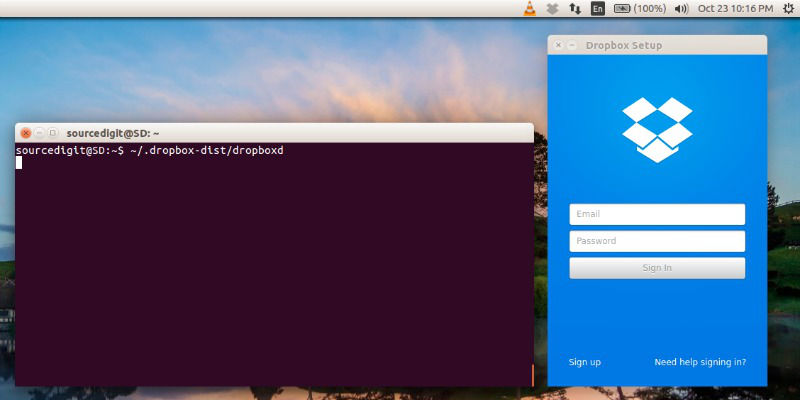
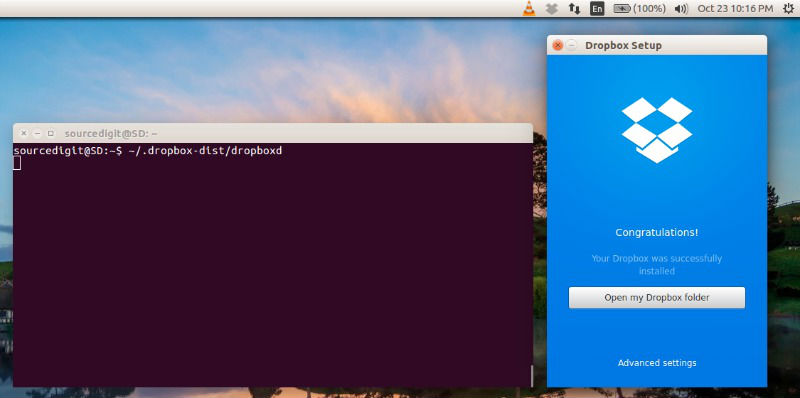
If you’re running Dropbox for the first time on Ubuntu System, you will be asked to login via a valid Dropbox account. If you don’t have a Dropbox account, please create one to use.
I assume you have an active Dropbox account to use. Enter the email and password to authenticate Dropbox to use it with Linux Ubuntu System.
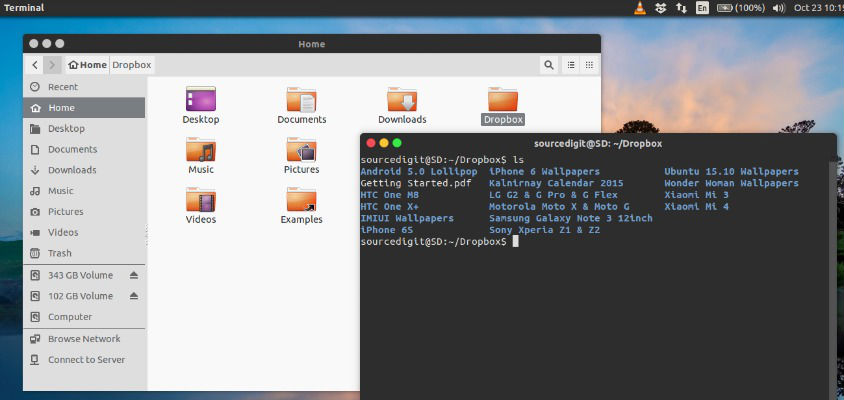
You can also use Dropbox via Terminal (CLI) on Linux Ubuntu Systems. To do so, right click on the Dropbox folder in Home directory and select “Open in Terminal.”
You can also access settings and preferences options. To open Dropbox Settings, click on the Dropbox icon on the Ubuntu Panel Bar and click on the Preferences option.
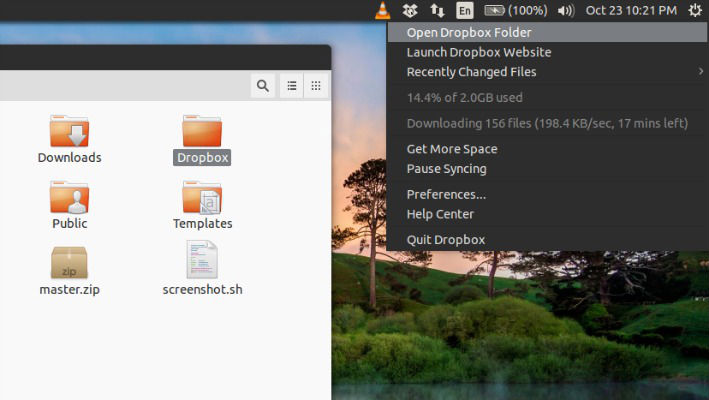
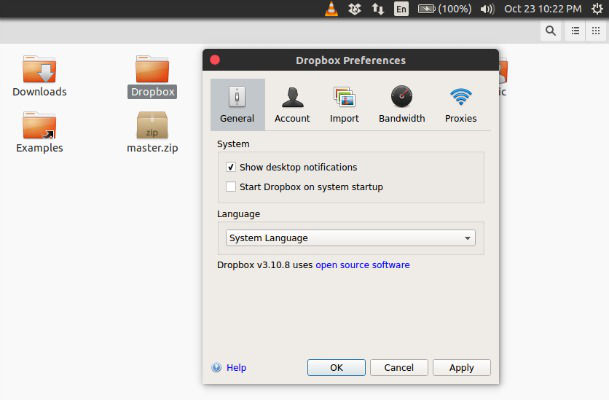
Using the Dropbox Preferences options, you can configure additional settings for using Dropbox on Ubuntu Systems. (See screenshot above).
If you’re running Dropbox on your server for the first time, you’ll be asked to copy and paste a link in a working browser to create a new account or add your server to an existing account. Once you do, your Dropbox folder will be created in your home directory.
You can also download this Python script to control Dropbox from the command line. For easy access, put a symlink to the script anywhere in your PATH.
Download Dropbox on Linux
You can also grab the official download package of the latest version of Dropbox. Please note to download the installer package according to your system architecture (i386 for 32 Bit and amd64 for 64 Bit).
Install the appropriate package if you want to use Dropbox on your Linux Desktop. If your distribution is not listed then choose “Compile from Source”.