
Install Gtkrawgallery 0.9.9 on Ubuntu 15.10 and Ubuntu 14.04. GTKRawGallery is a powerful photo manager & editor for photographers. GTKRawGallery (photo retouch application) for Ubuntu & Mint is wonderful for editing camera RAW images.
GTKRawGallery is a workflow oriented photo retouching software with all necessary tools to quickly process camera raw images. For this purpose GTKRawGallery brings together the most powerful open source tools existing to work with 16 bit color depth images: Dcraw, Imagemagick and Exiftool. It is also a full featured photo manager for most popular image formats.
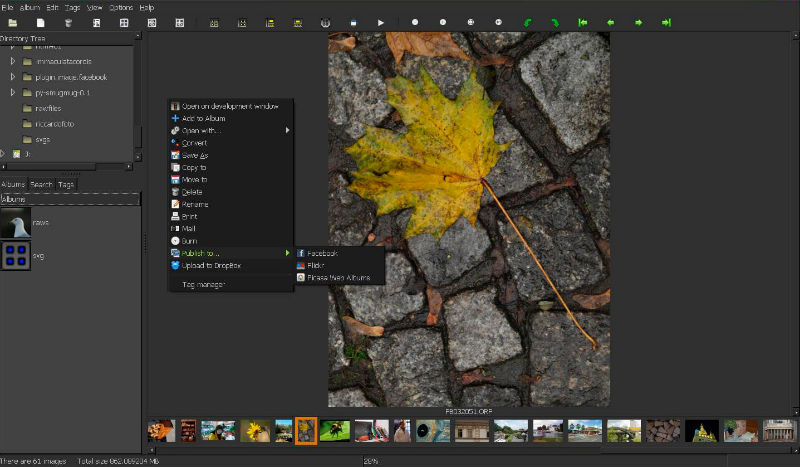
Features
- Image browser and album manager;
- Full featured Dcraw GUI for a fine-tuned raw image pre-processing;
- Image modification tools for 16 bit/channel post-processing;
- Batch conversion with styles;
- Batch Processor to speed up workflow;
- Fast tagging;
- Advanced Metadata Editor with EXIF, IPTC and XMP write support;
- Color Management;
- Print support;
- Facebook, Flickr and Picasa Web Albums Publisher;
- Dropbox Uploader;
- Image browser and album manager;
- Full featured Dcraw GUI for a fine-tuned raw image pre-processing;
- Image modification tools for 16 bit/channel post-processing;
- Batch conversion with styles;
- Batch Processor to speed up workflow;
- Fast tagging;
- Advanced Metadata Editor with EXIF, IPTC and XMP write support;
- Color Management;
- Print support;
- Facebook, Flickr and Picasa Web Albums Publisher;
- Dropbox Uploader;
- Non destructive image workflow with a color depth >=16 bit/channel;
- Advanced Metadata Editor with custom templates: a really powerfull and flexible tool adding write support to a huge list of metadata information;
- EXIF, IPTC, XMP and read and write support;
- Makernotes read support;
- Color Manager based on ICC profiles;
- Basic ICC profile inspector;
- Possibility to send photos by mail;
- Possibility to store photos on CD/DVD
- Possibility to rename multiple files with pattern;
- Possibility to manage photos on fullscreen mode;
- Gallery fullscreen mode;
- Gettext support;
- full featured browser to copy, move, rename and delete images;
- White balance preset editor;
- Image histogram;
- Color enhance tools (white balance, temperature, levels, curves, shadows, highlights, gamma, normalize, color balance, exposure, saturation, hue, contrast, sigmoidal-contrast, channel mixer);
- Image transform tools (scale, rotate, flip, flop, fine rotation, border, crop, lens distortion, red eye removal, vignette removal);
- Image effects (sharpen, unsharp mask, blur, reduce noise, add noise, median filter, grayscale, sepia tone, despeckle, oil paint, spread, tint, charcoal, sketch, posterize, negate);
- Slideshow with fading transition and background player;
- Album manager;
- Workflow history manager;
- Curve presets;
- Direct metadata tagging for portability (see exiftool manual for supported file types) and database support to quickly search by keywords;
- Synchronize Database tool to scan the filesystem for tagged images;
- Possibility to open files and folders dropped from the window manager;
- Command line access;
- Error Log dialog and error.log file to display and save debugging information;
- Four gallery layouts available;
- Dark theme or default Gtk theme available;
What formats does it support?
- Popular formats: jpeg, tiff, gif, png, bmp, emf, apm, wmf, cur, ico, qif, qtif, icns, pcx, targa, tga, xbm, xpm, ras, ppm, pgm, pbm, pnm, wbmp, ani.
- Camera raw files: cr2, nef, crw, raf, kdc, dcr, mrw, sr2, orf, ptx, pef, arw, srf, x3f, erf, dng, bay, bmq, cs1, dc2, fff, k25, mos, rdc, rw2, 3fr, ari, cap, iiq, eip, dcs, drf, mef, nrw, pxn, r3d, raw, rw1, rwz.
Install GTKRawGallery on Ubuntu

Run the following commands in Terminal to install GTKRawGallery on Ubuntu 15.10, Ubuntu 14.04, Ubuntu 15.04, Ubuntu 14.10 and Derivatives.
$ sudo add-apt-repository ppa:dhor/myway

$ sudo apt-get update

$ sudo apt-get install gtkrawgallery
To uninstall and remove GTKRawGallery, run the following command:
$ sudo apt-get remove gtkrawgallery