
Install Classic Menu Indicator 0.10 in Ubuntu 15.10, Ubuntu 15.04, Ubuntu 14.04, Ubuntu 14.10 and Linux Mint Systems. ClassicMenu Indicator is a notification area applet (application indicator) for the top panel of Ubuntu’s Unity desktop environment and other environments that support the AppIndicator protocol. It provides a simple way to get a GNOME Classic-style application menu for those who prefer this over the Unity dash menu.
If you use WINE applications or games they are available in ClassicMenu Indicator, too. Depending on your local settings you may have to open the Preferences dialog from the ClassicMenu Indicator submenu and activate the WINE menu there.
Install ClassicMenu Indicatoron Ubuntu
Install Gnome Classic Menu Indicator
Method 1

Open the Terminal and run the following commands:
sudo add-apt-repository ppa:diesch/testing

sudo apt-get update

sudo apt-get install classicmenu-indicator
Once installed you can start the classic Gnome Menu from the Unity Dash, or restart the system to open automatically.
If you want to remove the classicmenu-indicator, run the following command in the terminal:
sudo apt-get remove classicmenu-indicator
Method 2
You may also install Classic Menu Indicator (Unity like global menu) from Ubuntu Software Center. To install, open Ubuntu Software Center and type Classic Menu Indicator and click the installer package to install the Classic Menu Indicator.
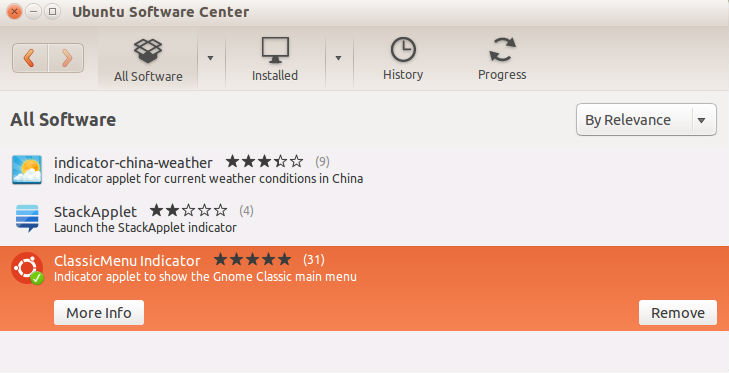
Once installed, click the Classic Menu Indicator and when you do so, you can see a Ubuntu icon on the Panel Bar. Clicking this Ubuntu menu will show you the various menu options just like Classic Menu.
Method 3
ClassicMenu Indicator is available from the PPA (“Personal Package Archive”) ppa:diesch/testing for all current versions of Ubuntu. If you add this PPA to your software sources Ubuntu’s Update manager will automatically install newer versions of ClassicMenu Indicator when they are available.
Download the “classicmenu-indicator_0.10_all.deb” package from ClassicMenu Indicator Webpage or the Official PPA.
After you installed ClassicMenu Indicator will be started automatically when you next log in. Or you can use the dash or the command line to start ClassicMenu Indicator (use classicmenu-indicator in the command line).