
• Skip to primary navigation
  • Skip to main content
  • Skip to primary sidebar
Source Digit

Source Digit

Linux, Ubuntu Tutorials & News, Technology, Gadgets & Gizmos

  • Home
  • How To
  • Ubuntu
  • Instagram
  • Blogging
  • Android
  • WordPress
  • +More
    • Cloud Computing
    • Gadgets
    • Social Media
    • Technology
  • Write for Us
Home / How To / How To Install Skype 4.3 On Ubuntu 16.04

How To Install Skype 4.3 On Ubuntu 16.04

By Sourabh / April 14, 2016 Category: How To, Ubuntu

Downloading and installing Skype on Ubuntu Linux Systems. How to Install Skype 4.3 in Ubuntu 16.04, Ubuntu 15.04, Ubuntu 14.04 and Derivatives.

Enable Canonical Partners Repository:

You will have to enable Canonical Partners Repository to install and use Skype on Ubuntu 16.04, Ubuntu 15.04 and Ubuntu 14.04 Systems. Follow the steps given below:

For Linux Ubuntu Systems, the Canonical Partners Repository offer access to proprietary and closed-source software which are not enabled by Ubuntu/Canonical, by default.
update-02

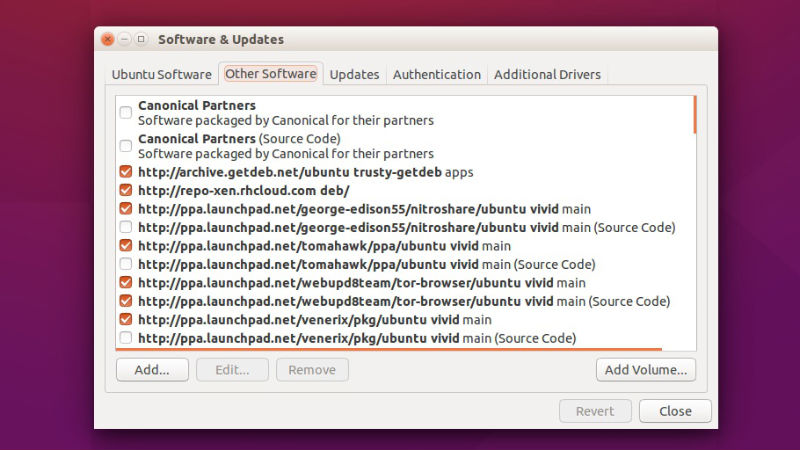
  • To enable it, open “Software & Updates” from the Ubuntu/Unity Dash.
  • Go to Other Software tab.
  • Check the first two boxes (on the top) which say “Canonical Partners” and “Canonical Partners(Source Code)”.
  • Close and exit.

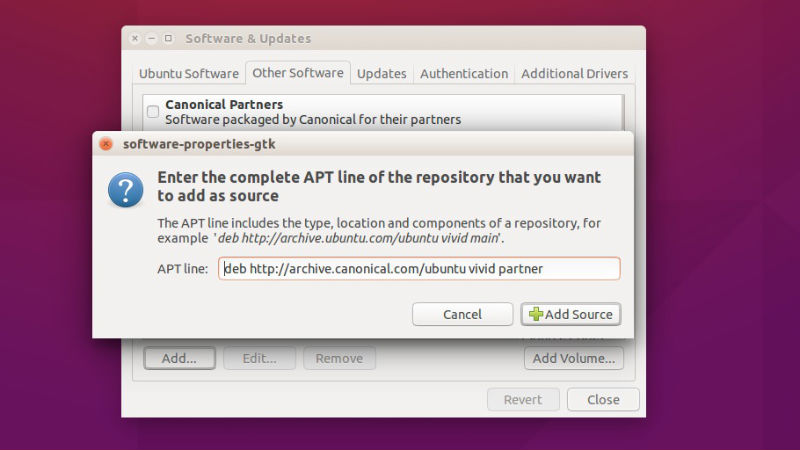
If you are unable to see the “Canonical Partners” and “Canonical Partners(Source Code)” options, you can add them manually. To do so, click Add button (bottom left) and add the following lines one by one:

deb http://archive.canonical.com/ubuntu vivid partner
deb-src http://archive.canonical.com/ubuntu vivid partner
update-03

Install Skype On Ubuntu

Once you have enabled the Canonical Partners Repository, you can now install and use Skype on Ubuntu 16.04, Ubuntu 15.04 and Ubuntu 14.04 Systems.

You can install Skype on Ubuntu 16.04, Ubuntu 15.04 and Ubuntu 14.04 Systems using CLI/Terminal or Synaptic Package Manager. For this tutorial, we shall be using the CLI/Terminal method to install Skype on Ubuntu Systems.

Open Terminal (press Ctrl+Alt+T) and run the following commands to install Skype:

sudo apt update
sudo apt install skype

skype-01

Once installed, open Skype from the Ubuntu Dash.

Tags: How To Install Skype 4.3 in Ubuntu 16.04, Install Skype 4.3 On Ubuntu, Install Skype 4.3 On Ubuntu 14.04, Install Skype 4.3 On Ubuntu 14.10, Install Skype 4.3 On Ubuntu 15.04, Install Skype 4.3 On Ubuntu 15.10, Install Skype 4.3 on Ubuntu 16.04, Linux Skype 4.3, Skype 4.3, Skype 4.3 Linux, Skype 4.3 PPA Ubuntu, Skype 4.3 Ubuntu, Skype Ubuntu, Skype Ubuntu 16.04, Ubuntu 16.04 Skype, Ubuntu PPA Skype 4.3

Primary Sidebar

Latest Posts

Re Execute The Previous Command In Linux Ubuntu Command Line

How Much RAM Is Needed For Ubuntu PC

How To Find Large Files And Directories In Linux Command Line

How To Use Clear Command History In Linux Terminal

Linux Command To Check RAM Size In Ubuntu Terminal In GB

How To Install Proprietary Drivers In Linux Ubuntu Using Terminal

How To Shutdown Linux With A 15 Minute Delay And Message

Free AI Courses With Certificate For Beginners In India

Best AI Plugins For WordPress To Use In 2026

3 Commands To Check USB Connection In Linux Terminal

© 2026 Source Digit • Linux, Ubuntu Tutorials & News, Technology, Gadgets & Gizmos

  • Home
  • About
  • Privacy Policy
  • Terms & Conditions
  • Contact Us
  • Sitemap