
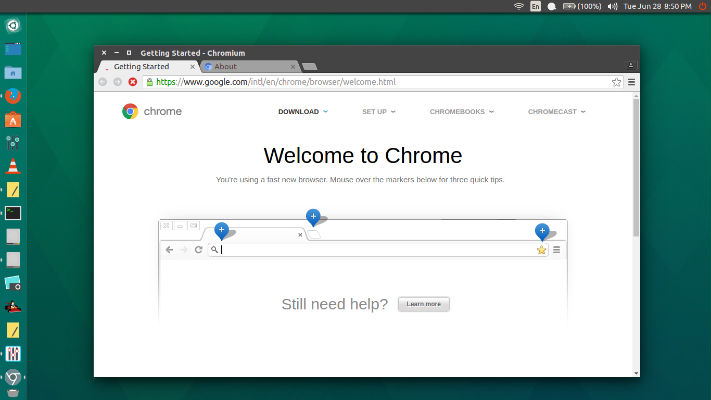
Chromium 51 Web Browser for Linux Ubuntu. Install Chromium Google Chrome open source browser in Ubuntu 16.04. Chromium 51.0.2704.103 is the latest stable release of the Chromium web browser.
Chromium is an open-source browser project that aims to build a safer, faster, and more stable way for all users to experience the web. This site contains design documents, architecture overviews, testing information, and more to help you learn to build and work with the Chromium source code.
Chromium 51.0.2704.103 Changelog
- This update fixes the fallback mechanism of Document’s named propertie
- This update addresses “Lock CrossThreadPersistentRegion until end of weak processing”
- Move MainThreadTaskRunner off Oilpan heap to simplify posting
- Set FLAGS_shift_quic_cubic_epoch_when_app_limited to false
- Removing the check for SM_TABLETPC for determining whether a device is operating as a tablet
- Guard against invalid glyph shaping results
- AppCache: Check whether AppCacheStorageImpl is enabled before calling disk_cache()
- Allow about:blank to be considered in-page if origin matches
- [Extensions] Don’t CHECK() on bad pref types in scoped updates
- ChromeOS: disable ToggleMaximize for login and lock screen. ChromeOS login and lock screens must be always maximized even on touch devices
- Fix odd size and visible rect issues in WebMediaPlayerMSCompositor
- Various fixes from internal audits, fuzzing and other initiatives.
Install Chromium 51.0.2704.103 on Ubuntu
Run the commands given below to install Chromium 51.0.2704.103 on Ubuntu 16.04, Ubuntu 15.10, Ubuntu 15.04, Ubuntu 14.04, Ubuntu 14.10 and other Ubuntu Derivatives:
sudo apt-get update

sudo apt-get install chromium-browser
Once installed, open Chromium from Ubuntu Dash or Terminal. If you aren’t pleased with the Chromium web browser, run the following command in Terminal to uninstall and remove Chromium:
sudo apt-get remove chromium-browser
While Chromium 51 is the latest stable release, Chrome 52 is the Beta version. Chrome 52 Beta version brings CSS containment, simpler performance measurement, streamable responses from service workers, and more options for web push