
• Skip to primary navigation
  • Skip to main content
  • Skip to primary sidebar
Source Digit

Source Digit

Linux, Ubuntu Tutorials & News, Technology, Gadgets & Gizmos

  • Home
  • How To
  • Ubuntu
  • Instagram
  • Blogging
  • Android
  • WordPress
  • +More
    • Cloud Computing
    • Gadgets
    • Social Media
    • Technology
  • Write for Us
Home / How To / How To Rename A File In Ubuntu Through Terminal

How To Rename A File In Ubuntu Through Terminal

By Sourabh / November 10, 2016 Category: How To, Ubuntu

How to rename a file in Ubuntu through terminal. Rename file via command line in Linux. Use “mv” terminal command to rename file in Ubuntu (command line).

How To Rename a File in Ubuntu

rename-terminal-02

We all know how to rename a file GUI way, but for many renaming a file using Terminal commands in Ubuntu is quite confusing for others. But surprisingly, renaming a files in Ubuntu Linux, via command line is quite easy.

In Linux, renaming a file is essentially the same as moving a file from one destination to other. This is because same mv command on used to move and rename a file in Ubuntu Linux. In Linux, renaming a file is moving the name of the file.

mv Command

mv command moves or renames files (or directories). mv command is used in the following formats:

mv [OPTION]… [-T] SOURCE DEST
mv [OPTION]… SOURCE… DIRECTORY
mv [OPTION]… -t DIRECTORY SOURCE…

To rename a file in Ubuntu through Terminal, use the following command syntax:

mv Source-File ToRename-File

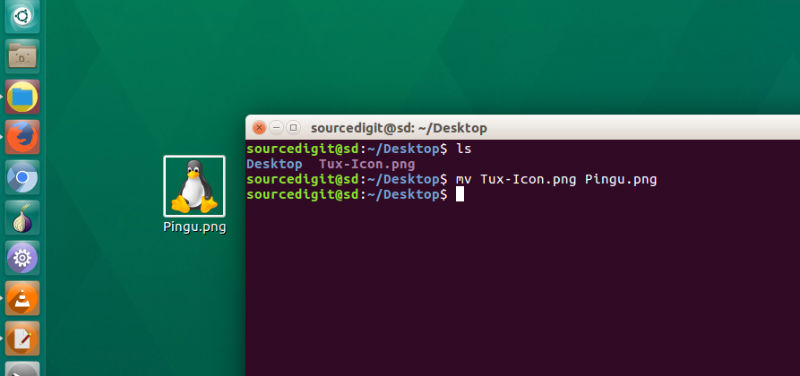
For example, in the following example (screenshot) we will use mv command to rename an image file named Tux-Icon.png to Pingu.png. So we will use the following command syntax:

mv Tux-Icon.png Pingu.png
rename-terminal

Please Note:

  • If two file names are given, ‘mv’ moves the first file to the second.
  • If the ‘–target-directory’ (‘-t’) option is given, or failing that if the last file is a directory and the ‘–no-target-directory’ (‘-T’) option is not given, ‘mv’ moves each SOURCE file to the specified directory, using the SOURCEs’ names.

mv command can move any type of file from one file system to another. Prior to version ‘4.0’ of the fileutils, ‘mv’ could move only regular files between file systems. For example, now ‘mv’ can move an entire directory hierarchy including special device files from one partition to
another.

Tags: Copy File Ubuntu Terminal, Create File Ubuntu Root, Delete File Ubuntu Terminal, Find File Ubuntu Terminal, How To Open A Terminal Window In Ubuntu, How To Rename A File In Terminal, How To Rename A File In Ubuntu Through Terminal, How To Rename A File In Ubuntu Using Terminal, How To Rename File Command Line Ubuntu 16.04, How To Rename File Terminal Ubuntu 16.04, How To Unzip A File In Ubuntu Terminal, How To Use mv Command in Terminal, How To Use mv Command in Ubuntu, How To Use mv Command in Ubuntu 16.04, Linux Directory Rename, Linux Rename File, Rename A File In Linux, Rename A File In Unix, Rename A File Linux, Rename File Command Line Linux, Rename File Command Line Mac, Rename File Command Line Ubuntu, Rename File Command Line Ubuntu 16.04, Rename File In Ubuntu Server, Rename File Linux, Rename File Terminal Mac, Rename File Terminal Ubuntu, Rename File Terminal Ubuntu 16.04, Rename File Ubuntu 16.04, Rename File Ubuntu Command Line, Rename File Ubuntu Terminal, Terminal Rename Folder, Ubuntu 16.04 How To Rename File Command Line, Ubuntu 16.04 How To Rename File Terminal, Ubuntu 16.04 How To Use mv Command, Ubuntu 16.04 Rename File, Ubuntu 16.04 Rename File Command Line, Ubuntu 16.04 Rename File Terminal, Ubuntu Command Line Rename Folder, Ubuntu How To Use mv Command, Ubuntu Rename File Command Line, Ubuntu Rename File Terminal

Primary Sidebar

Latest Posts

Delete Directory And Contents Recursively Without Prompt On Linux

Check User Login History In Ubuntu Linux Command Line

Use Locate Command To Find File In Linux Terminal By Name

How To Change Terminal Color In Ubuntu Command Line

How To Run Fsck Manually In Linux To Fix Unexpected Inconsistency

How To Fix Broken Packages On Ubuntu From Terminal

Re Execute The Previous Command In Linux Ubuntu Command Line

How Much RAM Is Needed For Ubuntu PC

How To Find Large Files And Directories In Linux Command Line

How To Use Clear Command History In Linux Terminal

© 2026 Source Digit • Linux, Ubuntu Tutorials & News, Technology, Gadgets & Gizmos

  • Home
  • About
  • Privacy Policy
  • Terms & Conditions
  • Contact Us
  • Sitemap