
Best Web Browser for Linux Ubuntu Systems. Install Min web browser on Ubuntu Linux. Min is a faster web browser designed for Linux and Debian Systems. Min browser is efficient and is designed to be fast. It uses less battery power and comes with an in-built ad blocking feature. Min lets you decide whether you want to see ads or not. And on a slow or expensive Internet connection, it lets you block scripts and images, so pages load faster and use less data.
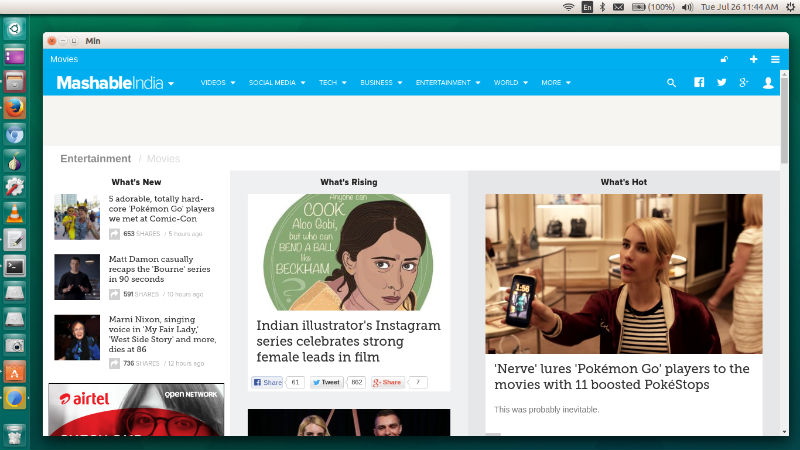
Features:
- Searches Anything & Everything – The searchbar shows information from DuckDuckGo, including Wikipedia entries, a calculator, programming documentation, and more. The searchbar also supports fuzzy search, which lets you quickly find websites without typing the entire URL. For example, you can type “mgc” to search for “mail.google.com”. Every page you visit is automatically saved, so you can search the contents of pages as well as the title.
- Tabs Management – Click on the current tab to open the searchbar. Hover over a tab and click the cross button to delete it (or press Ctrl+W). Tabs you haven’t looked at in a while fade out, and brighten again when you click on them.
- Reading List – Click the icon in a tab to format an article and make it easier to read. Articles opened in reader view are saved in your reading list for the next 30 days, and are saved for offline reading. You can find your saved articles in the application menu: View > Reading List.
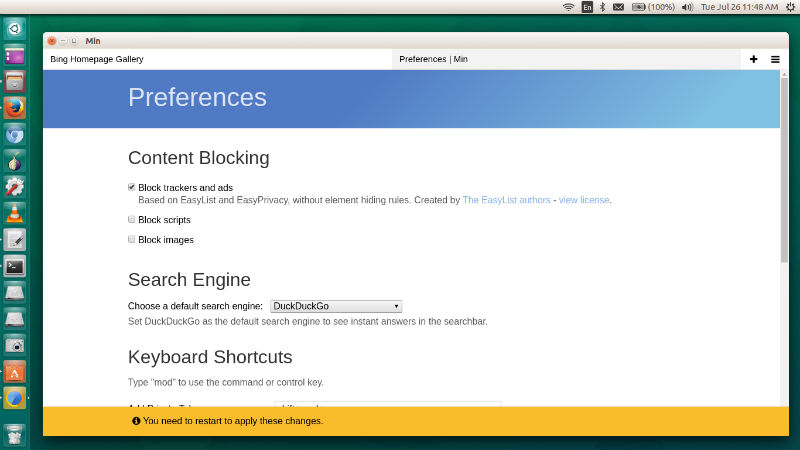
- Ad and tracker blocking – Go to Min > Privacy Preferences (Or the Edit menu > Privacy Preferences on Linux) to enable ad and tracker blocking. You can also choose to block images and Javascript, if you are on a limited internet connection.
Tips and Tricks
- Focus Mode lets you hide distractions. In focus mode, all your tabs except the current one are hidden, and you can’t create new tabs. Turn on focus mode in the View menu > Focus Mode.
- Quickly switch between tabs: press Ctrl+1 to move one tab to the right, Ctrl+2 to move two tabs to the right, etc. ⇧+Ctrl+1 moves one tab to the left. See more shortcuts here.
- Browser actions let you quickly do almost anything, even if you don’t remember the keyboard shortcut. Type “!” in the searchbar, and then type an action. You can view a list of available browser actions here.
Shortcuts
!settings Open the settings page
!back Navigate backwards
!forward Navigate forwards
!screenshot Take a screenshot of the current tab
!clearhistory Delete all history (excluding bookmarks)
!task Switch to a task
!newtask Create a new task
!movetotask Move the current tab to a task
Download Min Browser
One can download Min Browser binaries here.