
Install Pandora Client Pithos in Ubuntu 16.04. Pithos is a native Pandora Radio client for Linux. It’s much more lightweight than the Pandora.com web client, and integrates with desktop features such as media keys, notifications, and the sound menu.
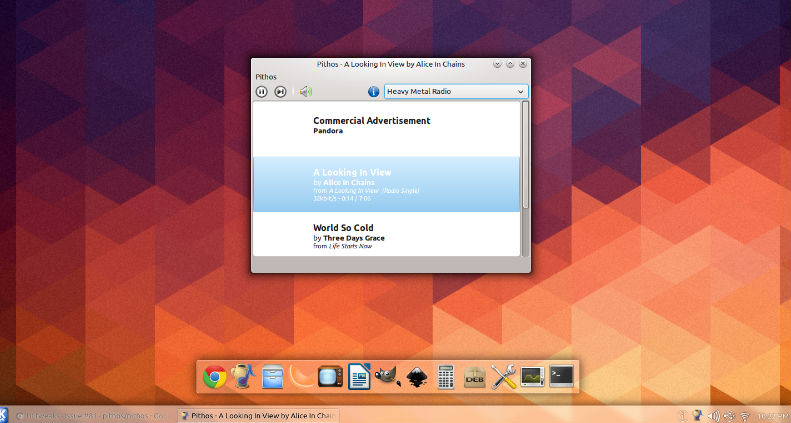
Pithos 1.2.0 is a major release involving a lot of cleanup and some UI redesigns. It now uses GSettings with Dbus-python dependencies removed and all new content filter option. For security features passwords are now stored with SecretService (lib secret). The application now comes with a redesigned stations dropdown and an improved integration with Flatpack. The Last.FM integration has also been improved.
Pithos General Features:
- Play / Pause / Next Song
- Switching stations
- Remembering user name and password
- Cover Art
- Thumbs Up / Thumbs Down / Tired of this song
- Notification popup with song info
- Launching pandora.com song info page and station page
- Reconnecting when pandora session times out
- Editing QuickMix
- Creating stations
- Media Key support
- Proxy support
- Last.fm scrobbling
Pithos 1.2 Changelog
- Migrate build system to Autotools
- Migrate settings to GSettings
- Store password with SecretService (libsecret)
- Remove all dependencies on dbus-python
- Add extensive keyboard shortcuts for the main window
- Add Keyboard Shortcuts help window on Gtk 3.20+
- Add initial support for translations (translators needed!)
- Add explicit content filter option
- Fix high CPU usage with Ubuntu’s default theme
- Redesign all dialogs to use Headerbars
- Redesign stations dropdown as a Popover with searching and sorting
- Improve integration with Flatpak
- Use Gio to open URIs
- Rename icons and data files to match app id
- mpris:
- Effectively rewritten to better follow the spec
- Reference album art as locally downloaded files
- notify: Fix Ubuntu sometimes showing wrong art
- lastfm: Fix now playing not being set
Download Pithos for Ubuntu 16.04
Ubuntu users can download Pithos 1.2 directly from the GitHub project website. Users can also install Pithos using the official Pithos PPA or downloading the .deb installer (.deb download link below).
Install Pithos 1.2.0 on Ubuntu
The latest version Pithos 1.2.0 can be installed on Ubuntu Systems, via PPA. Run the following commands in Terminal to install Pithos:
sudo add-apt-repository ppa:pithos/ppa

sudo apt-get update

sudo apt-get install pithos
Once installed, open Pithos from Ubuntu Dash or Terminal. To use Pithos, you will need an active Pandora account.
Download Pithos 1.2 for Ubuntu 16.04 LTS
Image Credit: https://github.com/pithos/pithos