
• Skip to primary navigation
  • Skip to main content
  • Skip to primary sidebar
Source Digit

Source Digit

Linux, Ubuntu Tutorials & News, Technology, Gadgets & Gizmos

  • Home
  • How To
  • Ubuntu
  • Instagram
  • Blogging
  • Android
  • WordPress
  • +More
    • Cloud Computing
    • Gadgets
    • Social Media
    • Technology
  • Write for Us
Home / How To / How To Access Google Drive On Ubuntu 16.04

How To Access Google Drive On Ubuntu 16.04

By Sourabh / November 15, 2016 Category: How To, Ubuntu

How to access Google Drive on Ubuntu 16.04. Install ‘Gnome Online Account’ package on Ubuntu. It works as Google Drive client for GNU/Linux Ubuntu Systems. Once installed, Gnome Online Account can be configured to access online account using the application.

Access Google Drive in Ubuntu 16.04
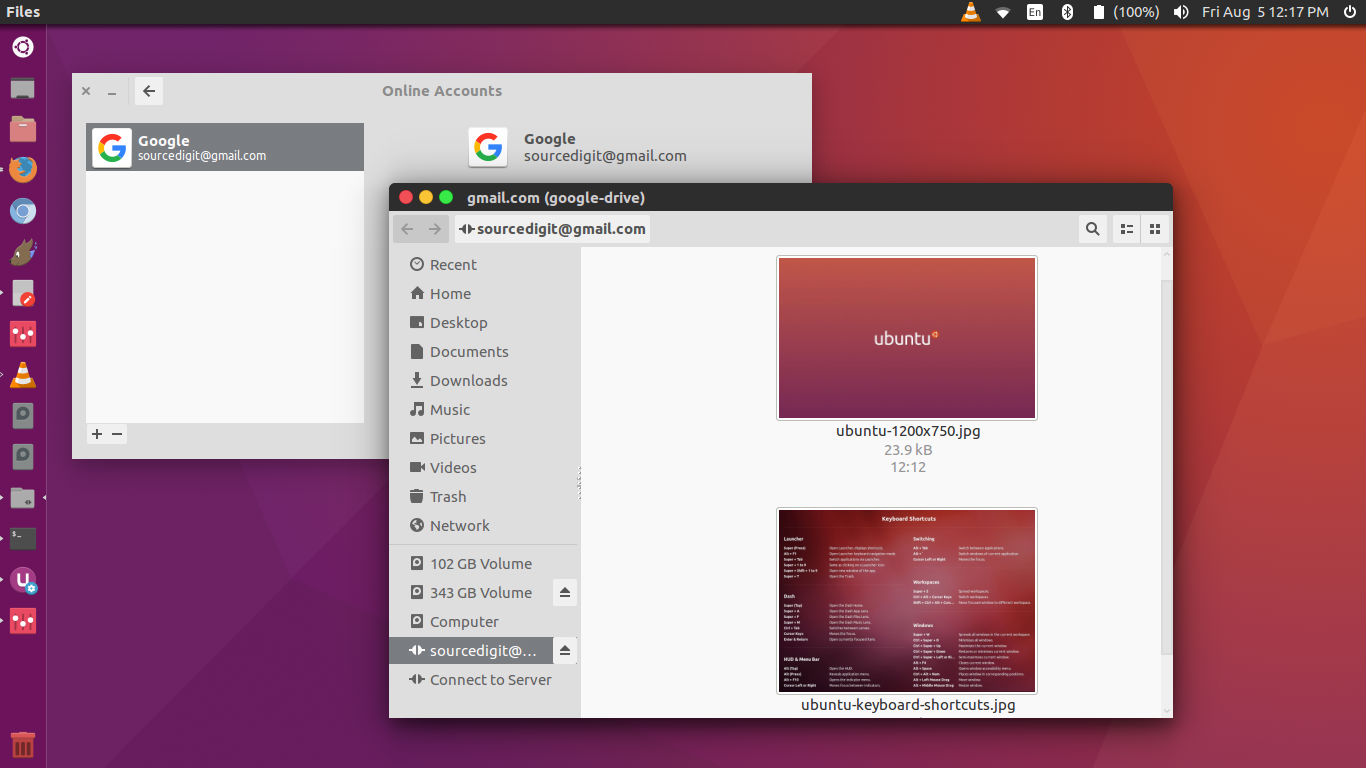
google-account-ubuntu-3

Gnome Online Account (GOA) provides a centralized service that allows a set of online accounts to be configured for use with core Gnome applications. In UX terms, GOA provides a static list of online accounts that can be setup by users (through the Online Accounts panel in System Settings). These accounts can then be used by core Gnome applications. You can read more about it here – https://wiki.Gnome.org/Projects/GnomeOnlineAccounts

Install Gnome Online Account on Ubuntu

To begin with, run the command given below to install the Gnome Control Center and Gnome Online Accounts packages on Ubuntu 16.04:

sudo apt install Gnome-control-center Gnome-online-accounts

Open Gnome Online Account on Ubuntu

Once installed, open the Gnome Control Center from the Unity Dash. If you aren’t able to find Gnome in Unity Dash, run the command “Gnome-control-center online-accounts” (without quotes and press enter).

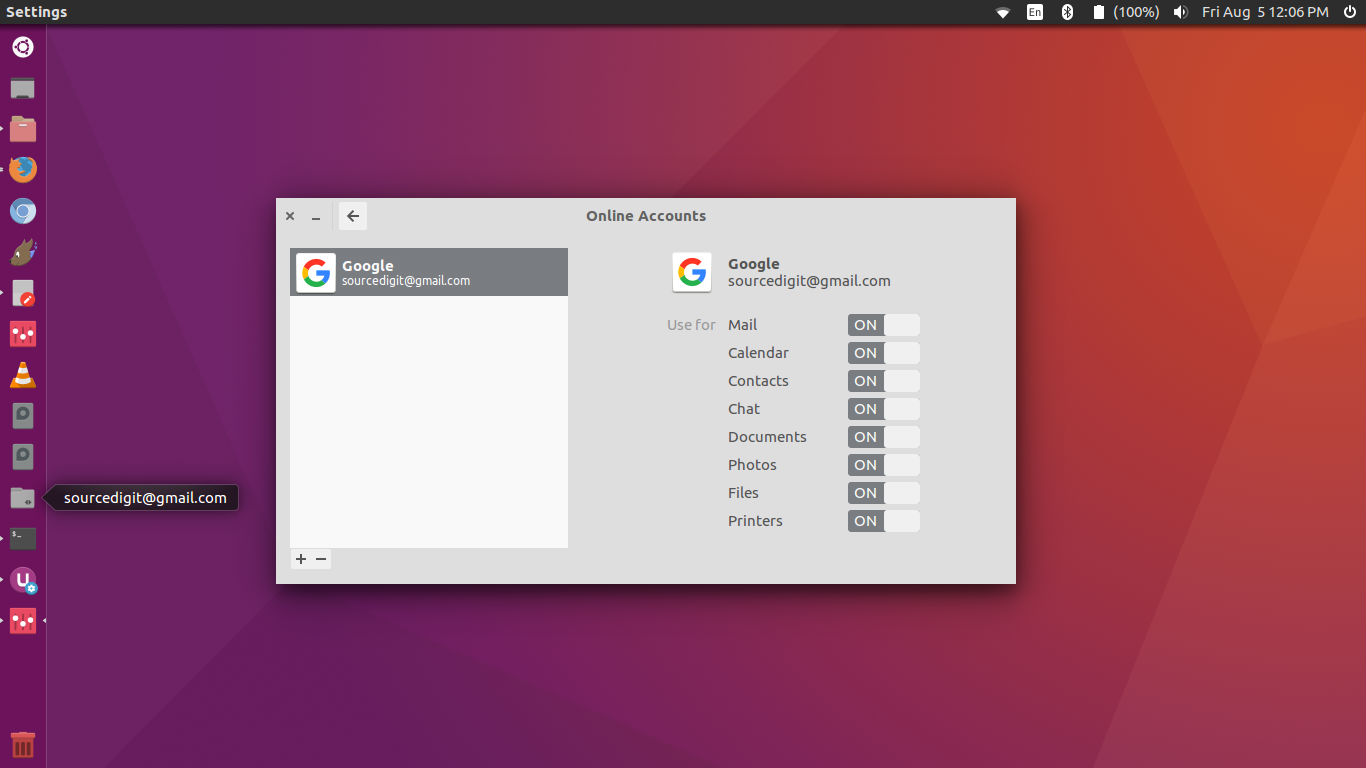
Once gnome-control-center online-accounts is open, follow the steps given below to access Google Drive from Ubuntu:
google-account-ubuntu-2

  • Click on the “Online Accounts.”
  • Click “Add Account” and then select “Google”.
  • Enter Google account details – username and password.
  • Grant authorisation to gnome-control-center online-accounts to read, access and work on the files and Google apps.
  • Now click and open the authorised Google account from Nautilus. To do so, open a new file/Nautilus window and look for the Google account. (see screenshot above).

NOTE:  The application can only be used over an active Internet connection. It can not be used offline – without Internet.

Unmount or Remove Google Drive Access

If you wish to unmount the Google Drive or remove the Google account, you can easily do it via the same gnome-control-center online-accounts window.

  • To unmount the Google Drive, launch gnome-control-center online-accounts and right-click on the folder and select “unmount”. You can also do it from the Nautilus window.
  • To remove an account, launch gnome-control-center online-accounts and select the account and then click on the – button on the bottom left of the window.

Tags: Access Google Drive From Ubuntu, Access Google Drive Ubuntu 16.04, Gnome 3.18 Google Drive Integration Ubuntu, Gnome 3.18 Google Drive Integration Unity, Gnome Google Drive Integration Ubuntu, Gnome Google Drive Integration Unity, Gnome Google Drive Ubuntu, Gnome Google Drive Ubuntu 16.04, Gnome Google Drive Ubuntu 16.10, Gnome Google Drive Unity, Google Drive Client For Gnu/Linux, Google Drive Client Ubuntu 16.04, Google Drive In Ubuntu, Google Drive In Ubuntu 16.04, Google Drive Ubuntu 16.10, Google Drive Ubuntu Command Line, How To Access Google Drive On Ipad, How To Access Google Drive Without A Gmail Account, Install Google Drive From Ubuntu, Install Google Drive In Linux, Install Google Drive In Ubuntu, Install Google Drive Ubuntu, Install Google Drive Ubuntu 16.04, Linux Install Google Drive, Open Google Drive From Ubuntu, Ubuntu 15.10 Google Drive, Ubuntu 16.04 Access Google Drive, Ubuntu 16.04 Gnome Google Drive, Ubuntu 16.04 Google Drive, Ubuntu 16.04 Google Drive Client, Ubuntu 16.04 Install Google Drive, Ubuntu 16.04 Use Google Drive, Ubuntu 16.10 Gnome Google Drive, Ubuntu 16.10 Google Drive, Ubuntu Gnome Google Drive, Ubuntu Google Drive Client, Ubuntu Google Drive Not Syncing, Ubuntu Google Font, Ubuntu Install Google Drive, Unity Gnome Google Drive, Use Google Drive From Ubuntu, Use Google Drive Ubuntu 16.04

Primary Sidebar

Latest Posts

Delete Directory And Contents Recursively Without Prompt On Linux

Check User Login History In Ubuntu Linux Command Line

Use Locate Command To Find File In Linux Terminal By Name

How To Change Terminal Color In Ubuntu Command Line

How To Run Fsck Manually In Linux To Fix Unexpected Inconsistency

How To Fix Broken Packages On Ubuntu From Terminal

Re Execute The Previous Command In Linux Ubuntu Command Line

How Much RAM Is Needed For Ubuntu PC

How To Find Large Files And Directories In Linux Command Line

How To Use Clear Command History In Linux Terminal

© 2026 Source Digit • Linux, Ubuntu Tutorials & News, Technology, Gadgets & Gizmos

  • Home
  • About
  • Privacy Policy
  • Terms & Conditions
  • Contact Us
  • Sitemap