
Install Minitube YouTube desktop client for Ubuntu 16.04. Minitube YouTube app is a YouTube viewer (online) for Ubuntu Linux Systems. It can be used to watch YouTube on Linux Ubuntu Systems, without using the web browser. Using Minitube YouTube app, Ubuntu users can watch YouTube videos in a new way: you type a keyword, Minitube gives you an endless video stream. Minitube aims to create a new TV-like experience.
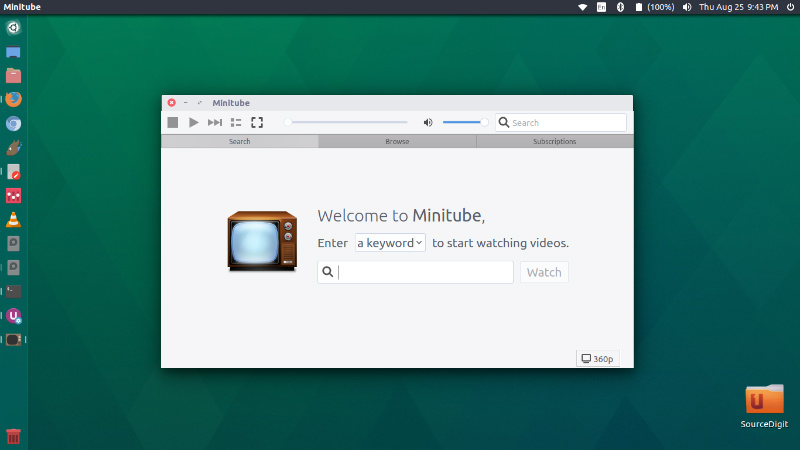
Some of the prime features of MiniTube app are:
- Light on computer – By consuming less CPU, Minitube preserves battery life and keeps your laptop cool. That’s because Minitube does not use the Flash Player.
- High Definition – Go full-screen and watch HD videos play smoothly.
- Channel subscriptions – Subscribe to YouTube channels and be notified of new videos. No need to login with a
- YouTube account – Minitube takes care of it.
- Stop fiddling – Just search for something. Minitube automatically plays videos one after another. Sit back and enjoy.
MiniTube 2.5.2
MiniTube 2.5.2 is the latest version available of the Minitube YouTube app for Ubuntu Linux.
Changelog:
- Upgraded to Qt 5
- HiDPI support
- Status Bar hidden when not needed: less clutter, more room for videos
- Clickable links in video description
- Autoadjust window size (Bye, useless black bars!)
- Smart date formatting: 3 hours ago, 1 month ago, etc.
- When opening the YouTube webpage the video now starts from where it left in Minitube
- Fixed videos restarting after long pause
- New and updated translations
Install MiniTube 2.5.2 on Ubuntu
MiniTube 2.5.2 can be installed on Ubuntu 16.04, Ubuntu 15.04, Ubuntu 14.04, Ubuntu 15.10, Ubuntu 14.10 and Linux Mint and other Ubuntu derivatives. Open Terminal and run the following commands to install MiniTube 2.5.2 on Ubuntu:
On 32bit Ubuntu
sudo apt-get install libqt5widgets5 libqt5network5 libqt5script5 libqt5sql5 libqt5sql5-sqlite libqt5dbus5 phonon4qt5 libphonon4qt5-4 phonon4qt5-backend-gstreamer

wget -O minitube32.deb http://flavio.tordini.org/files/minitube/minitube.deb

sudo dpkg -i minitube32.deb
On 64bit Ubuntu
sudo apt-get install libqt5widgets5 libqt5network5 libqt5script5 libqt5sql5 libqt5sql5-sqlite libqt5dbus5 phonon4qt5 libphonon4qt5-4 phonon4qt5-backend-gstreamer

wget -O minitube64.deb http://flavio.tordini.org/files/minitube/minitube64.deb

sudo dpkg -i minitube64.deb
Once installed, opne the MiniTube app from Ubuntu Dash or Terminal.