
Install Komodo Edit 10.1 in Ubuntu 16.10 and Ubuntu 16.04. Komodo Edit is a free text editor for dynamic programming languages. Komodo Edit editor provides all the basic and powerful functionality that one needs for programming. It includes debugging, unit testing, collaboration, or integration with build systems.
Komodo Edit is a powerful editor that brings the following features:
- Track Changes – A margin in the editor highlights unsaved changes, as well as any uncommitted SCC changes. Clicking on the margin will show a diff dialog allowing you to revert changes.
- Markdown Viewer – Komodo provides a preview of the generated HTML directly within a split view and will update itself whenever you make a change to the Markdown text.
- Multiple Selections – Select multiple positions in the editor, so that changes made at one position will be reflected in all selected positions.
- Quick Bookmarks – Quickly place numeric bookmarks and go to them, allowing you to use bookmarks as more than just reminders.
- Syntax checking and highlighting detects multiple languages within a file.
- Key Bindings – Vi/Vim, emacs, OS X, Windows/Linux included.
- Powerful Snippets, Macros and Userscripts
- Elastic Tabstops – Komodo automatically indents your code as you type, see Elastic Tabstops.
- Split View and Multi-Window
- Variable Highlighting
- Auto Abbreviation Snippets
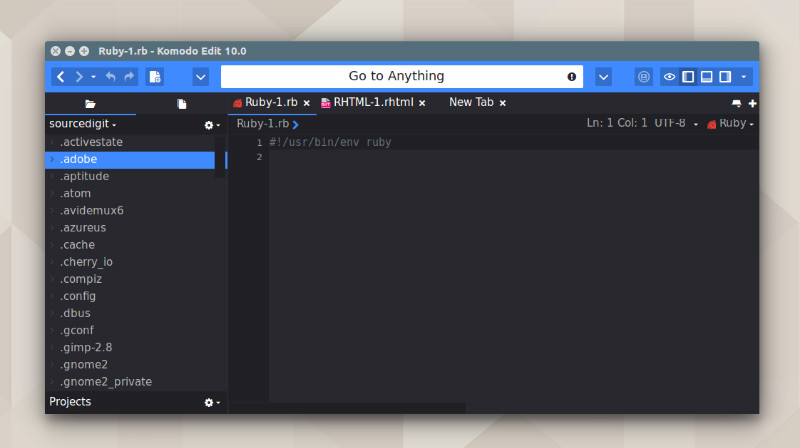
Install Komodo Edit 10.1 in Ubuntu
Via PPA
Run the following commands in terminal to install Komodo in Ubuntu, via PPA:
sudo add-apt-repository ppa:mystic-mirage/komodo-edit

sudo apt update

sudo apt install komodo-edit
Via BinarY Files
The ppa:mystic-mirage/komodo-edit is discontinued and the latest Komodo isn’t available via the PPA. So to install the latest version you will have to download the installer binary package and install it manually. To install it manually, follow the steps given below:
- Download Komodo Edit 10.1.1 for Linux
https://www.activestate.com/komodo-ide/downloads/edit - Once downloaded, extract the folder.
- Navigate to the extracted folder and run ./install.sh command to install the Komodo Edit package.
Once installed, open the Komodo from Ubuntu dash or Terminal.