
How to Install Brackets 1.14 Text Editor in Ubuntu. Brackets 1.14, the latest release of Brackets Text Editor for Linux Ubuntu, brings PHP Tooling, LSP Support and many more improvements and fixes.
Brackets is a lightweight, yet powerful, modern text editor. We blend visual tools into the editor so you get the right amount of help when you want it without getting in the way of your creative process. You’ll enjoy writing code in Brackets.
Brackets Features
- Inline Editors : Instead of jumping between file tabs, Brackets lets you open a window into the code you care about most. Want to work on the CSS that applies to a specific ID? Put your mouse cursor on that ID, push Command / Ctrl+E and Brackets will show you all the CSS selectors with that ID in an inline window so you can work on your code side-by-side without any popups.
- Live Preview : Get a real-time connection to your browser. Make changes to CSS and HTML and you’ll instantly see those changes on screen. Also see where your CSS selector is being applied in the browser by simply putting your cursor on it. It’s the power of a code editor with the convenience of in-browser dev tools.
- Preprocessor Support : With Brackets you can use Quick Edit and Live Highlight with your LESS and SCSS files which will make working with them easier than ever.
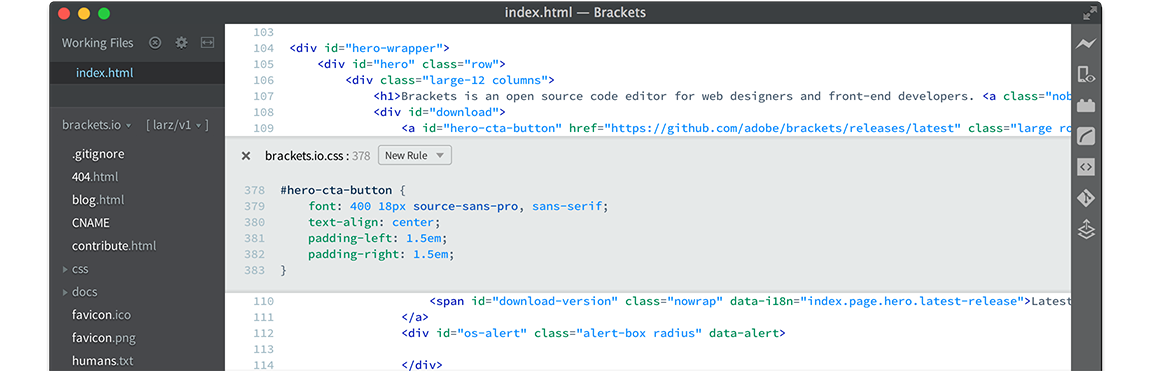
Adobe Brackets 1.14
Here’s a quick summary of all the features in Brackets 1.14:
- Support for Language Server Protocol : Brackets now supports Language Server Protocol. The inbuilt language client can be used and customized to facilitate integration of language servers (such as PHP, Python, and more) to provide features like code hinting, parameter hinting, jump to definition etc.
- PHP Support : Brackets now supports PHP via integration of a PHP language server. When writing PHP code, you can take advantage of code hinting, function parameter hinting, jump to definition, document and project wide symbols, find references and linting.
When writing PHP code in Brackets, you can take advantage of code hinting, function parameter hinting, jump to definition, document and project wide symbols, find references and diagnostic. Please note that this is a reference implementation of the PHP Language Server.
The in-built LSP support in Brackets, unlocks potential for multitudes of developers to bring in support for languages such as PHP, Python, and more. And enable features such as code completion, diagnostic, jump to definition and more.
Download Brackets
Installers for the latest stable build for Mac, Windows and Linux (Debian/Ubuntu) can be downloaded here.
Install Brackets
Run the following commands in terminal to install Adobe Brackets 1.14 on Ubuntu :
 sudo apt-get update
sudo apt-get install snapd
sudo apt-get
sudo snap install brackets --classic
Once installed, open Brackets from Ubuntu Dash or Terminal.
Using Brackets
Open Brackets from Ubuntu Dash or Terminal. By default, Brackets opens a folder containing some simple “Getting Started” content. You can choose a different folder to edit using File > Open Folder.