
Best code editor 2019 – best open source code editors for Linux Ubuntu. Download and install these best C/C++ programming code editors on Linux Ubuntu; best IDEs on Linux Ubuntu.
Atom
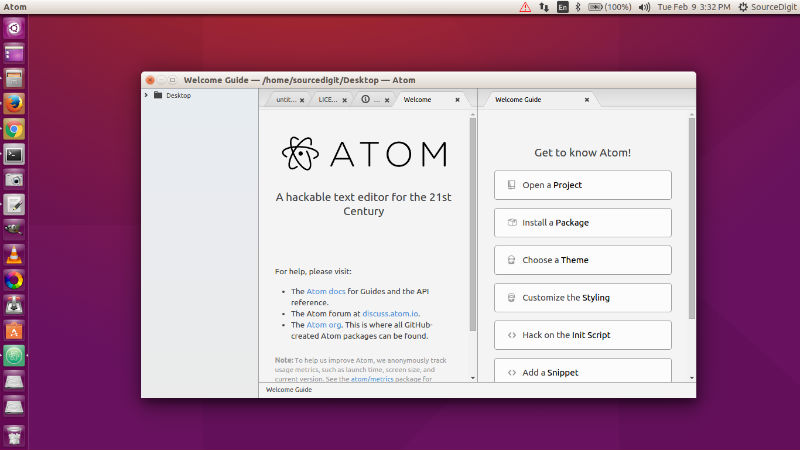
Atom is a text editor that’s modern, approachable, yet hackable to
the core—a tool you can customize to do anything. Atom text editor comes
with cross-platform editing features, built-in package manager, smart
autocompletion feature and file system browser. It also supports
multiple panes and find and replace function.
sudo add-apt-repository ppa:webupd8team/atom

sudo apt-get update

sudo apt-get install atom
Brackets
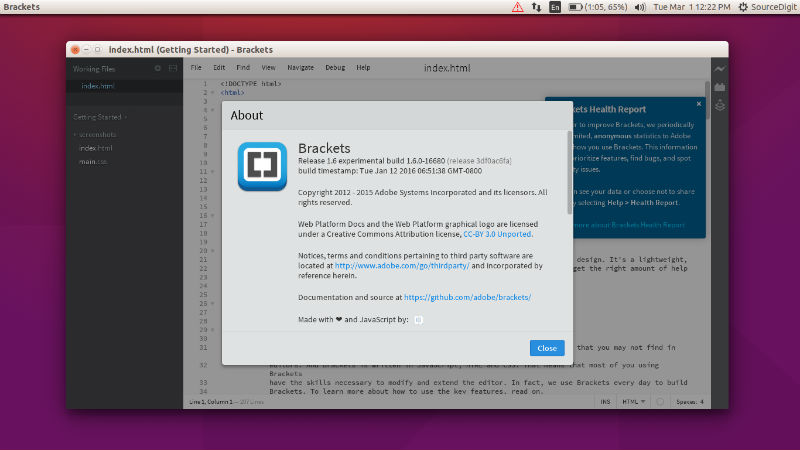
Brackets is an open-source code editor for web design and development
built on top of web technologies such as HTML, CSS and JavaScript,
available for Linux, Windows and Mac OS X. Brackets Code Editor has many
powerful features such as inline editors, live preview and preprocessor
support.
sudo add-apt-repository ppa:webupd8team/brackets

sudo apt-get update

sudo apt-get install brackets
Sublime Text
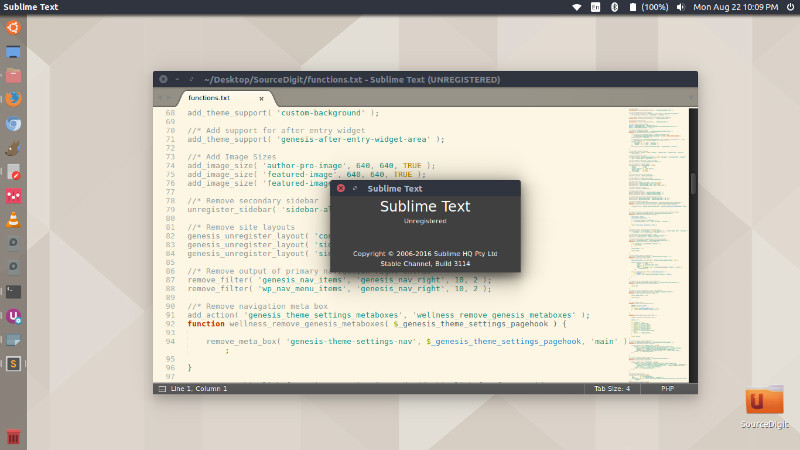
Sublime Text 3 for Ubuntu is a sophisticated text editor for code, markup and prose. Sublime Text Editor allows for richer syntax highlighting and better performance. It also features a custom regex engine that significantly speeds up file loading and indexing. It comes wit command palette feature which allows access to frequently used functionality, like sorting, changing the syntax and changing the indentation settings.
Sublime Text is highly customizable. Key Bindings, Menus, Snippets, Macros, Completions and more – just about everything in Sublime Text is customizable with simple JSON files.
 sudo add-apt-repository ppa:webupd8team/sublime-text-3
 sudo apt-get update
 sudo apt-get install sublime-text-installer
Visual Studio Code
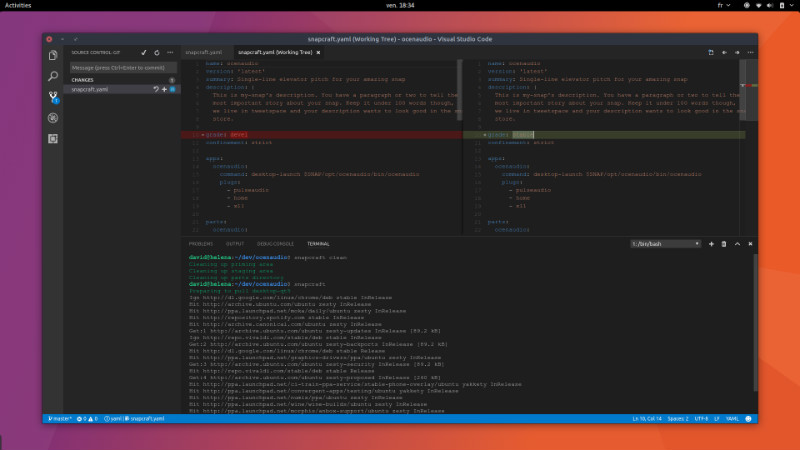
Visual Studio Code is Microsoft’s code editor with support for development operations like debugging, task running and version control. It aims to provide just the tools a developer needs for a quick code-build-debug cycle and leaves more complex workflows to fuller featured IDEs.
Run the following commands in terminal to install Visual Studio Code 1.31 on Ubuntu Linux Systems:
sudo apt-get update

sudo apt-get upgrade

sudo dpkg -i ~/Downloads/code_*.deb; sudo apt -f install

sudo sh -c 'echo "deb [arch=amd64] https://packages.microsoft.com/repos/vscode stable main" > /etc/apt/sources.list.d/vscode.list'

curl https://packages.microsoft.com/keys/microsoft.asc | gpg --dearmor > microsoft.gpg

sudo mv microsoft.gpg /etc/apt/trusted.gpg.d/microsoft.gpg

sudo apt-get install apt-transport-https

sudo apt-get update

sudo apt-get install code

sudo apt-get update
Make a note that if you’re on an older Linux distribution, you will need to run this instead:
# sudo dpkg -i .deb

# sudo apt-get install -f # Install dependencies
Installing the .deb package will automatically install the apt repository and signing key to enable auto-updating using the system’s package manager.