
PyCharm 2019.2 Python IDE is released with Python 3.8 support. How to install PyCharm 2019.2 Python IDE on Ubuntu Linux. PyCharm 2019.2 is out with an improved Jupyter Notebook experience, syntax highlighting for many more languages out of the box, initial Python 3.8 support, and much more.
New in PyCharm
- Jupyter Notebook Integration has been improved. Some of the most highly requested Jupyter Notebook features have been implemented in this version. Now you will be able run all cells with a single button click, select and configure your Jupyter server using a specific project and port to listen to, keep track of variables while debugging them by getting their current state, restart the kernel and publish notebooks from PyCharm to JetBrains Datalore .
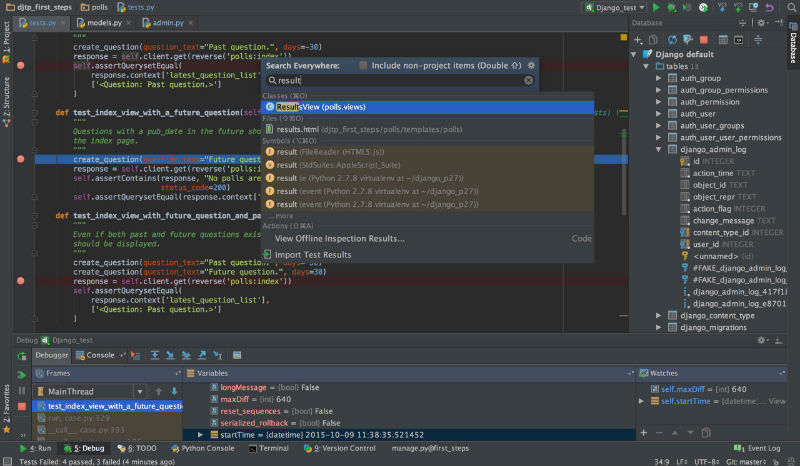
- Syntax highlight support for many other languages has been added. Do you work on projects where code in a different language sneaks into your project? PyCharm will now highlight the syntax of Windows .bat files, C#, C++, Groovy, Lua, Makefiles, and more.
- We are adding support for some major Python 3.8 features. Try out positional-only parameters, variable assignment within expressions, ‘Final’ qualifier to restrict usage of methods, classes and variables, and new ways to use f-strings to present values and variables.
- cURL format is now supported for HTTP requests. Just copy your cURL formatted request and paste it directly into your HTTP Request file for it to be converted into its format, and then feel free to modify request params, headers, or body.
Many more features, like cookies preservation between http requests and improved debugging and variable refactoring experiences.
Upgrade Now
To get the new version of PyCharm, upgrade in one of the following ways:
- Download the new version
- Choose Help | Check for Updates in PyCharm
- Use JetBrains Toolbox to upgrade
- If you’re using Ubuntu, or any other distro that supports snap, PyCharm will automatically update using snap (if you’ve installed PyCharm with snap).
Install PyCharm 2019.2 in Ubuntu
sudo apt-get update

sudo apt-get upgrade

sudo apt install snapd snapd-xdg-open

sudo apt-get update

sudo snap install pycharm-community --classic