
How to record desktop screen in Ubuntu. Here is how to download and install Ubuntu screen recorder with audio for Ubuntu Linux Systems. Green Recorder is a screen recorder for Linux Ubuntu Desktop. It supports Wayland & Xorg.
Green Recorder app is built using Python, GTK+ 3 and ffmpeg. It supports recording audio and video on almost all Linux interfaces. Also, Green Recorder is the first desktop program to support Wayland display server on GNOME session.
The following formats are currently supported: mkv, avi, mp4, wmv, gif and nut (And only WebM for Wayland’s GNOME session). You can stop the recording process easily by right-clicking the icon and choosing “Stop Record”. Or middle-clicking the recording icon in the notifications area (but doesn’t work on all interfaces).
You can choose the audio input source you want from the list. You can also set the default values you want from the preferences window. And a lot more.
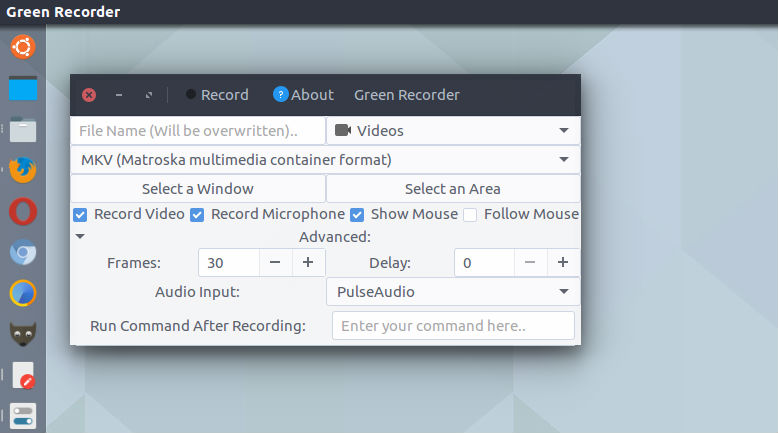
Green Recorder 2.0 on Ubuntu
Run the following commands in Terminal to install Green Recorder on Ubuntu Systems:
sudo apt-get update

sudo add-apt-repository ppa:fossproject/ppa

sudo apt-get update

sudo apt-get install green-recorder
Once installed, open the green-recorder app from Ubuntu Dash.
If you aren’t happy with the app and wish to uninstall and remove green-recorder, simply run the following commands:
sudo apt-get update

sudo apt-get remove green-recorder

sudo apt-get autoremove
If you need to know more about the app, visit https://launchpad.net/~mhsabbagh/+archive/ubuntu/greenproject