
Which is the command to check the disk size in Linux? Learn how to see disk space in Ubuntu terminal; check total disk space in Linux.
Use lsblk command to show disk space
Run the following command to list the disk and as well as partitions and filesystems formatted on them.
lsblk -f
The lsblk command is used to lists information about all available or the specified block devices. The lsblk command reads the sysfs filesystem and udev db to gather information. The command prints all block devices (except RAM disks) in a tree-like format by default.
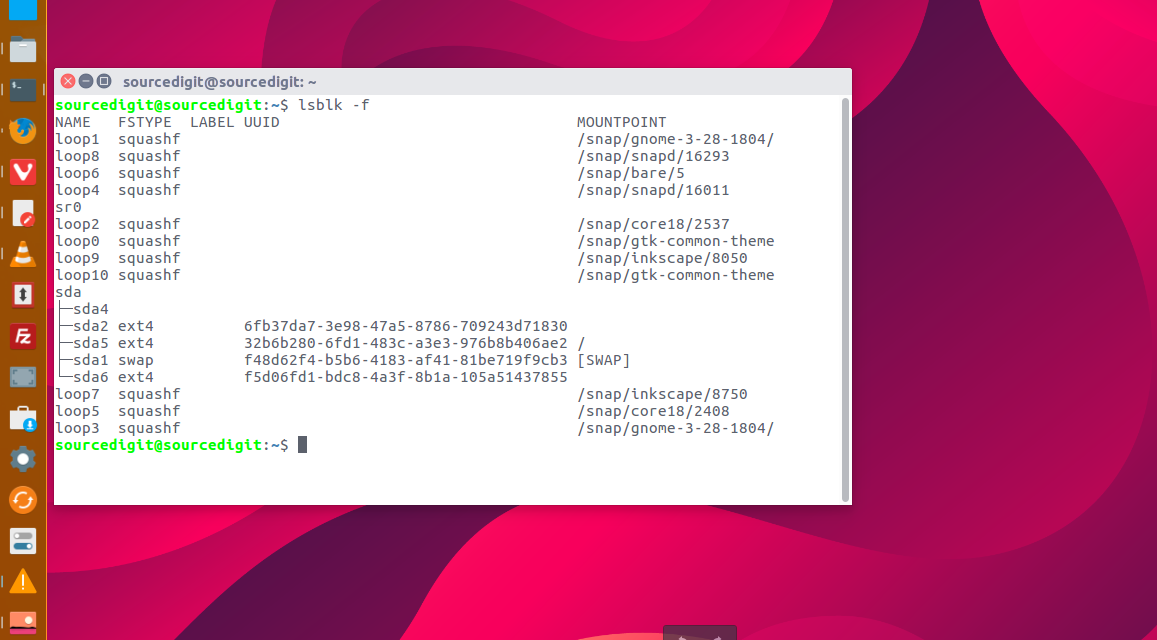
To list the the empty devices, run the lsblk command with -a or –all command option. By default they are skipped.
Using df Command
The simplest df command is by itself. Without any command parameters. When executed the df command displays the information about the file system disk space usage. It shows the device name, total blocks, total disk space, used disk space, free disk space and mount points.
df
Using the df command with -a or –all it shows dummy file systems information along with all the basic file system disk usage info:
df -a
Linux Command To Check Hard Disk Size in GB
As the disk space is shown in 1K blocks by default, users can use “-h” command parameter to show the file system disk space usage data in “human readable” format.
df -h
Show Hard Disk Information using lshw
sudo lshw -class disk
The lshw is a small tool to extract detailed information on the hardware configuration of the machine. It can report exact memory configuration, firmware version, mainboard configuration, CPU version and speed, cache configuration, bus speed, etc. on DMI-capable x86 or IA-64 systems.
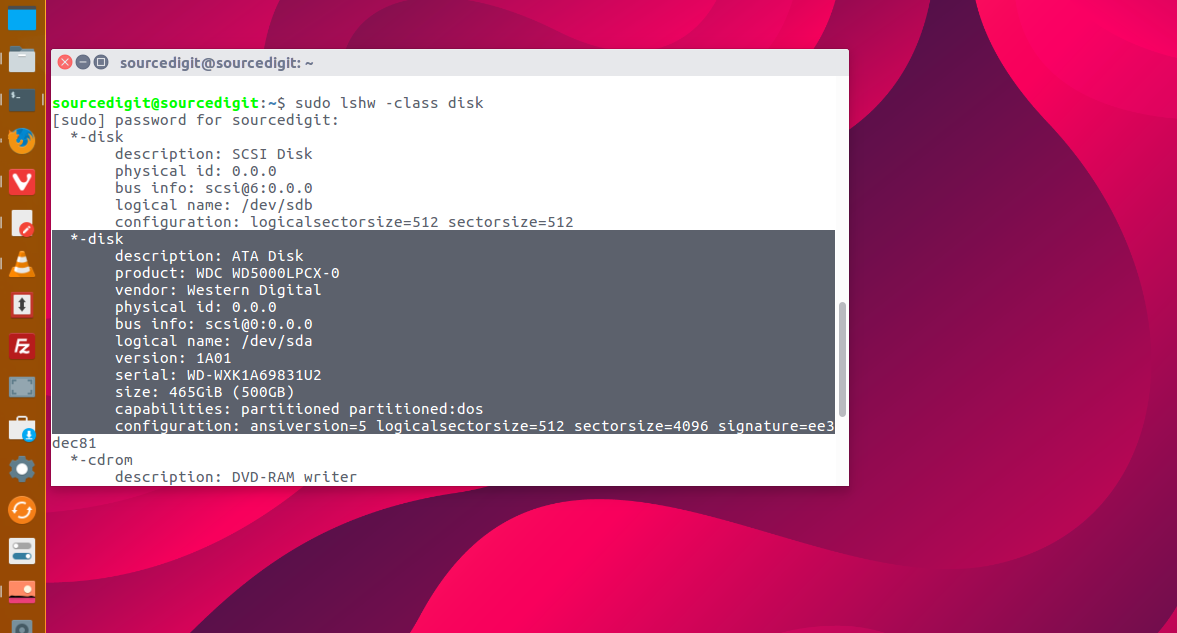
The -C or -class is used to only show the given class of hardware. class can be found using lshw -short or lshw -businfo.
You can also use fdisk or hwinfo commands to get disk info in Terminal.