
Learn how to display current directory contents, including hidden files (starting with .). use the long format. Here is the command used to list all the files in your current directory including hidden.
Ubuntu LS Command
The ls command can be used to show hidden files in Ubuntu using terminal (command line). Ls command has many options which can be used to get info about files. Ls command options “-a” and “-l” can be used with Ubuntu ls command to show hidden files in Ubuntu using terminal command line.
Show Hidden Files in Ubuntu Terminal
The “ls” command option “-a” will show all files and folders, including hidden ones. It shows the list in “long format” which includes the permissions, owner, group, size, last-modified date, number of hard links and the filename described.
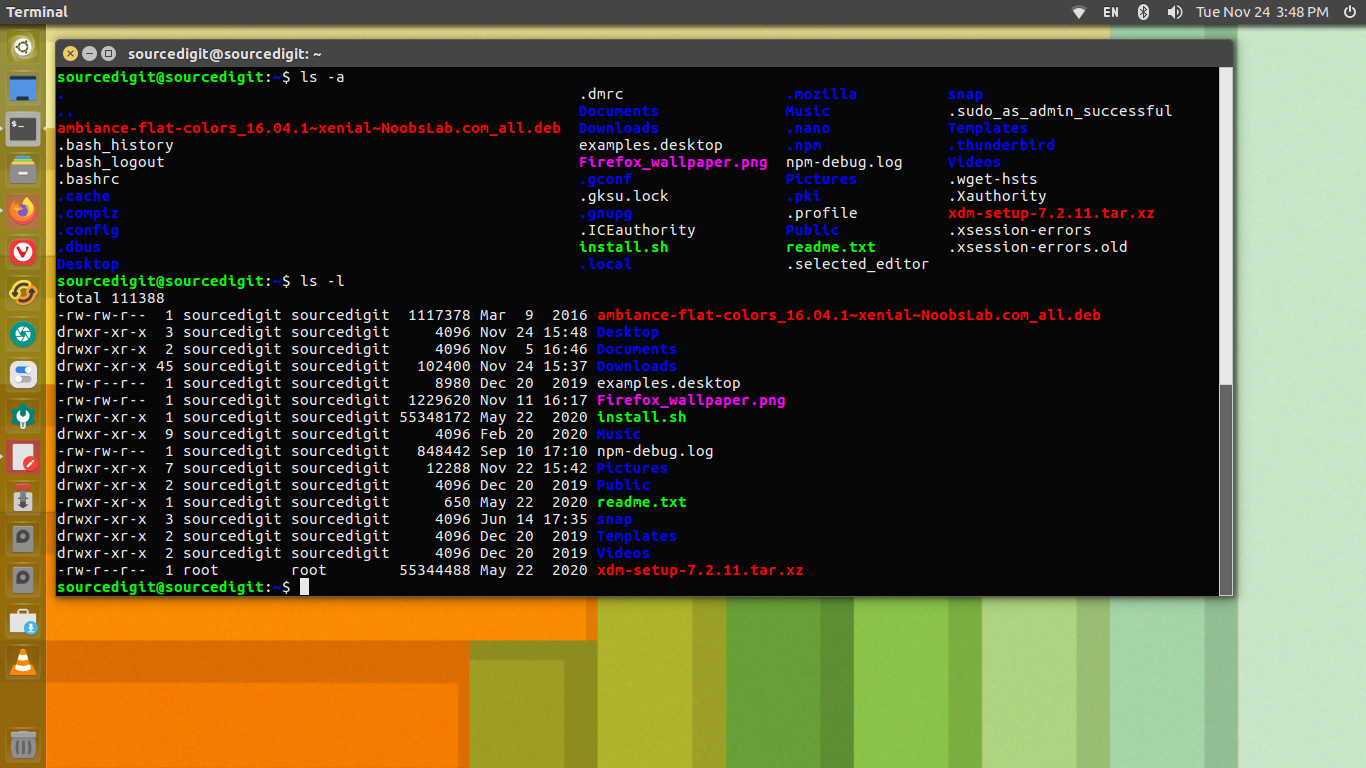
The following command options can be used:
- ‘-a’ or ‘–all’: In directories, do not ignore file names that start with ‘.’.
- ‘-A’ or ‘–almost-all’: In directories, do not ignore all file names that start with ‘.’; ignore only ‘.’ and ‘..’. The ‘–all’ (‘-a’) option overrides this option.
- ‘-l’ or ‘–format=long’ or ‘–format=verbose’: In addition to the name of each file, print the file type, file mode bits, number of hard links, owner name, group name, size, and timestamp.
Note that there is a difference between -a and -A option. The -a option displays hidden files and directories with current directory (.) and parent directory (..) where -A ls command options doesn’t show it.