
How to fix no audio in Ubuntu 14.04. A tutorial with easy steps to resolve sound not working in Ubuntu 14.04.
One of the most common problem faced is no sound after installing Ubuntu 14.04. In this tutorial we will try to list solutions to fix no-sound issue on Ubuntu 14.04.
The following solution should work on Ubuntu 14.04, 13.10, 13.04, 12.10 and other older release of Ubuntu.
Solution 1
The easiest solution to fix the sound problem in Ubuntu 14.04 is to force reload Alsa. To do that, run the following command in terminal:
sudo alsa force-reload
Now, restart your computer.
Solution 2
If the above solution doesn’t work for you, you must try reinstalling Alsa and Pulse Audio in Ubuntu 14.04.
To reinstall pulse audio and Alsa, open terminal and enter the following commands:
sudo apt-get remove --purge alsa-base pulseaudio
sudo apt-get install alsa-base pulseaudio
sudo alsa force-reload
Done. I hope the sound is working.
Solution 3
The last solution to fix no sound in Ubuntu 14.04 is to edit speech-dispatcher file. Open the terminal and run the following commands:
sudo gedit /etc/default/speech-dispatcher
Now change RUN=yes to RUN=no.
Restart your system to apply changes.
Fix No Sound In Ubuntu 14.04 As HDMI Enabled BY Default
HDMI is set by default in ALSAMixer. IfWhich means by default HDMI output has been selected instead of the built in speakers. This is why I get no sound from the built in speakers in my system.
Use the following command to check the state of alsamixer:
alsamixer
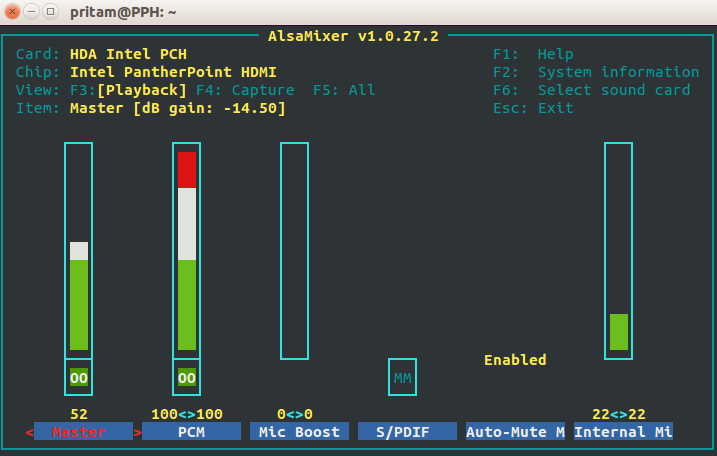
If alsamixer is set by default to HDMI follow the steps given below to fix it.
Before we begin, we need some information. Open the terminal and run the following command:
aplay -l
This command list the devices, card number and other information. Note down the card and device number for analog output.
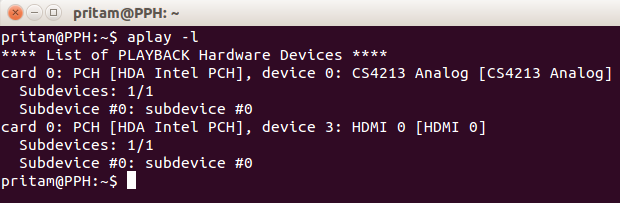
Once you have the required information (card and device number), create a new configuration file. Run the following command to create a one:
sudo gedit /etc/asound.conf
Now add the following lines to it. Replace it with your card and device number.
defaults.pcm.card 1
defaults.pcm.device 0
Save the file and restart the computer.