
How to mount USB pen drive in Ubuntu Terminal. How to unmount USB pen drive in Ubuntu Terminal. Tutorial on how to manually mount and unmount USB pendrive using Ubuntu Terminal in Ubuntu 14.10, Ubuntu 14.04 and Linux Mint systems.
Mount USB Pen Drive in Ubuntu Terminal
Let us learn how to manually mount a USB Pen Drive in Ubuntu Terminal. When a USB Pen Drive is plugged into the Ubuntu system, it mount automatically in the /media/ directory. If the volumes have labels the USB Pend Drive icons will be named accordingly, otherwise they will be named “disk” or “disk-1” and so on.
Check whether USB Pen Drive is mounted or not
Sometimes USB Pen Drive don’t automount, in such case you can manually mount it. To do this, you must know what device you are trying to manually mount and what filesystem it is formatted with. You can use fdisk command to check whether USB Pen Drive has been mounted or not.
sudo fdisk -l
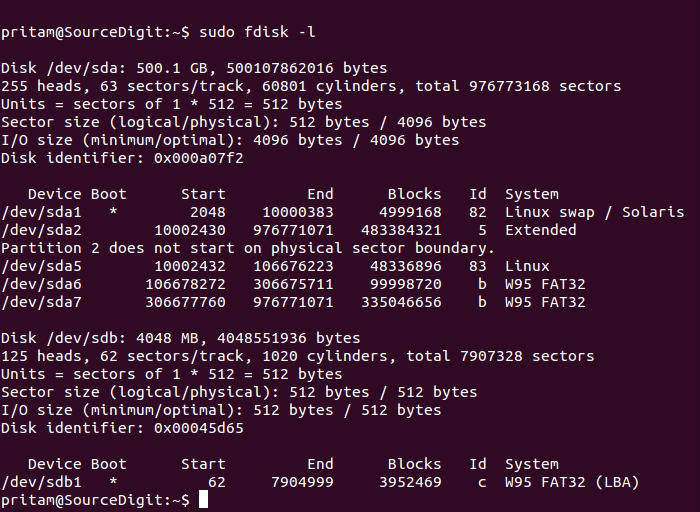
The fdisk command displays other additional information about the storage devices. Find your device in the list, it is something like /dev/sdb1.
Create the Mount Point
Now create a mount point for the device, let’s say we want to call it “USB”. Name whatever you want, but don’t use spaces in the name. Use an underscore to separate words. Create the mount point using the command below:
sudo mkdir /media/USB
Mount USB pen drive
Now mount the drive. Let’s say the device is /dev/sdb1, the filesystem is FAT16 or FAT32 (like it is for most USB flash drives), and we want to mount it at /media/USB (already created the mount point):
sudo mount -t vfat /dev/sdb1 /media/USB -o uid=1000,gid=1000,utf8,dmask=027,fmask=137
The options following the “-o” allow your user to have ownership of the drive, and the masks allow for extra security for file system permissions. If you don’t use those extra options you may not be able to read and write the drive with your regular username.
Otherwise if the device is formatted with NTFS, run:
sudo mount -t ntfs-3g /dev/sdb1 /media/external
Un-Mount USB Pen Drive in Ubuntu Terminal
To unmount the USB Pen Drive, run the following command. I assume that the /dev/sdb1 is mounted at /media/USB, you can either unmount using the device or the already created mount point:
sudo umount /dev/sdb1
or:
sudo umount /media/USB
Please note that you cannot unmount from the desktop, by right clicking the icon if the drive are manually mounted.