
Install LiVEs video editor on Ubuntu, via PPA. Install LiVEs video editor 2.4.2 on Ubuntu 15.04 and Ubuntu 14.04. LiVES is an open source video editor and a VJ tool.
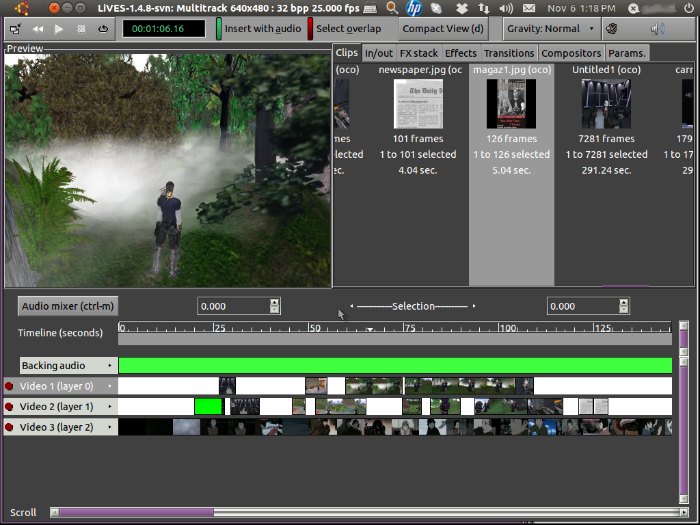
LiVES mixes realtime video performance and non-linear editing in one professional quality application. It will let you start editing and making video right away, without having to worry about formats, frame sizes, or framerates. It is a very flexible tool which is used by both professional VJ’s and video editors – mix and switch clips from the keyboard, use dozens of realtime effects, trim and edit your clips in the clip editor, and bring them together using the multitrack timeline. You can even record your performance in real time, and then edit it further or render it straight away.
The LiVEs video editor application can be controlled remotely or scripted for use as a video server. It has the ability to edit many filetypes and sources including remotely located files (with mplayer/ffmpeg libraries), and encode to any of the 50+ output formats . It also enables real time capture/recording of interactive (via mouseclicks) external windows.
Install LiVEs via PPA on Ubuntu
LiVES 2.4.2 is the latest version of the software. The Version 2.4.2 (released on 12 September 2015) brings the following features:
- Fix crash after recording with pulseaudio external audio.
- Fix possible crash when converting from YUV420 to UYVY / YUYV.
- Fix memory issue in audio triggered video generators.
- Fix buttons issue in the progress dialog (regression).
- Fix occasional hang in shutdown via OSC.
- Minor fixes for headless (nogui, noplaywin) modes.
- Increase size of debug output window when encoding (Regression).
- Fix for compiling without jack.
- Fix crash in mask_overlay effect.
- Fix some threading problems when running audio and video effects together.
- Improve OSC responsiveness during playback.
- Fixes for beat_detector, edge, vector_visualiser, and kaleidoscope plugins.
- Fix latency issue with pulseaudio external input.
- Fix for opening unicap device during playback.
- Work around gtk+ bug for clips menu.
- Implement OSC commands /audio/mute/set, /audio/mute/get, /audio/volume/set, /audio/volume/get and /clip/open/unicap.
- Fixes / refactoring for firewire grabbing.
- Re-enable button icons (via preference) and clean up stock button code.
Open Terminal and run the following commands to install latest “stable” version of the LiVES video editor (Version 2.4.2) on Linux Ubuntu Systems:
sudo add-apt-repository ppa:ubuntuhandbook1/lives

sudo apt-get update

sudo apt-get install lives
You can also download the latest “stable” version (recommended for most users) : 2.4.2 for GNU/Linux and UNIX systems (released 9 Aug 2015)
Download:
If you aren’t happy with the LiVES video editor and wish to uninstall it, run the command given below:
sudo apt-get remove lives