
Powerline Vim Editor Plugin for Linux Ubuntu Systems. How to install Powerline on Ubuntu 15.04 and Ubuntu 14.04. Install Powerline fonts and learn how to use Powerline with Vim Editor, in Debian and Ubuntu based systems.
Powerline is a statusline plugin for vim, and provides statuslines and prompts for several other applications, including zsh, bash, tmux, IPython, Awesome and Qtile.
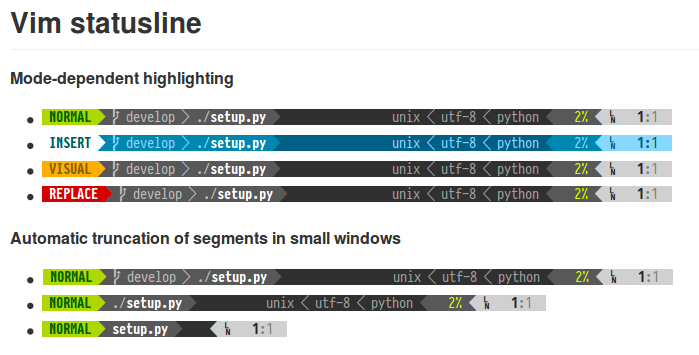
Powerline Vim Editor Plugin has many exciting features, such as:
- Extensible and feature rich, written in Python. Powerline was completely rewritten in Python to get rid of as much vimscript as possible. This has allowed much better extensibility, leaner and better config files, and a structured, object-oriented codebase with no mandatory third-party dependencies other than a Python interpreter.
- Stable and testable code base. Using Python has allowed unit testing of all the project code. The code is tested to work in Python 2.6+ and Python 3.
- Support for prompts and statuslines in many applications. Originally created exclusively for vim statuslines, the project has evolved to provide statuslines in tmux and several WMs, and prompts for shells like bash/zsh and other applications. It’s simple to write renderers for any other applications that Powerline doesn’t yet support.
- Configuration and colorschemes written in JSON. JSON is a standardized, simple and easy to use file format that allows for easy user configuration across all of Powerline’s supported applications.
- Fast and lightweight, with daemon support for even better performance. Although the code base spans a couple of thousand lines of code with no goal of “less than X lines of code”, the main focus is on good performance and as little code as possible while still providing a rich set of features. The new daemon also ensures that only one Python instance is launched for prompts and statuslines, which provides excellent performance.
Install Powerline Tool (Vim Plugin) in Linux
You must have to get Pip to install Powerline on Ubuntu Systems. Pip is a package management tool for installing Python packages on Linux Systems. To install Pip, run the following command.
sudo apt-get install python-pip
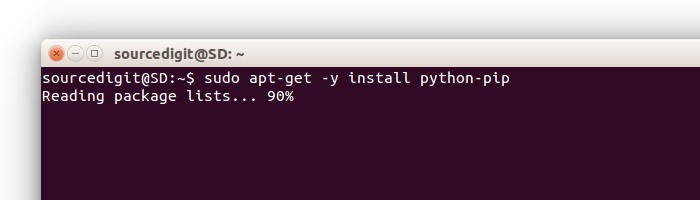
Also Read: How To Install Pyton-pip on Ubuntu 15.10, Ubuntu 15.04 & Ubuntu 14.04
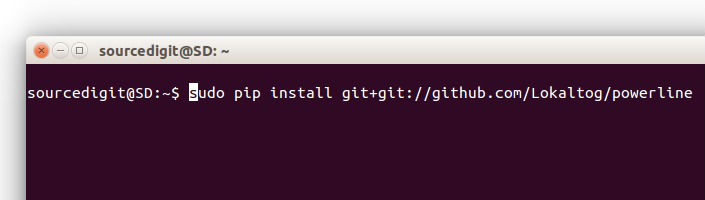
Once Pip is installed, you can now install latest version of Powerline using the following command.
sudo apt-get install git

sudo pip install git+git://github.com/Lokaltog/powerline

Install Powerline Fonts in Linux
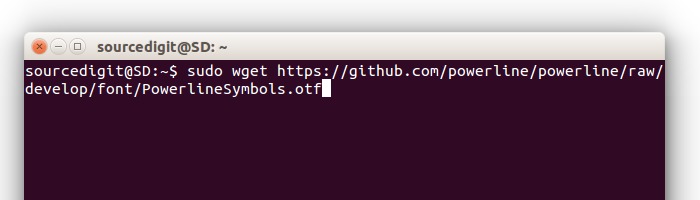
Powerline uses special fonts and glyphs to show special arrow effect and symbols for developers. For this, you must have a symbol font or a patched font installed on your systems. Download the latest version of the symbol font and fontconfig file:
sudo wget https://github.com/powerline/powerline/raw/develop/font/PowerlineSymbols.otf

sudo wget https://github.com/powerline/powerline/raw/develop/font/10-powerline-symbols.conf
Move the symbol font to a valid fonts directory. Fonts are located under /usr/share/fonts/ or /usr/local/share/fonts directory in Linux Systems. Run the following command to move the symbol font to a valid X font path. Valid font paths can be listed with xset q:
sudo mv PowerlineSymbols.otf /usr/share/fonts/
Update font cache for the path the font:
sudo fc-cache -vf /usr/share/fonts/
Install the fontconfig file. For newer versions of fontconfig the config path is ~/.config/fontconfig/conf.d/, for older versions it’s ~/.fonts.conf.d/:
sudo mv 10-powerline-symbols.conf /etc/fonts/conf.d/
If custom symbols still cannot be seen then try closing all instances of the terminal emulator. Restarting X may be needed for the changes to take effect. If custom symbols still can’t be seen, double-check that the font have been installed to a valid X font path, and that the fontconfig file was installed to a valid fontconfig path. Alternatively try to install a patched font.
Once everything seems fine, it’s time to set Powerline fo Vim Statuslines. Here’s how to configure Powerline for Vim Text Editor.
The first thing you must do is to enable 256color support on Terminal. Add the following line of code to ~/.bashrc file.
export TERM=”screen-256color”
Once done, logout and login, you will see powerline statuesline working fine. If you have any trouble, visit https://powerline.readthedocs.org/en/master/