
• Skip to primary navigation
  • Skip to main content
  • Skip to primary sidebar
Source Digit

Source Digit

Linux, Ubuntu Tutorials & News, Technology, Gadgets & Gizmos

  • Home
  • How To
  • Ubuntu
  • Instagram
  • Blogging
  • Android
  • WordPress
  • +More
    • Cloud Computing
    • Gadgets
    • Social Media
    • Technology
  • Write for Us
Home / How To / How To Add & Delete Users On Ubuntu 16.04

How To Add & Delete Users On Ubuntu 16.04

By Sourabh / August 10, 2016 Category: How To, Ubuntu

User Management in Linux Ubuntu 16.04 System. How to create a new user in Ubuntu, using Terminal. How to add users on Ubuntu 16.04 and how to delete users on Ubuntu 16.04. Adding and deleting users on Ubuntu, via terminal commands.

Adding and Deleting Users in Ubuntu 16.04

Add a New Ubuntu User

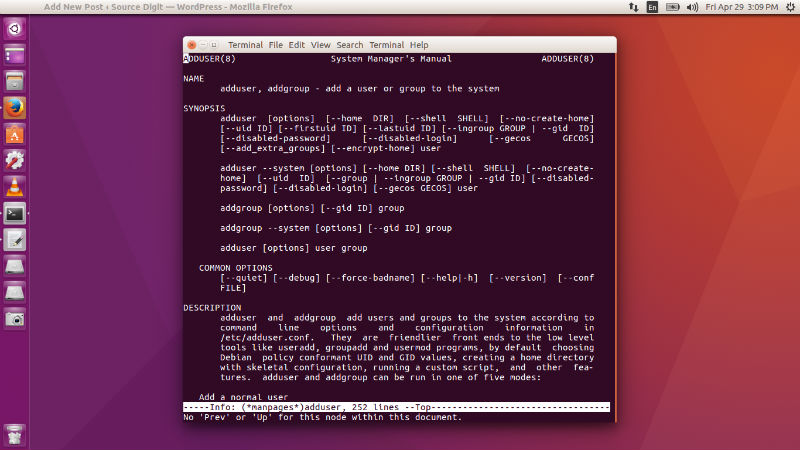
Ubuntu users can add a new user using “adduser” command. When you run the “adduser” command to add a user account, you will have to give the new user account a password and name.

sudo adduser username
deluser-ubuntu

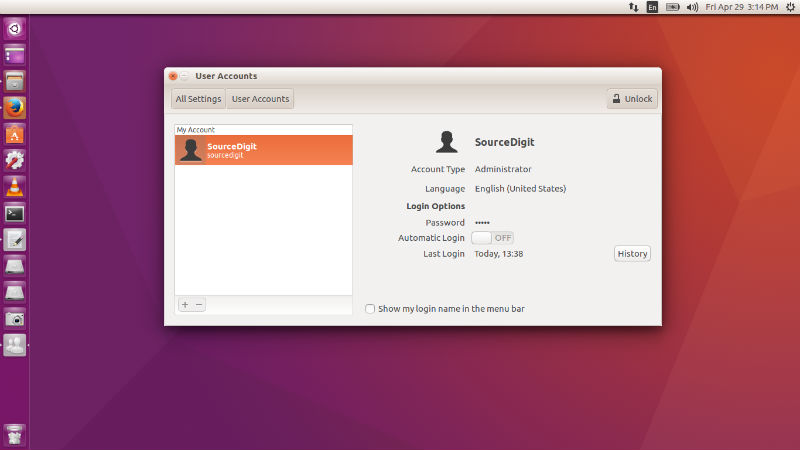
You can also create a new user using the System Settings. Open System Settings and click on User Accounts. From here you can easily manage new Ubuntu user. Please note that you must have root privilege to add or delete a new user.
new-user-16

Once the user is created, you can easily use the newly created user account. Please note that when a new user is created, the adduser utility creates a new home directory named /home/username.

Delete a Ubuntu User

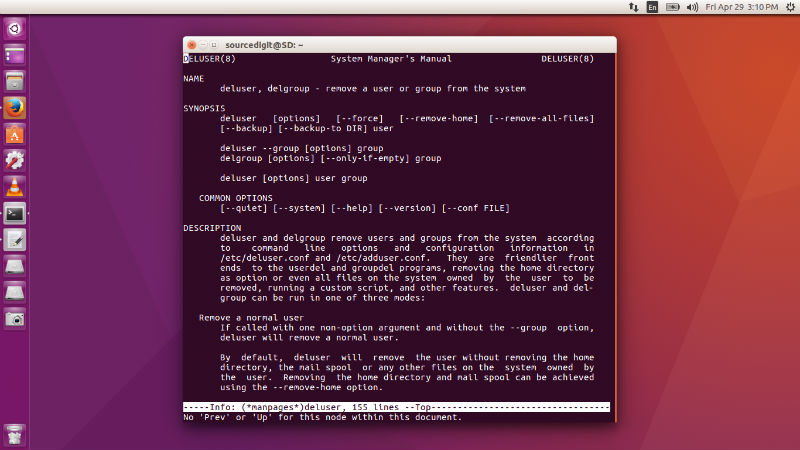
If you wish to delete the newly created user, use the command “deluser” to remove and delete the specific Ubuntu user:

sudo deluser username
adduser-ubuntu

Please note that when you delete a specific user account, it does not remove their respective home folder. You can delete the folder manually.

Change User Permissions

You can easily change and grant permissions for a specific user – change UID/GID values. Run the following command as required:

sudo chown -R root:root /home/username/
sudo mkdir /home/archived_users/
sudo mv /home/username /home/archived_users/

Not only this, you can also temporarily lock or unlock a specific user account using the following command:

sudo passwd -l username
sudo passwd -u username


Tags: Add a New User in Ubuntu 16.04, Add a User in Ubuntu 16.04, Add User Ubuntu, Add User Ubuntu 16.04, Create User In Linux, Create User In Ubuntu 12.04 Command Line, Create User In Ubuntu Command Line, Create User In Ubuntu Server, Create User In Ubuntu With Home Directory, Create User Ubuntu, Create User Ubuntu 16.04, Creating Users In Ubuntu, Delete a New User in Ubuntu 16.04, Delete a User in Ubuntu 16.04, Delete User Ubuntu, Delete User Ubuntu 16.04, How To Create User In Ubuntu Using Terminal, List Users In Ubuntu, List Users In Ubuntu Command Line, Modify a New User in Ubuntu 16.04, Modify a User in Ubuntu 16.04, Remove User Ubuntu, Remove User Ubuntu 16.04, Ubuntu 14.04 User Groups, Ubuntu 16.04 Add User, Ubuntu 16.04 Create User, Ubuntu 16.04 Delete User, Ubuntu 16.04 Remove User, Ubuntu 16.04 User Management, Ubuntu Groups List, Ubuntu Remove User, Ubuntu User Groups Command Line, Ubuntu User Management Command Line, User Management in Linux Ubuntu, User Management in Ubuntu 16.04, User Management in Ubuntu Linux

Primary Sidebar

Latest Posts

How Much RAM Is Needed For Ubuntu PC

How To Find Large Files And Directories In Linux Command Line

How To Use Clear Command History In Linux Terminal

Linux Command To Check RAM Size In Ubuntu Terminal In GB

How To Install Proprietary Drivers In Linux Ubuntu Using Terminal

How To Shutdown Linux With A 15 Minute Delay And Message

Free AI Courses With Certificate For Beginners In India

Best AI Plugins For WordPress To Use In 2026

3 Commands To Check USB Connection In Linux Terminal

Linux Terminal Commands for Beginners With Examples

© 2026 Source Digit • Linux, Ubuntu Tutorials & News, Technology, Gadgets & Gizmos

  • Home
  • About
  • Privacy Policy
  • Terms & Conditions
  • Contact Us
  • Sitemap