
• Skip to primary navigation
  • Skip to main content
  • Skip to primary sidebar
Source Digit

Source Digit

Linux, Ubuntu Tutorials & News, Technology, Gadgets & Gizmos

  • Home
  • How To
  • Ubuntu
  • Instagram
  • Blogging
  • Android
  • WordPress
  • +More
    • Cloud Computing
    • Gadgets
    • Social Media
    • Technology
  • Write for Us
Home / How To / Shortcut Keys To Take Screenshot In Ubuntu

Shortcut Keys To Take Screenshot In Ubuntu

By Sourabh / September 18, 2016 Category: How To, Ubuntu

How to take a screenshot in Linux Ubuntu. Shortcut key to take screenshot in Ubuntu – How to print screen in Ubuntu. Ubuntu screenshot shortcut and command to capture screen in Ubuntu.

How to take a screenshot in Linux Ubuntu?

  • Go to the Dash and open the Screenshot tool.
  • In the Take Screenshot window, select whether to grab the entire desktop, a single window, or an area of the screen.
  • Set a delay if you need to select a window or otherwise set up your desktop for the screenshot. Then choose any effects you want.
  • Click Take Screenshot.
  • If you selected Select area to grab, the pointer changes into a crosshair. Click and drag the area you want for the screenshot.
  • In the Save Screenshot window, enter a file name and choose a folder, then click Save.

Shortcut key to take screenshot in Ubuntu
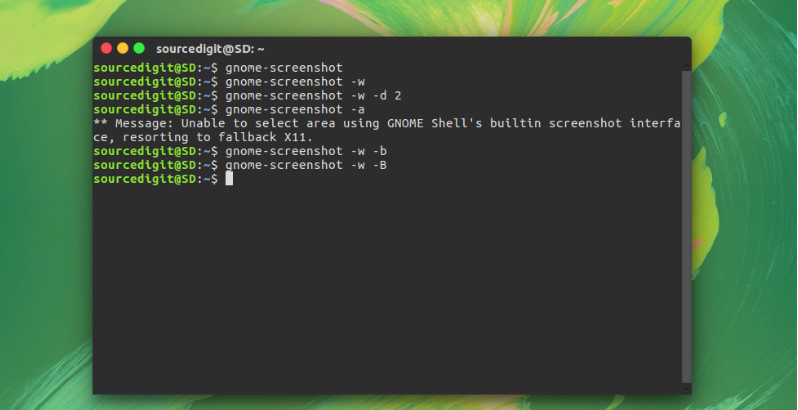
Screenshot-Ubuntu


Type the command “gnome-screenshot” to take screenshot. This command in similar to use print screen or using screenshot tool.

$ gnome-screenshot

Capture the Current Window:

Type the command “gnome-screenshot -w” to take screenshot of th current window. It is similar to take screenshot of the current active window.

$ gnome-screenshot -w

Take Screenshot After Some Time Delay:

To take screenshot after some delay in seconds, use the command “gnome-screenshot -w -d 2” to take screenshot. The option -d 2 is used for take screenshot after a delay of 2 seconds.

$ gnome-screenshot -w -d 2

Capture a Particular Window Area:

To take screenshot of a particular window area, use the -a option with the command “gnome-screenshot”.

$ gnome-screenshot -a

Take Screenshot With or Without Window Border:

You can also take screenshot with or without screen window border – including or excluding the window border. Type the command “gnome-screenshot” with -b/-B options.

Including the window border:

$ gnome-screenshot -w -b

Excluding the window border:

$ gnome-screenshot -w -B

Tags: a single window, Capture Screen In Linux, Capture Screen In Ubuntu, Capture Screen In Ubuntu 14.04, Capture Screen In Ubuntu 14.10, Capture Screen In Ubuntu 15.04, Capture Screen In Ubuntu 15.10, Capture Screen In Ubuntu 16.04, Capture Screen In Ubuntu Linux, Capture Screenshot In Ubuntu Linux, Click Take Screenshot., Commands To Take Screenshot In Linux, Commands To Take Screenshot In Ubuntu, Commands To Take Screenshot In Ubuntu 14.04, Commands To Take Screenshot In Ubuntu 14.10, Commands To Take Screenshot In Ubuntu 15.04, Commands To Take Screenshot In Ubuntu 15.10, Commands To Take Screenshot In Ubuntu 16.04, enter a file name and choose a folder, Go to the Dash and open the Screenshot tool., How To Capture Screenshot In Ubuntu Linux, How To Print Screen In Ubuntu, How To Screenshot In Linux, How To Screenshot In Ubuntu, How to take a screenshot in Linux Ubuntu. Shortcut key to take screenshot in Ubuntu - How to print screen in Ubuntu. Ubuntu screenshot shortcut and command to capture screen in Ubuntu., How To Take Screenshot In Linux, How To Take Screenshot In Ubuntu, How To Take Screenshot In Ubuntu 14.04, How To Take Screenshot In Ubuntu 14.10, How To Take Screenshot In Ubuntu 15.04, How To Take Screenshot In Ubuntu 15.10, How To Take Screenshot In Ubuntu 16.04, If you selected Select area to grab, In the Save Screenshot window, In the Take Screenshot window, Lubuntu Screenshot, or an area of the screen. Set a delay if you need to select a window or otherwise set up your desktop for the screenshot. Then choose any effects you want., select whether to grab the entire desktop, Shortcut Key To Take Screenshot In Ubuntu, Terminal Commands To Take Screenshot In Ubuntu, Terminal Commands To Take Screenshot In Ubuntu 14.04, Terminal Commands To Take Screenshot In Ubuntu 14.10, Terminal Commands To Take Screenshot In Ubuntu 15.04, Terminal Commands To Take Screenshot In Ubuntu 15.10, Terminal Commands To Take Screenshot In Ubuntu 16.04, the pointer changes into a crosshair. Click and drag the area you want for the screenshot., then click Save., To take a picture of what's on your screen:, Ubuntu Dash, Ubuntu Screen Capture Video, Ubuntu Screenshot Area, Ubuntu Screenshot Command, Ubuntu Screenshot Crop, Ubuntu Screenshot Shortcut, Ubuntu Screenshot Tool

Primary Sidebar

Latest Posts

Use Locate Command To Find File In Linux Terminal By Name

How To Change Terminal Color In Ubuntu Command Line

How To Run Fsck Manually In Linux To Fix Unexpected Inconsistency

How To Fix Broken Packages On Ubuntu From Terminal

Re Execute The Previous Command In Linux Ubuntu Command Line

How Much RAM Is Needed For Ubuntu PC

How To Find Large Files And Directories In Linux Command Line

How To Use Clear Command History In Linux Terminal

Linux Command To Check RAM Size In Ubuntu Terminal In GB

How To Install Proprietary Drivers In Linux Ubuntu Using Terminal

© 2026 Source Digit • Linux, Ubuntu Tutorials & News, Technology, Gadgets & Gizmos

  • Home
  • About
  • Privacy Policy
  • Terms & Conditions
  • Contact Us
  • Sitemap